![InnoVintSupportCenter - header.png]](https://support.innovint.us/hs-fs/hubfs/InnoVintSupportCenter%20-%20header.png?width=300&height=22&name=InnoVintSupportCenter%20-%20header.png)
Lots, Vessels, Dry Goods and Vineyard sources may be archived in InnoVint for numerous reasons. Archiving an inventory item removes it from the active list in your explorers and pickers, and limits the actions and activities that may be recorded on the item. Archiving does not delete the lot, vessel, dry good or vineyard - or any history - from your account.
Lots, vessels, and dry goods can be deleted from InnoVint only if they have no recorded actions on them. If any action has ever been recorded, and even if all actions have been deleted and nothing shows in the lot, vessel, or batch history, you will not be able to delete one of these from your account. In that case, the best option is to archive.
This article covers:
Find out more about archiving or deleting Dry Goods here. Find out about archiving vineyards or vineyard blocks here.
How to archive a lot or vessel
Lots and vessels can only be archived if they are empty (i.e. the current contents/fill = 0).
- InnoVint offers to auto-archive lots by default if an action or task is submitted that empties the lot (e.g. bottling, bond to bond transfer, process a fruit lot to ton/gallons, blending, etc.). Simply uncheck the this archiving box to keep the lot active after the contents has been removed:

- To archive a single lot or vessel
Select the lot or vessel from the Lot or Vessel Explorer > click 'More' in the upper right > then 'Archive lot' or 'Archive vessel'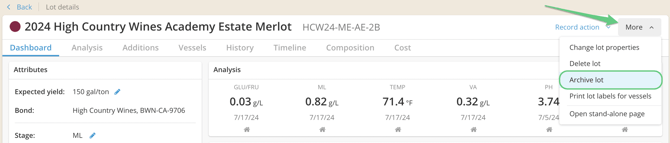
- To bulk archive multiple lots or vessels
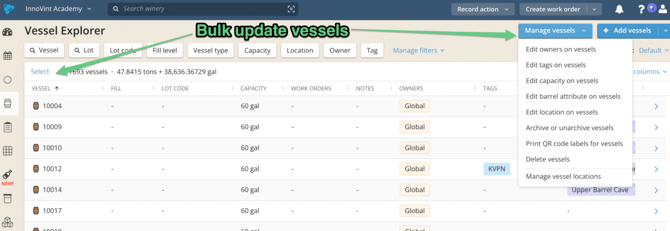
Go to the Lot or Vessel Explorer > click 'Manage lots (or vessels)' in the upper right > then 'Archive or unarchive lots (or vessels).' Archiving and unarchiving in bulk is also available through the Select workflow on the Lot Explorer and Vessel Explorer — check the records you want directly in the grid, then choose Archive/Unarchive from the Bulk operation dropdown. Find out more here.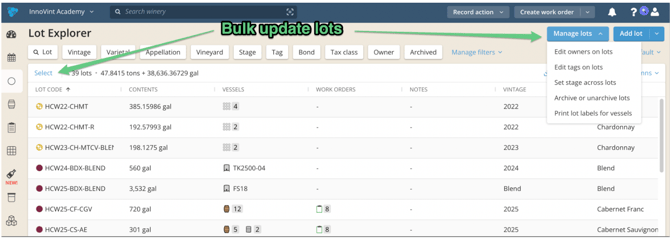
You can also bulk archive or unarchive Fruit lots using the Manage lots button in the Lot Explorer - be sure to use the Fruit Lot filter in the Lot picker to display Fruit Lots. 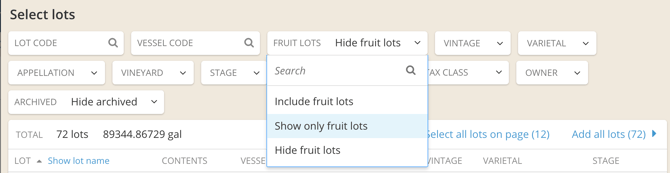
Where to view archived lots and vessels
Lot Explorer
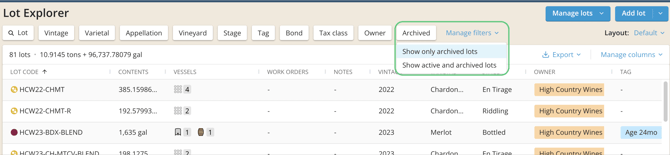
Go to the Lot Explorer and use the filter at the top, titled 'Archived' to open up the filter options.
The 'Archived' filter allows you to choose different options for displaying your lots. You can choose to:
- Leave the default view - displays only active lots
-
Show active and archived lots - displays both archived and non-archived lots/vessels in the explorers
-
Show only archived - displays only the lots you have flagged as 'Archived'
Vessel Explorer
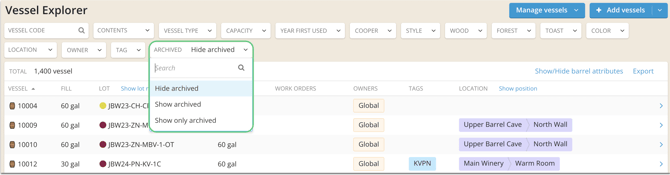
The 'Hide archived' filter allows you to choose between 3 different options for displaying your archived lots. You can choose to:
-
Hide archived - removes all archived lots/vessels from the lot/vessel explorer display
-
Show archived - displays both archived and non-archived lots/vessels in the explorers
-
Show only archived - displays only the lots you have flagged as 'Archived'
Note: Once archived, no movement actions can be completed on the lot/vessel, no work order can be created, and the lot stage cannot be changed. You will be able to apply notes and record analysis.
How to unarchive a lot or vessel
Lots and vessels can only be unarchived if they are already archived.
- To unarchive a single lot or vessel
Select the lot or vessel from the Lot or Vessel Explorer > click 'More' in the upper right > then 'Unarchive lot'
- To bulk archive multiple lots or vessels
- Go to the Lot or Vessel Explorer > click 'Manage lots (or vessels)' in the upper right > then 'Archive or unarchive lots (or vessels).' Archiving and unarchiving in bulk is also available through the Select workflow on the Lot Explorer and Vessel Explorer — check the records you want directly in the grid, then choose Archive/Unarchive from the Bulk operation dropdown. Find out more here.
- To find and unarchive a Fruit Lot
Go to the Vineyard Explorer in your left side navigation bar and search under the Fruit Lots Explorer tab. Be sure to use the filter to show archived lots.
You can bulk archive or unarchive Fruit lots using the Manage lots button in the Lot Explorer - be sure to use the Fruit Lot filter in the Lot picker to display Fruit Lots.
How to Delete a Vessel
- To delete a single vessel
Go to the vessel detail page for that vessel and click the 'More' button in the upper right.
A dropdown menu will appear. Within that menu, there is an option to delete the vessel.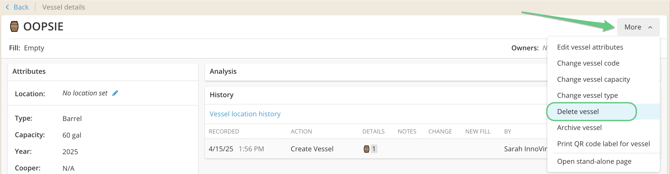
Please note that if you have ever recorded an action filling this vessel, or added a vessel location, then you will not be able to delete the vessel. If so, please review the steps above to archive it - or, consider changing the vessel code and attributes and reusing it!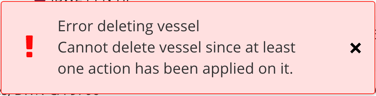
- To delete multiple vessels
You can also attempt to delete multiple vessels at once. This is a handy tool if you made a mistake with a vessel import, for example, and need to remove multiple unused vessels at once. Use the Manage Vessels feature or the bulk Select feature on the Vessel Explorer.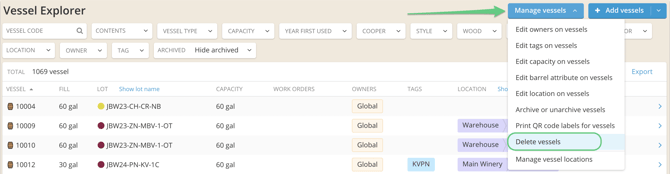 Select the vessels to delete, then click the blue button on the lower right corner confirming the action.
Note that if you have ever recorded an action filling this vessel, or added a vessel location, then you will not be able to delete the vessel. Please review the steps above to archive it - or, consider changing the vessel code and attributes and reusing it!
How to Delete a Lot
Lots can only be deleted if they have no fill (i.e. are empty) and have never had any actions ever recorded on them. If a lot is created and components are entered but no actions are recorded, then the lot can be deleted.
Even if you have deleted actions on a lot, the stored history of the deleted actions will prevent deletion.
If a lot has ever had any actions recorded to it, then we recommend archiving the lot to remove it from your current inventory.
- To Delete a Single Lot
Go to the 'More' dropdown in the top right corner of the Lot Details page > select 'Delete Lot' from the dropdown menu and confirm you want to delete that lot permanently.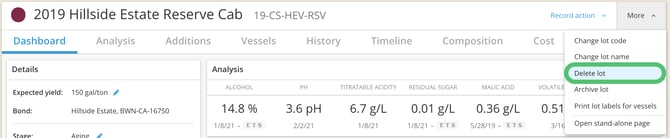
- There is no option to bulk delete for lots.
How to track Archived Status at a point in time
Lots
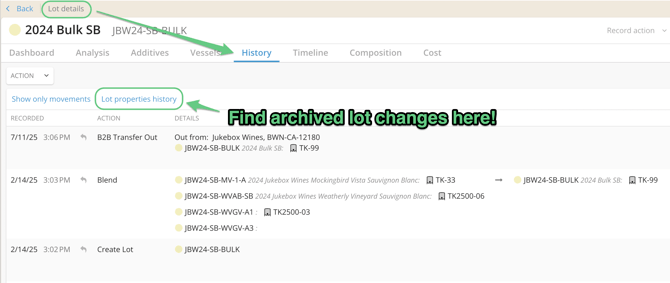
Use the Lot details/History tab, or the Lot properties history report to find a record of when a lot was archived, and who archived it.
Vessels
Use the Vessel details/History tab, or the Vessel properties history report to find a record of when a lot was archived, and who archived it.
Tracking sold barrels: In the case of sold barrels, another supportive method is to tag barrels with the sale date before you archive them (scanning and tagging via InnoApp is often the fastest). You can then bulk archive any sold vessels. Archived vessels will keep their tags, and you can always filter and search for it within your archived vessels.
If your subscription includes Custom Vessel Attributes, you can consider creating a "Sold date" attribute, and update your Custom Attributes on each vessel (or in bulk, using the bulk Select method).