![InnoVintSupportCenter - header.png]](https://support.innovint.us/hs-fs/hubfs/InnoVintSupportCenter%20-%20header.png?width=300&height=22&name=InnoVintSupportCenter%20-%20header.png)
This article covers:
- What is "on order" status in SUPPLY?
- How does "on order" status work?
- Where do I find "on order" status for my inventory?
- FAQ
- Terminology used in Commerce7 & SUPPLY
What is "on order" status in SUPPLY?
"On order" status in SUPPLY helps you more easily understand which inventory is attributed to an unfulfilled order and is not currently available to sell.
SUPPLY tracks "On order" status from two sources:
-
Orders created within SUPPLY
- In SUPPLY, an "On order" status will be attributed to a quantity of inventory when an order is created.
-
Allocated inventory in Commerce7
-
In SUPPLY, "On order - C7" status reflects the ‘allocated’ inventory quantities displayed in C7 for linked SKUs at linked locations.
-

How does "on order" status work?
In SUPPLY
In SUPPLY, "On order" status is created through Orders
- Create an Order via the +Add order button on the top navigation bar, or via the Orders explorer + Add order button
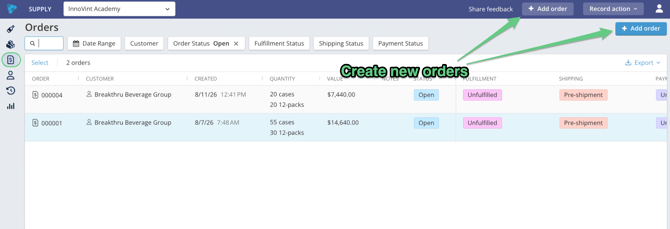
- Orders will be listed in the Orders explorer.
- Find out more about creating and managing orders HERE!
With the Commerce7 integration
If your organization is connected to Commerce7, SUPPLY displays C7 allocated inventory as "On order".
How On order - Commerce7 Works
- “Allocated” in C7 shows inventory tied to unfulfilled orders. The allocated inventory number will appear in SUPPLY as "On order – C7"
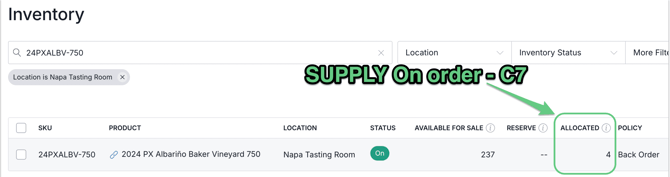
- Only linked locations & SKUs will show C7 values in SUPPLY.
- If a linked SKU has no allocated inventory in C7, it will show "0"
- Unlinked locations will show “–"
- Only linked locations & SKUs will show C7 values in SUPPLY.
- Upon fulfillment (when inventory is removed from "allocated" in C7), the inventory that was previously in an "On order" status is removed from "On order", and the total inventory of the SKU will be depleted as of the submitted date/time of the action in C7.
- SUPPLY actions will only update Available for sale inventory in C7
Where do I find "on order" status for my inventory?
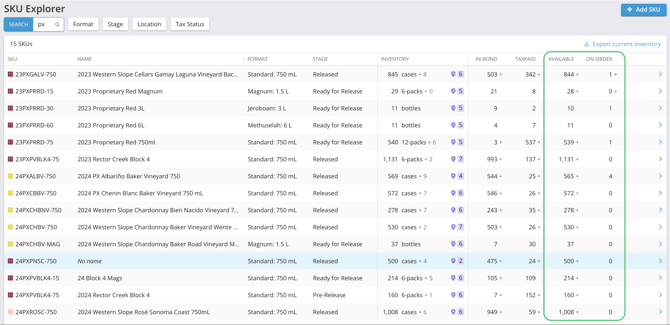
A SKU's "On order" status is displayed throughout SUPPLY to give you the best understanding of the state of your inventory at all times. When the Commerce7 integration is configured, the "On order" column displays the sum of the "On order" quantities from SUPPLY and Commerce7 within all tables
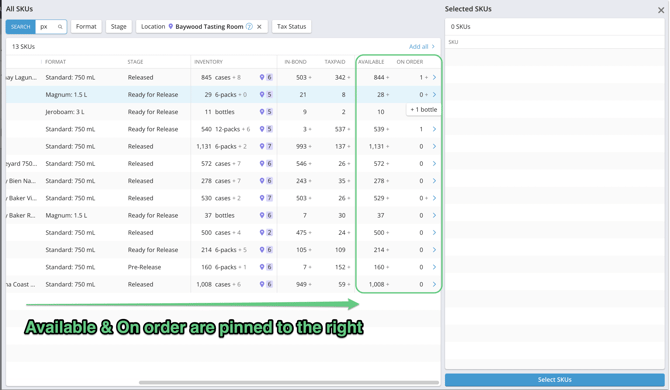
- SKU Explorer & Inventory Explorer. Available and "On order" status is always pinned to the right side of the explorer.
- SKU picker. Available and "On order" status is always pinned to the right side of the picker.
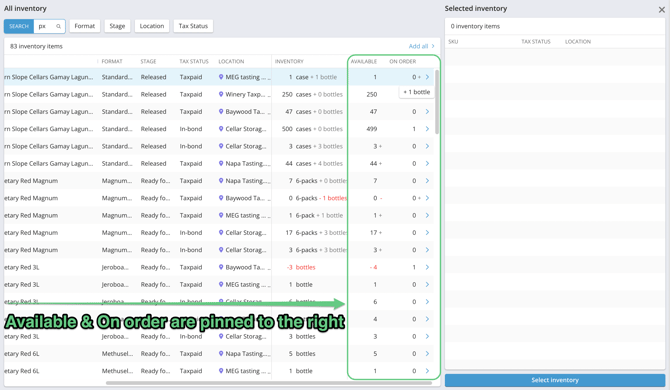
- Inventory picker. Available and "On order" status is always pinned to the right side of the picker.
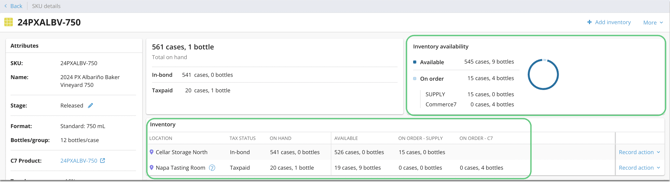
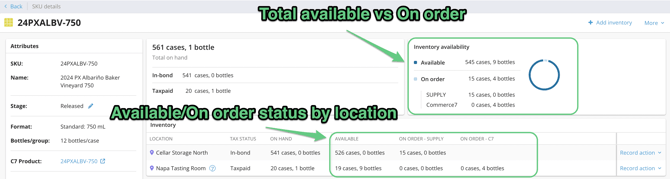
- SKU details page. Dive into the nitty gritty of what contributes to your "On order" inventory and where it is located.
- View "On order" status via the Inventory Availability breakdown, or the Inventory by Location widget. Both sections offer views broken down into:
- On order - SUPPLY
- On order - C7 (if applicable)
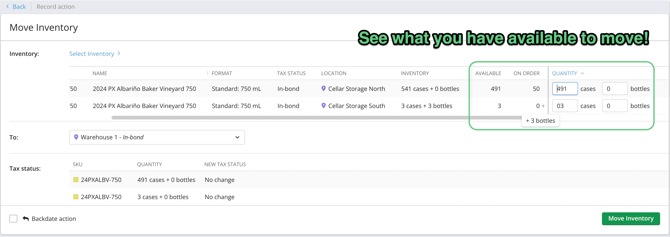
- Record Action screens. Available and "On order" status is always pinned to the right side of the picker, allowing you to see what is truly available in an action.
FAQ
Q: How does On Order status impact my TTB reporting?
A: The Available/On-order status of in-bond inventory does not affect TTB reporting. SUPPLY only reviews the tax status of inventory line items when compiling the TTB export.
Q: Why did my Available inventory decrease after connecting Commerce7?
A: If you have unfulfilled orders in C7, and you have a quantity of inventory listed as "allocated", this allocated inventory is now included in your “On order” total, reducing Available inventory.
Q: Why do I see “–” in the On order – C7 column?
A: This means the SKU or location is not linked to Commerce7.
Terminology used in Commerce7 & SUPPLY
- Allocated
This is the term for ‘on-order’ inventory status in Commerce7. It refers to inventory sold that has not yet been picked up or shipped. - Available for sale
The term for ‘available’ inventory status in Commerce7. It refers to inventory that has not yet been sold and is available to be sold. - Available inventory
In SUPPLY, this refers to the status of inventory quantities that are not attributed to any orders and are available for sale. In SUPPLY:
(Available inventory) + (On-order inventory) = Total inventory - On-order inventory
In SUPPLY, this refers to the status of inventory quantities that are attributed to an open order that has been created in SUPPLY but has not yet been fulfilled (ie: shipped or picked up). The location is still physically holding the inventory but this inventory is not available for sale because it’s already earmarked for a specific order. In SUPPLY:
(Available inventory) + (On-order inventory) = Total inventory - Reserve
The term used in Commerce7 to denote inventory that is manually sequestered and held from being purchased. This inventory status does not map to any inventory status in SUPPLY and is not used in the integration.