![InnoVintSupportCenter - header.png]](https://support.innovint.us/hs-fs/hubfs/InnoVintSupportCenter%20-%20header.png?width=300&height=22&name=InnoVintSupportCenter%20-%20header.png)
Moving to InnoVint from Vintrace? This article lists the files to export from Vintrace and the settings to check on each one, so your data comes over correctly on the first try.
Read this alongside the Pre-Onboarding Guide & Checklist, which covers the rest of your onboarding prep: physical inventory, devices, labels, and team roles.
You can use this article to get your own data out of Vintrace and migrated into InnoVint, but this article is geared for new customers with Guided Launch + Data Migration service.
In this article:
- Before you export
- The files you need
- Check your files after you export them
- What happens after you export your files
- FAQ
Before You Export
Pick your cutover date first. Your cutover date is the day your InnoVint history starts. Time sensitive exports, such as those including composition and volumes, should reflect your inventory composition and volumes as of that same date. Most wineries choose a date within the last 2–4 weeks.
Do a physical inventory. Counting your tanks, barrels, and lots in the cellar before you export is the best way to catch records in Vintrace that no longer exist in reality. It’s much easier to fix a vessel or lot in Vintrace and export clean data.
Keep your Vintrace access. Hold on to Vintrace access until your migration is complete and your team has reviewed the data in InnoVint. Export any historical records you’re legally required to keep before your access ends.
The Files You Need
For an InnoVint led migration, you’ll send us your exports, all as CSV files. Most of the back-and-forth during migration comes from one checkbox or dropdown being missed, so each step below lists the exact settings to use. These are also the best files to use for onboarding your own data.
|
Files |
Where to find in Vintrace |
What it gives us |
|
Block & Vineyard export (1 file) |
Blocks |
Your vineyards, blocks, appellations and variety names, so we can map them to InnoVint for vineyards |
|
Vessel + Barrel details exports (2 files) |
Vessel Explorer |
File 1) Every vessel, with capacity File 2) Every barrel, with capacity, cooper, and other barrel attributes |
|
Bulk Stock Report (2 files) |
Winery Reports → Bulk wine → Bulk Stock Report |
Your lot codes, volumes, vessel contents, and lot compositions |
Step 1: Export Your Vineyards and Blocks
Vineyards and blocks are the building blocks of your lot composition in InnoVint.
Pulling vineyard data out of Vintrace is a one or two step process:
If your account uses the Block Overview, you'll procure this data from one file.
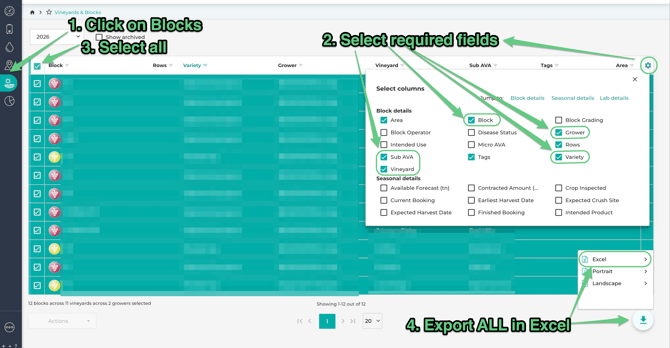
Click Blocks, then:
-
Click on the cog icon to select your fields.
-
Required: Grower, Vineyard, Sub-AVA, Block, Variety
- Optional: Area, Rows, Tags
-
Under Export, select All and Excel.
If you do not have Blocks, you will generate two files:
Go to Winery Setup → Production → Fruit Sources.
-
FILE 1 - Click Export Block to CSV.
-
FILE 2 - Click Export Vineyard to CSV.
Tip: Your block export should include a block name, appellation, variety, and vineyard for every block. If you track clone, rootstock, row count, or area in Vintrace, those can come along too (they are optional to add in InnoVint).
Why these settings matter
Vineyard/Block/Variety: InnoVint builds lot compositions from the block & variety each component came from. Other Vintrace report options group your composition differently, in a way InnoVint can't build thse relationships. For example, grouping by variety combines Merlot from six different blocks into a single “Merlot” line, and that block detail can’t be recovered for entry into InnoVint.
Step 2: Export Your Vessels
Vintrace stores barrel details (attributes such as cooper and toast) separately from your other vessels, so this step has two exports, and you'll require two files to get all the data for InnoVint.
Recommended! We recommend "cleaning up" your data before you start - remove any barrels (sold/broken/discarded/shipped out) that do not remain in your inventory before pulling data for your new InnoVint account. Start out fresh!
-
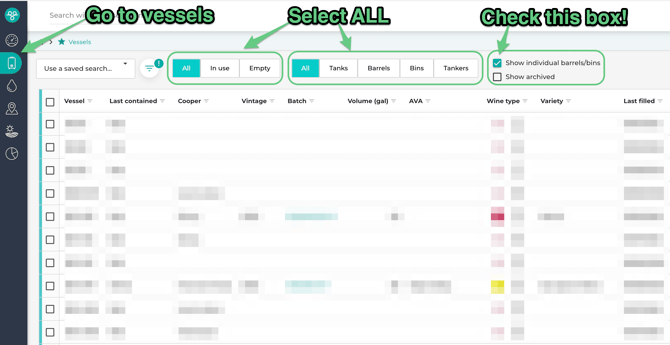
Go to Vessel Explorer.
-
Set all of the following filters:
-
In use/Empty: All
-
Tanks/Barrels/Bins: All
-
Check Show individual barrels/bins
-
Check Show Archived only if you need archived vessels in InnoVint
-
-
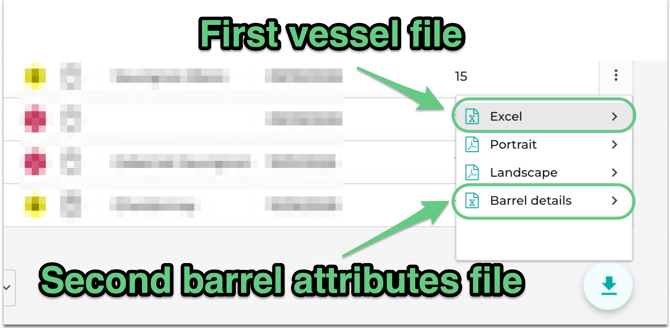
Scroll to the bottom of the page and click the download button. Select Excel. Select ALL. Export your first file.
-
Click the download button again. Select Barrel details, then select All. Export your second file.
Sanity check! Make sure both of your vessel exports include capacity. InnoVint needs a capacity to create every vessel.
Barrel Attributes & the Description field: Do you have barrel attributes in a description field? If your team recorded cooper, forest, or toast as abbreviations in a free-text field, send the file as is. We’ll match what we can to InnoVint’s lists and ask you to confirm anything we’re unsure of.
Step 3: Export Your Bulk Stock Report
Export this report when you are ready into import your final lot compositions into InnoVint for your cutover date.
If your lot compositions may change through blending, or topping, or your volumes may change from blending, bottling or other actions prior to your anticipated go-live date in InnoVint - check with your Customer Success Manager or Onboarding Specialist for best practice guidance.
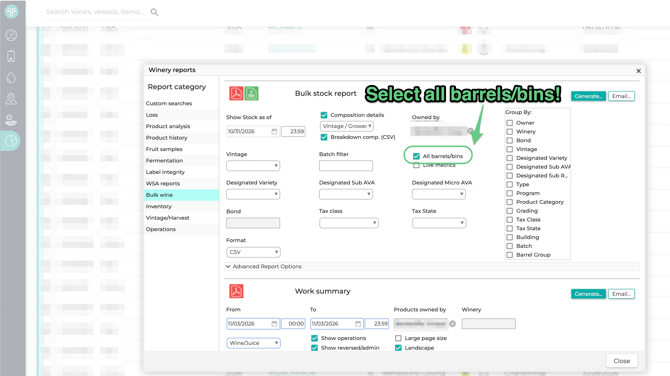
The Bulk Stock Report is the most important file in your migration. It tells us what’s in each vessel (volume) and where each lot came from (composition). You’ll run it twice with slightly different settings.
FILE 1 -> Run an export with these settings:
-
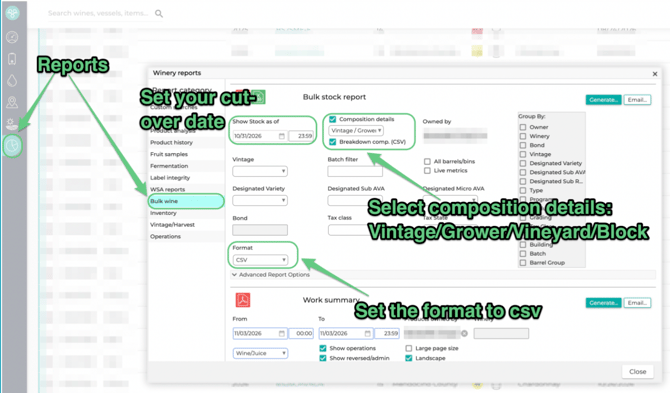
Go to Winery Reports → Bulk wine → Bulk Stock Report.
-
Set Show stock as of to your cutover date and time.
-
Set Format to CSV.
-
Check Composition details.
-
In the composition dropdown, select Vintage/Grower/Vineyard/Block.
-
Check Breakdown comp (csv).
-
Click Generate.
FILE 2 -> Then run it a second time:
- Keep all of the settings above.
- Also check All barrels/bins.
- Click Generate.
Why these settings matter
They use the composition, not the designated variety. The Bulk Stock Report also has a designated variety option. Don't use this! It always shows a single variety, even when the wine is a blend. We use the composition details instead, so your lots carry their full compositional makeup into InnoVint.
Breakdown comp. (csv): Without this checkbox, each lot’s whole composition lands in a single cell instead of one component per row.
All barrels: One lot code can sit in several barrels or tanks, and each vessel can have a different composition. This version shows us what’s in each vessel, so we can confirm ensure each lot imported into InnoVint will have a unique composition.
Check Your Files After You Export Them
A quick review now saves a round of back-and-forth later.
-
Every file is a CSV.
-
The Bulk Stock Report is run as of your cutover date.
-
Composition details are split across columns, one component per row, not packed into one cell.
-
The composition is grouped by Vintage/Grower/Vineyard/Block.
-
You’ve sent both versions of the Bulk Stock Report: with and without individual barrels.
-
-
Your vessel exports
-
include capacity.
-
Your barrel export came from Vessel Explorer → Barrel details, not just the general vessel list.
-
Archived vessels are included only if you need them in InnoVint.
-
What Happens After You Export Your Files
Smart Start customers without an included Data Migration should follow the Getting Started Checklist, and use these exports to properly populate our Lot and Vessel import templates, and create your vineyards.
Customers with a Guided Launch and Data migration: send files to your InnoVint Customer Success Manager for review.
Your onboarding team maps your Vintrace data to InnoVint’s formatting and checks it against InnoVint’s internal lists of appellations, varieties, coopers, and barrel attributes. Along the way, we’ll fix small mismatches such as spelling and naming differences (for example, “Neutral” becomes “Neutral Barrel”, "Raadoux" becomes "Radoux", etc ).
Before anything is imported, we’ll send you a summary to review. It lists:
-
Changes we made to match InnoVint’s naming.
-
Assumptions we made, such as what an abbreviation stands for.
-
Anything we need you to fill in or decide.
Once you sign off, we import your vineyards, vessels, and lots!
FAQ
Q: My Bulk Stock Report shows “Unspecified” for some components. What does that mean?
A: Vintrace marks a component as Unspecified when wine was brought in as bulk wine instead of from a vineyard source. Very small Unspecified amounts (a fraction of a percent) are usually spread across the lot’s other components. If a large share of a lot is Unspecified, we’ll ask whether you know where that wine came from.
Q: Can I send my data in a different format, or build my own spreadsheet?
A: The Vintrace exports above are the fastest path, because they map closely to InnoVint’s import format. If you’d rather work from InnoVint’s migration template, ask your onboarding contact for a copy.
Q: Do I need to send barrel details if I don’t track cooper or toast?
A: Yes, please still send it. The Barrel Details export is where barrel capacity and year first used come from and these are required fields to create vessels in InnoVint. Cooper, forest, toast, and style are optional.
Q: What’s included in my migration?
A: That depends on your onboarding package. A standard Vintrace migration includes your vineyards, blocks, and varieties; lot compositions; and vessels with capacity and cooper. Check with your onboarding contact if you’re not sure what your package covers.
Q: Can I review my data before it’s imported?
A: Yes. In fact, we require it! We’ll send you a summary of changes and open questions to approve before we import anything.
Q: My Vintrace menus look different from this article.
A: Vintrace menus can vary by account and version. If you can’t find a report or setting, reach out to your onboarding contact or InnoVint Support and we’ll help you find it.