---
title: How to Import Lots via .csv File
description: Learn how to import new juice/wine and case good lots into InnoVint!
---
[Skip to content](https://support.innovint.us/hc/en-us/how-to-import-lots-via-csv#main-content)
[Submit a help ticket](https://support.innovint.us/hc/en-us/kb-tickets/new?hsLang=en)
![InnoVintSupportCenter - header.png\]](https://support.innovint.us/hs-fs/hubfs/InnoVintSupportCenter%20-%20header.png?width=300&height=22&name=InnoVintSupportCenter%20-%20header.png)
Open main navigation
Close main navigation
- [Submit a help ticket](https://support.innovint.us/hc/en-us/kb-tickets/new)
How can we help you today?
- There are no suggestions because the search field is empty.
1. [Support Center](https://support.innovint.us/hc/en-us?hsLang=en)
2. [MAKE](https://support.innovint.us/hc/en-us/make?hsLang=en)
3. [Lots](https://support.innovint.us/hc/en-us/make?hsLang=en#lots)
# How to Import Lots via .csv File
## Learn how to import new juice/wine and case good lots into InnoVint!
The Import Lot action allows you to create multiple lots in bulk via a .csv file. This is a powerful tool to import data if you are just catching up, or migrating into a new InnoVint account.
Use the template provided [here](https://support.innovint.us/hubfs/template_lot_import_2025.csv?hsLang=en) to get you started.
This article covers:
- [Using the Import Lot Action](https://support.innovint.us/hc/en-us/how-to-import-lots-via-csv#using_action)
- [Specifications for the .csv import file](https://support.innovint.us/hc/en-us/how-to-import-lots-via-csv#specifications)
- [Troubleshooting the import](https://support.innovint.us/hc/en-us/how-to-import-lots-via-csv#troubleshooting)
### Using the Import Lot Action
1. Make sure the bond numbers, vineyards, blocks, and clones (and owners and custom attributes, if applicable) of all lots being uploaded are entered in the system before import.
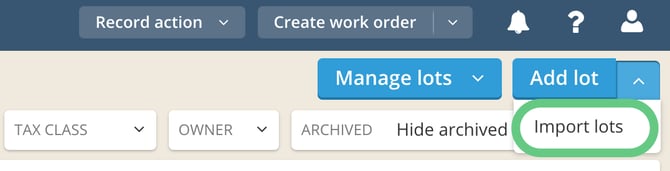
2. From your Lot or Case Goods Explorer page, click the carat next to "Add lot"/"Add Case Goods lot" and select "Import lots".
3. We recommend downloading the example template to get started. This file has all of the required column headers in a format that is accepted by InnoVint.
4. Click "Upload CSV" and choose your file to upload. Make sure the .csv file matches the required format exactly. If a required field is missing, or the format is matched, you will get an error.
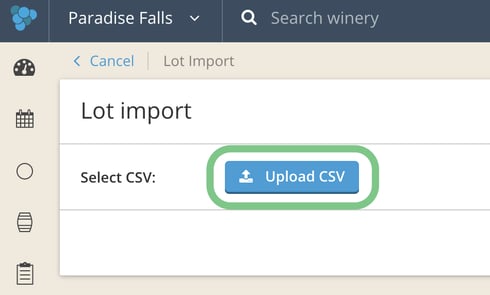
5. Click "Import lots."
Please note that the lot import does not currently support [bulk components](https://support.innovint.us/hc/en-us/how-to-enter-bulk-wine-and-unknown-lot-composition?hsLang=en). Lots created with bulk components must be entered individually through the Add Lot screen.
### Specifications for the .csv import file
- Files *must* be in the format as pictured here. Columns across the top, in order, include:
- **Bond**
Bond registry number must match an existing bond in the account.
- **Lot Code**
Lot codes can contain letters, numbers, dashes (-), and/or underscores (\_). No spaces or special characters are allowed. To create a Case Goods lot, the lot code must begin with the *CG-* prefix.
- **Lot Name** (optional)
- **Tax Class**
The tax class must follow the same format as displayed in InnoVint.
- - **Lot Stage**
Lot stage must match the Stage list in InnoVint for the specific lot type (eg *Fermenting* is not a valid stage for a Case Goods lot).
- - **Owner(s)**
If Custom Crush Permissions are active, you can import the lot's owner tag. Owner tags must be created in the system prior to import.
- - **Vintage**
Vintage should be in a 4 digit format.
- **Vineyard**
The Vineyard name must match an existing vineyard.
- **Block**
The Block must exist within the vineyard and match the name exactly.
- **Variety**
Varieties must match the list displayed in InnoVint, including special characters (eg accents and umlauts) and capital letters. The variety on the csv file must match the variety of the designated block.
- **Clone**
Clone must be included in the csv file if a clone is specified for the block in InnoVint. If no clone is specified on the block, then leave this field blank.
- **Percentage**
Numbers only. Decimals are accepted.
- - **Bottle Format**
Required for Case Goods lots only. Must match the Format name as displayed in InnoVint. Do no include the format volume. Disregard for juice/wine lots.
- **Bottles per Case**
Required for Case Goods lots only.
- **Cases per Pallet**
Required for Case Goods lots only.

- **Color**
Required. May be: Red, White, Rose, Orange
- **Style**
Required. May be: Still or Sparkling. Sparkling is only valid if you have the [Sparkling module](https://support.innovint.us/hc/en-us/sparkling-wine-production-feature-overview?hsLang=en) activated.
- **Tags**
Optional! If you want to import tags with your lots, please add a column with a header "Tags" and include desired tags on the lot row. Multiple tags can be included in the same column, separated by commas with no spaces. For example "24mo,High VA,Best wine ever". Tags that do not already exist exactly in the system will be created via the upload.
- **Custom** **Attributes**
Optional! If your subscription includes [Custom Lot Attributes](https://support.innovint.us/hc/en-us/custom-attributes-lots?hsLang=en), you can choose to import those with the lot. *If your Custom Lot Attribute is required at lot creation (this option is selected when setting up your Custom Lot Attributes), then you **must** include this field when importing lots. *
Please add additional columns with each Custom Lot Attribute name as a header, to the right of the existing template column headers. For instance if your Custom Lot Attribute name is a number field, and named "Target FSO2", then the column header should be "Target FSO2" and each lot row should display a numeric value equal to the desired target SO2. Custom Attributes and any single select Custom attribute options must be created prior to importing the lots.
- Each line of the csv file represents a single component (ie a unique vintage and vineyard source) of a lot. To import a new lot with multiple components, add one line per component and duplicate the Bond, Lot code, Lot name, Tax class, Stage, Owner(s) & Custom Lot Attribute details for each line. For Case Goods lots, Bottle Format, Bottles per Case, and Cases per Pallet must also be duplicated.
- The total percentage per lot code must be 100 exactly.
- Juice/Wine lots and Case Goods lots can be imported in the same file. Remember that Case Goods lots must begin with the *CG-* prefix.
**Note:** the file must contain lot codes, but lot names are optional.
[Template - Example lot.csv](https://support.innovint.us/hubfs/template_lot_import_2025.csv?hsLang=en)
### FAQ
**Q. Can I include tags? **
*A. Yes! Actually, you can add a column with the header "Tags" and import tags with each lot. If you want to include multiple tags, separate them with commas in the same column. *
**Q. Can I include Custom Attributes? **
*A. Yes! Actually, you can add a column with the Custom Attribute name as the header anywhere to the right of the final template column. Custom Attribute names must be created and exist in Settings prior to import. Single select type Custom Lot Attributes must be created prior to import, and match exactly.*
*If your Custom Lot Attribute is required at lot creation (this option is selected when setting up your Custom Lot Attributes), then you **must** include this field when importing lots. *
**Q. I can't get my file to upload! What should I try? **
*A. Please be sure to double check the following items: *
- *All varieties are spelled correctly and accepted per the version of import *
- *All tax classes have the correct and accepted units*
- *All varieties have the accepted capitalizations*
- *Vintages are 4 digits*
- *Be sure you are uploading a .csv file*
**Q. Can I upload a .txt or .xls file instead? **
*A. Currently, we do not accept .txt or .xls files. *
**Q. Can I export a lot list from InnoVint and then re-import it back into another winery? **
*A. Yes! If you have to split up a lot or if you are moving data from one InnoVint account to another, simply follow these steps: *
1. *Export lots (Lot Explorer \> Export lot components) utilizing filters if desired*
2. *Open this file and reformat this export to match the above Lot Import by moving columns around to match the same order. Then add 'Bottle Format', 'Bottles per Case', and 'Cases per Pallet' columns.
Tip: Make sure the percentage column totals 100 per lot code, and not 1!*
3. *Add all lots you want to import into the file.*
4. *Record an "Import lots" action*
**Q. I'm getting this error message:**
***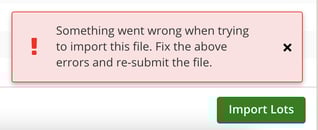***
*A. You have likely missed entering a bond number, vineyard, block, clone, or owner before you tried importing. Add that component and try the import again. Check the list of errors provided on the screen to troubleshoot any issues.*
**Q. I made a mistake on one of my lots after importing. Can I delete this lot?**
*A. Lots can be deleted immediately after importing as long as no actions have been applied to them. If an action has been applied to the lot, it must be archived to remove it from the main Lot Explorer view. Please note that each imported lot must be deleted individually.*
- [New to InnoVint](https://support.innovint.us/hc/en-us/new-to-innovint?hsLang=en#main-content)
- [Accessing InnoVint](https://support.innovint.us/hc/en-us/new-to-innovint?hsLang=en#accessing-innovint)
- [Settings - MAKE, GROW & FINANCE](https://support.innovint.us/hc/en-us/new-to-innovint?hsLang=en#settings-make-grow-finance)
- [Getting Started - MAKE, GROW & FINANCE](https://support.innovint.us/hc/en-us/new-to-innovint?hsLang=en#getting-started-make-grow-finance)
- [MAKE](https://support.innovint.us/hc/en-us/make?hsLang=en#main-content)
- [Dashboard & Calendar](https://support.innovint.us/hc/en-us/make?hsLang=en#dashboard-calendar)
- [Lots](https://support.innovint.us/hc/en-us/make?hsLang=en#lots)
- [Vessels](https://support.innovint.us/hc/en-us/make?hsLang=en#vessels)
- [Work Orders](https://support.innovint.us/hc/en-us/make?hsLang=en#work-orders)
- [Recording Actions](https://support.innovint.us/hc/en-us/make?hsLang=en#recording-actions)
- [Movement Actions](https://support.innovint.us/hc/en-us/make?hsLang=en#movement-actions)
- [Topping](https://support.innovint.us/hc/en-us/make?hsLang=en#topping)
- [Analysis](https://support.innovint.us/hc/en-us/make?hsLang=en#analysis)
- [Analysis Reports](https://support.innovint.us/hc/en-us/make?hsLang=en#analysis-reports)
- [Additions](https://support.innovint.us/hc/en-us/make?hsLang=en#additions)
- [Case Goods in MAKE](https://support.innovint.us/hc/en-us/make?hsLang=en#case-goods-in-make)
- [Dry Goods](https://support.innovint.us/hc/en-us/make?hsLang=en#dry-goods)
- [Vineyards](https://support.innovint.us/hc/en-us/make?hsLang=en#vineyards)
- [Reporting](https://support.innovint.us/hc/en-us/make?hsLang=en#reporting)
- [Compliance](https://support.innovint.us/hc/en-us/make?hsLang=en#compliance)
- [Tags & Notes](https://support.innovint.us/hc/en-us/make?hsLang=en#tags-notes)
- [Printing Labels from InnoVint](https://support.innovint.us/hc/en-us/make?hsLang=en#printing-labels-from-innovint)
- [AI](https://support.innovint.us/hc/en-us/make?hsLang=en#ai)
- [GROW](https://support.innovint.us/hc/en-us/grow?hsLang=en)
- [FINANCE](https://support.innovint.us/hc/en-us/finance?hsLang=en#main-content)
- [Getting Started](https://support.innovint.us/hc/en-us/finance?hsLang=en#getting-started)
- [Reporting](https://support.innovint.us/hc/en-us/finance?hsLang=en#reporting)
- [Guidance & FAQ](https://support.innovint.us/hc/en-us/finance?hsLang=en#guidance-faq)
- [Harvest](https://support.innovint.us/hc/en-us/harvest?hsLang=en#main-content)
- [Preparing for Harvest](https://support.innovint.us/hc/en-us/harvest?hsLang=en#preparing-for-harvest)
- [Vineyard Harvest Reports](https://support.innovint.us/hc/en-us/harvest?hsLang=en#vineyard-harvest-reports)
- [Harvest Workflow & Fermentation Tracking](https://support.innovint.us/hc/en-us/harvest?hsLang=en#harvest-workflow-fermentation-tracking)
- [Settings & Preferences](https://support.innovint.us/hc/en-us/harvest?hsLang=en#settings-preferences)
- [MAKE: Advanced Features](https://support.innovint.us/hc/en-us/make-advanced-features?hsLang=en#main-content)
- [Owner-based Permissions System](https://support.innovint.us/hc/en-us/make-advanced-features?hsLang=en#owner-based-permissions-system)
- [Custom Attributes](https://support.innovint.us/hc/en-us/make-advanced-features?hsLang=en#custom-attributes)
- [Blend Trials](https://support.innovint.us/hc/en-us/make-advanced-features?hsLang=en#blend-trials)
- [Tank Maps](https://support.innovint.us/hc/en-us/make-advanced-features?hsLang=en#tank-maps)
- [Sparkling Wine Module](https://support.innovint.us/hc/en-us/make-advanced-features?hsLang=en#sparkling-wine-module)
- [Intended Use](https://support.innovint.us/hc/en-us/make-advanced-features?hsLang=en#intended-use)
- [Integrations](https://support.innovint.us/hc/en-us/make-advanced-features?hsLang=en#integrations)
- [SUPPLY](https://support.innovint.us/hc/en-us/supply?hsLang=en#main-content)
- [Getting Started with SUPPLY](https://support.innovint.us/hc/en-us/supply?hsLang=en#getting-started-with-supply)
- [Actions in SUPPLY](https://support.innovint.us/hc/en-us/supply?hsLang=en#actions-in-supply)
- [Using SUPPLY](https://support.innovint.us/hc/en-us/supply?hsLang=en#using-supply)
- [Order Management](https://support.innovint.us/hc/en-us/supply?hsLang=en#order-management)
- [InnoApp](https://support.innovint.us/hc/en-us/innoapp?hsLang=en#main-content)
- [InnoApp](https://support.innovint.us/hc/en-us/innoapp?hsLang=en#innoapp)
- [InnoApp - Work Orders](https://support.innovint.us/hc/en-us/innoapp?hsLang=en#innoapp-work-orders)
- [Guidance & FAQs](https://support.innovint.us/hc/en-us/guidance-faqs?hsLang=en#main-content)
- [Frequently Asked Questions](https://support.innovint.us/hc/en-us/guidance-faqs?hsLang=en#frequently-asked-questions)
- [Specialized Workflows](https://support.innovint.us/hc/en-us/guidance-faqs?hsLang=en#specialized-workflows)
- [Best Practices](https://support.innovint.us/hc/en-us/guidance-faqs?hsLang=en#best-practices)
- [Templates](https://support.innovint.us/hc/en-us/guidance-faqs?hsLang=en#templates)
- [InnoVint Academy](https://support.innovint.us/hc/en-us/innovint-academy?hsLang=en#main-content)
- [Video Trainings/Tutorials](https://support.innovint.us/hc/en-us/innovint-academy?hsLang=en#video-trainings-tutorials)
- [Video Informational Sessions](https://support.innovint.us/hc/en-us/innovint-academy?hsLang=en#video-informational-sessions)
- [Quick Video Tutorials](https://support.innovint.us/hc/en-us/innovint-academy?hsLang=en#quick-video-tutorials)
- [Product Updates](https://support.innovint.us/hc/en-us/product-updates?hsLang=en#main-content)
- [Product Updates: 2025-2026](https://support.innovint.us/hc/en-us/product-updates?hsLang=en#product-updates-2025-2026)
- [Product Updates: 2024](https://support.innovint.us/hc/en-us/product-updates?hsLang=en#product-updates-2024)
- [Product Updates: 2023](https://support.innovint.us/hc/en-us/product-updates?hsLang=en#product-updates-2023)
- [Product Updates: 2017 - 2022](https://support.innovint.us/hc/en-us/product-updates?hsLang=en#product-updates-2017-2022)
- [Support Hours & FAQs](https://support.innovint.us/hc/en-us/support-hours-faqs?hsLang=en)
[](https://support.innovint.us/hc/en-us?hsLang=en)
Copyright © 2025, InnoVint