![InnoVintSupportCenter - header.png]](https://support.innovint.us/hs-fs/hubfs/InnoVintSupportCenter%20-%20header.png?width=300&height=22&name=InnoVintSupportCenter%20-%20header.png)
Use your winery’s laser scanning devices to scan vessel and work order QR codes in InnoApp from farther away, faster, and with more precision.
Jump to:
Overview
What is Laser Scanning?
By default, InnoApp scans QR codes with your device’s camera, which works best within a few feet of the label. Laser scanning lets InnoApp take scans from a hardware laser scanner instead. This can be built into an enterprise handheld device (such as Zebra or Honeywell) or a Bluetooth or USB scanner.
Why use laser scanning?
- Scan from farther away. Laser scanners can read codes from about 5 feet or more, depending on the label size - which is great when scanning barrels up high or scanning from a forklift without getting on and off.
- Point and shoot. Target one specific label without accidentally picking up a nearby code.
- Better in low light.
Where can I use laser scanning?
Laser scanning works everywhere you can scan in InnoApp: Scanning QR Codes, selecting vessels for an action, tagging vessels, updating vessel locations, and finding work orders. Scans are handled exactly the same as camera scans.
Laser scanning is available to MAKE-Plus wineries. To have it turned on for your winery, contact your Customer Success Manager or support@innovint.us.
What you'll need
-
A device with a laser scanner, such as a Zebra or Honeywell Android handheld, or a Bluetooth/USB laser scanner.
- InnoApp running in Google Chrome on the device.
Standard iPhones, Android phones, and tablets don’t have laser scanners. They keep using camera scanning, unless you pair a Bluetooth laser scanner attachment.
How to Use Laser Scanning
Step 1: Enable
Contact InnoVint Support to request activation.
Once InnoVint has activated laser scanning for your winery:
-
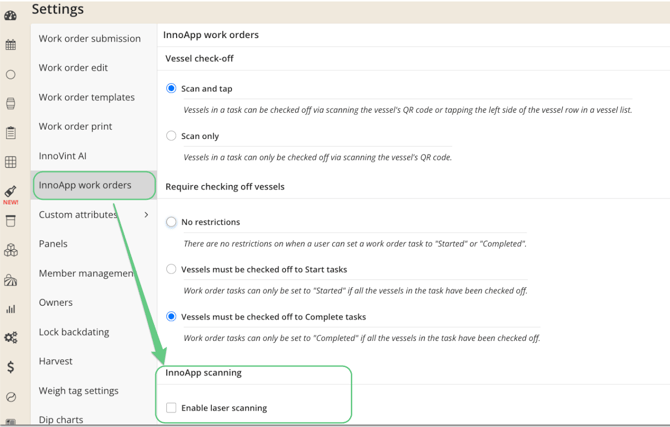
In the desktop app, go to ⚙️ Settings → InnoApp.
-
Under InnoApp scanning, check Enable laser scanning.
Step 2: Set up your device
Your device needs a scanning profile that sends each scan into Chrome as keyboard input. In general, the profile should:
-
Be associated with Chrome (the browser that runs InnoApp)
-
Have QR code support turned on
-
Send scanned data as keyboard entry
- Add the Enter key after each scan
Read on for specific device instructions:
Zebra devices (DataWedge)
- Open the DataWedge app (pre-installed on Zebra devices).
- Create a new profile and name it InnoApp.
- Go to Associated apps, add com.android.chrome, then select *.
- Turn Barcode input on.
- Go to Keystroke output → Key event options and turn Send Characters as Events on.
- Go to Keystroke output → Basic data formatting and turn Send ENTER key on.
- Save. The profile turns on automatically whenever Chrome is open.
Honeywell devices
-
Open Settings → Honeywell Settings → Scanning → Internal Scanner.
-
Edit the Default Profile so the settings apply everywhere. This is required for InnoApp.
-
In the profile, go to Symbology Settings and enable QR Code.
-
In the profile, go to Data Processing Settings → Wedge and set it to Enabled.
-
Set Wedge Method to Keyboard.
-
Leave the Wedge as keys field empty.
-
Set Suffix to \0x0d (carriage return).
-
Tap OK to save, then restart the device for the change to take effect.
Bluetooth or USB scanners
Pair or connect the scanner to your device. Then use the scanner manufacturer’s settings to make sure it reads QR codes, outputs as a keyboard, and sends Enter after each scan.
Step 3: Scan in InnoApp
- Open any scanner in InnoApp, such as Quick Actions → Scan QR Code.
- Use the toggle at the bottom of the scanner window to switch from Camera to Laser.
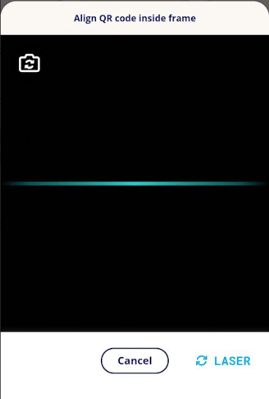
- Point your laser device at the QR code and press the device’s scan button.
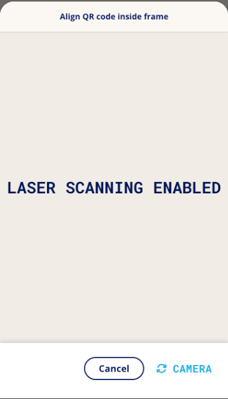
The scanner opens in Camera mode the first time. After that, InnoApp remembers the mode you last used on that device and applies it to every scanner in the app. You can switch back to Camera anytime.
Troubleshooting
Nothing happens when I press the scan button:
Check that the scanner window is set to Laser. Check that your device profile is set up for Chrome, and that the Enter key is added after each scan (see Step 2). On Honeywell devices, restart after changing scanner settings.
I don’t see the Camera / Laser toggle:
Check that Enable laser scanning is checked in Settings → InnoApp work orders -> InnoApp Scanning (see Step 1). If it isn’t listed in Settings/InnoApp work orders, then laser scanning hasn’t been turned on for your winery yet. Contact InnoVint Support.
The scanner reads some labels but not others:
Make sure the whole QR code is printed and visible, including the white margin around it. Reprint any damaged or trimmed labels. For general scanning issues, see InnoApp: Troubleshooting your scanner.
FAQ
Q: Does laser scanning work on an iPhone or iPad?
A: Not by itself. iPhones and iPads don’t have laser scanners. A Bluetooth laser scanner attachment may work.
Q: Does laser scanning replace camera scanning?
A: No. You can switch between Camera and Laser at any time from the scanner window.
Q: Will my choice of Camera or Laser carry over to other devices?
A: No. InnoApp remembers your choice per device and browser. If you clear Chrome’s browsing data, the scanner will start in Camera mode again.
Q: Can I use laser scanning in the desktop app?
A: In the desktop app, you can already scan printed work order QR codes with a USB scanner connected to your computer.