---
title: "InnoApp: Troubleshooting your scanner"
description: "This is never a good look! Here are some tips for troubleshooting the InnoApp scanner. 2. Check that your Camera settings allow QR code scanning: 3. Occasionally, users accidentally block the camera"
---
[Skip to content](https://support.innovint.us/hc/en-us/innoapp-troubleshooting-your-scanner#main-content)
[Submit a help ticket](https://support.innovint.us/hc/en-us/kb-tickets/new?hsLang=en)
![InnoVintSupportCenter - header.png\]](https://support.innovint.us/hs-fs/hubfs/InnoVintSupportCenter%20-%20header.png?width=300&height=22&name=InnoVintSupportCenter%20-%20header.png)
Open main navigation
Close main navigation
- [Submit a help ticket](https://support.innovint.us/hc/en-us/kb-tickets/new)
How can we help you today?
- There are no suggestions because the search field is empty.
1. [Support Center](https://support.innovint.us/hc/en-us?hsLang=en)
2. [InnoApp](https://support.innovint.us/hc/en-us/innoapp?hsLang=en)
3. [InnoApp](https://support.innovint.us/hc/en-us/innoapp?hsLang=en#innoapp)
# InnoApp: Troubleshooting your scanner
This is never a good look!
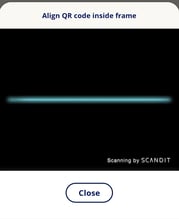
Here are some tips for troubleshooting the InnoApp scanner.
- [Check your permissions](https://support.innovint.us/hc/en-us/innoapp-troubleshooting-your-scanner#Checkpermissions)
- [iPhone](https://support.innovint.us/hc/en-us/innoapp-troubleshooting-your-scanner#iphone_permissions)
- [Android](https://support.innovint.us/hc/en-us/innoapp-troubleshooting-your-scanner#android_permissions)
- [Check your operating system specifications](https://support.innovint.us/hc/en-us/innoapp-troubleshooting-your-scanner#OS_spec)
- [iPhone](https://support.innovint.us/hc/en-us/innoapp-troubleshooting-your-scanner#iOS)
- [Android](https://support.innovint.us/hc/en-us/innoapp-troubleshooting-your-scanner#android_os)
- [Check your QR code labels](https://support.innovint.us/hc/en-us/innoapp-troubleshooting-your-scanner#labels)
- [Using a Laser Scanner?](https://support.innovint.us/hc/en-us/innoapp-troubleshooting-your-scanner#laser)
- [Reset and refresh](https://support.innovint.us/hc/en-us/innoapp-troubleshooting-your-scanner#R_R)
### Check your permissions
#### iPhone
1. Ensure your browser application permissions are updated.
- - You need to allow Safari (the recommended browser for installing InnoApp to your homescreen) access to your camera:
- Open the Settings app. Tap on Safari \> Camera
- Confirm that "Ask" or "Allow" is checked
#### Android
1\. Ensure your browser application permissions are updated.
- You need to allow Google Chrome (the recommended browser for installing InnoApp to your homescreen) access to your camera:
- Open Settings. Tap on Apps
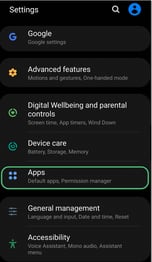
- Select Chrome \> Permissions \> Camera
- choose "Allow" or "Allow only only while using the app":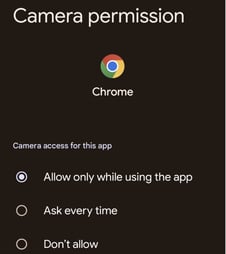 or 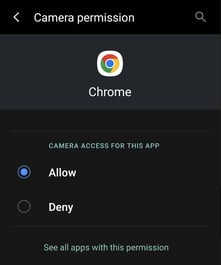
2. Check that your Camera settings allow QR code scanning:
- On Pixel phones - if the Pixel Camera app is unable to scan the QR code, it could be because the *Google Lens* *suggestions* feature is disabled. To enable it, launch Camera, tap on the settings icon in the top-left corner, and select More settings. Under General, toggle on the button for Google Lens suggestions.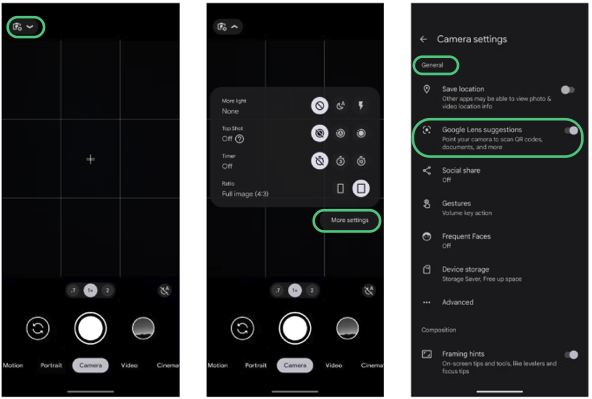
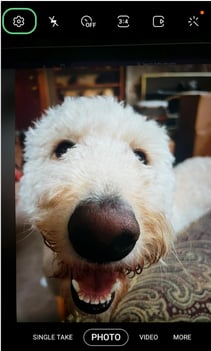
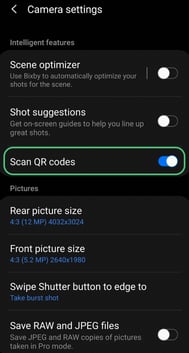
- On Galaxy phones - check the Camera settings to ensure the camera is set to scan QR codes. To check, launch Camera, tap on the settings icon in the top-left corner, and ensure Scan QR codes is turned on.
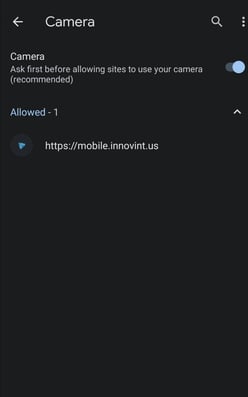
3\. Occasionally, users accidentally block the camera from the mobile.innovint.us when using the app. If you are still getting a black screen, check Chrome's allowed website settings:
- Open Chrome, and at the upper righthand side, tap on the three dot menu
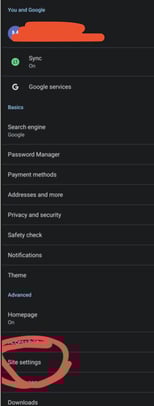
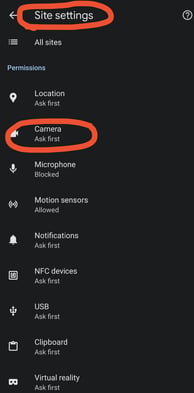
- Select Settings, then Site Settings (under the Advanced sub-header), then Camera
- Check that mobile.innovint.us is on the Allowed list:
### Check your operating system specifications
#### iPhone
Recommended specs: for best performance we now recommend iOS17, with a minimum iOS16, working with the Safari browser.
This means that the last six years of Apple devices will run InnoApp without an issue (iPhone 8, iPad 5 and newer). You may still try to run InnoApp on older devices but we don't officially support them, or fix any issues specific to an older operating system.
#### Android
Recommended specs: operating system of Android 7.0 or higher with the latest version of Google Chrome (the recommended browser app to access InnoApp).
### Check your QR Code labels
InnoApp's scanner needs to see the whole QR code to read it, including all three large corner squares and a small white margin around the edge.
- If a label is torn, trimmed, or partially covered (for example, wrapped around
the edge of a barrel head), reprint it. See [How to print QR Code Vessel Labels](https://support.innovint.us/hc/en-us/articles/115000609563-how-do-i-generate-qr-code-vessel-labels-to-print-?hsLang=en).
- Hold the device steady so the full code is inside the camera view.
- In low light, try moving closer or adding light to the label.
If labels that used to scan for your team have stopped scanning, contact [support@innovint.us](mailto:support@innovint.us) with a photo of one of the labels. We can review and adjust scanner settings for your winery.
### Using a laser scanner?
If your winery uses laser scanning (available with MAKE Plus), check the following if scans aren't coming through:
1. Laser scanning is turned on for your winery: Settings \> InnoApp \> InnoApp scanning \> Enable laser scanning.
2. The scanner window in InnoApp is set to Laser, not Camera. Tap the toggle at the top of the scanner window to switch.
3. Your device's scanning profile is set up for Chrome, with QR codes enabled, keyboard output turned on, and the Enter key added after each scan. Honeywell devices need to be restarted after changing these settings.
4. You're using Chrome. Laser scanning sends scans to InnoApp as keyboard input through Chrome.
For full setup steps by device, see [InnoApp: Laser Scanning](https://support.innovint.us/hc/en-us/innoapp-laser-scanning?hsLang=en).
### Reset and refresh
If you are having trouble, it's always a good idea to try these steps on all devices and systems:
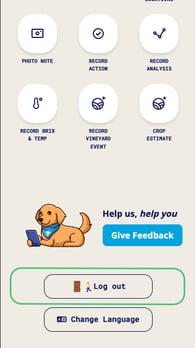
1\. Log out and log back in using the **Log out** button at the bottom of the homescreen
You cannot change or reset a forgotten password on InnoApp. Please use the desktop app to [reset your password](https://support.innovint.us/hc/en-us/en-us/articles/212950563-how-do-i-change-or-reset-my-password-?hsLang=en) if required.
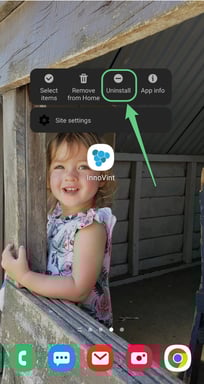
2\. Uninstall and reinstall the app. Uninstall the app as you would any app - normally tapping and holding the app icon will bring up the uninstall option. Follow the steps [here](https://support.innovint.us/hc/en-us/highlights-of-the-new-mobile-experience?hsLang=en#gettingstarted) to reinstall InnoApp to your homescreen.
- [New to InnoVint](https://support.innovint.us/hc/en-us/new-to-innovint?hsLang=en#main-content)
- [Accessing InnoVint](https://support.innovint.us/hc/en-us/new-to-innovint?hsLang=en#accessing-innovint)
- [Settings - MAKE, GROW & FINANCE](https://support.innovint.us/hc/en-us/new-to-innovint?hsLang=en#settings-make-grow-finance)
- [Getting Started - MAKE, GROW & FINANCE](https://support.innovint.us/hc/en-us/new-to-innovint?hsLang=en#getting-started-make-grow-finance)
- [MAKE](https://support.innovint.us/hc/en-us/make?hsLang=en#main-content)
- [Dashboard & Calendar](https://support.innovint.us/hc/en-us/make?hsLang=en#dashboard-calendar)
- [Lots](https://support.innovint.us/hc/en-us/make?hsLang=en#lots)
- [Vessels](https://support.innovint.us/hc/en-us/make?hsLang=en#vessels)
- [Work Orders](https://support.innovint.us/hc/en-us/make?hsLang=en#work-orders)
- [Recording Actions](https://support.innovint.us/hc/en-us/make?hsLang=en#recording-actions)
- [Movement Actions](https://support.innovint.us/hc/en-us/make?hsLang=en#movement-actions)
- [Topping](https://support.innovint.us/hc/en-us/make?hsLang=en#topping)
- [Analysis](https://support.innovint.us/hc/en-us/make?hsLang=en#analysis)
- [Analysis Reports](https://support.innovint.us/hc/en-us/make?hsLang=en#analysis-reports)
- [Additions](https://support.innovint.us/hc/en-us/make?hsLang=en#additions)
- [Case Goods in MAKE](https://support.innovint.us/hc/en-us/make?hsLang=en#case-goods-in-make)
- [Dry Goods](https://support.innovint.us/hc/en-us/make?hsLang=en#dry-goods)
- [Vineyards](https://support.innovint.us/hc/en-us/make?hsLang=en#vineyards)
- [Reporting](https://support.innovint.us/hc/en-us/make?hsLang=en#reporting)
- [Compliance](https://support.innovint.us/hc/en-us/make?hsLang=en#compliance)
- [Tags & Notes](https://support.innovint.us/hc/en-us/make?hsLang=en#tags-notes)
- [Printing Labels from InnoVint](https://support.innovint.us/hc/en-us/make?hsLang=en#printing-labels-from-innovint)
- [AI](https://support.innovint.us/hc/en-us/make?hsLang=en#ai)
- [GROW](https://support.innovint.us/hc/en-us/grow?hsLang=en)
- [FINANCE](https://support.innovint.us/hc/en-us/finance?hsLang=en#main-content)
- [Getting Started](https://support.innovint.us/hc/en-us/finance?hsLang=en#getting-started)
- [Reporting](https://support.innovint.us/hc/en-us/finance?hsLang=en#reporting)
- [Guidance & FAQ](https://support.innovint.us/hc/en-us/finance?hsLang=en#guidance-faq)
- [Harvest](https://support.innovint.us/hc/en-us/harvest?hsLang=en#main-content)
- [Preparing for Harvest](https://support.innovint.us/hc/en-us/harvest?hsLang=en#preparing-for-harvest)
- [Vineyard Harvest Reports](https://support.innovint.us/hc/en-us/harvest?hsLang=en#vineyard-harvest-reports)
- [Harvest Workflow & Fermentation Tracking](https://support.innovint.us/hc/en-us/harvest?hsLang=en#harvest-workflow-fermentation-tracking)
- [Settings & Preferences](https://support.innovint.us/hc/en-us/harvest?hsLang=en#settings-preferences)
- [MAKE: Advanced Features](https://support.innovint.us/hc/en-us/make-advanced-features?hsLang=en#main-content)
- [Owner-based Permissions System](https://support.innovint.us/hc/en-us/make-advanced-features?hsLang=en#owner-based-permissions-system)
- [Custom Attributes](https://support.innovint.us/hc/en-us/make-advanced-features?hsLang=en#custom-attributes)
- [Blend Trials](https://support.innovint.us/hc/en-us/make-advanced-features?hsLang=en#blend-trials)
- [Tank Maps](https://support.innovint.us/hc/en-us/make-advanced-features?hsLang=en#tank-maps)
- [Sparkling Wine Module](https://support.innovint.us/hc/en-us/make-advanced-features?hsLang=en#sparkling-wine-module)
- [Intended Use](https://support.innovint.us/hc/en-us/make-advanced-features?hsLang=en#intended-use)
- [Integrations](https://support.innovint.us/hc/en-us/make-advanced-features?hsLang=en#integrations)
- [SUPPLY](https://support.innovint.us/hc/en-us/supply?hsLang=en#main-content)
- [Getting Started with SUPPLY](https://support.innovint.us/hc/en-us/supply?hsLang=en#getting-started-with-supply)
- [Actions in SUPPLY](https://support.innovint.us/hc/en-us/supply?hsLang=en#actions-in-supply)
- [Using SUPPLY](https://support.innovint.us/hc/en-us/supply?hsLang=en#using-supply)
- [Order Management](https://support.innovint.us/hc/en-us/supply?hsLang=en#order-management)
- [InnoApp](https://support.innovint.us/hc/en-us/innoapp?hsLang=en#main-content)
- [InnoApp](https://support.innovint.us/hc/en-us/innoapp?hsLang=en#innoapp)
- [InnoApp - Work Orders](https://support.innovint.us/hc/en-us/innoapp?hsLang=en#innoapp-work-orders)
- [Guidance & FAQs](https://support.innovint.us/hc/en-us/guidance-faqs?hsLang=en#main-content)
- [Frequently Asked Questions](https://support.innovint.us/hc/en-us/guidance-faqs?hsLang=en#frequently-asked-questions)
- [Specialized Workflows](https://support.innovint.us/hc/en-us/guidance-faqs?hsLang=en#specialized-workflows)
- [Best Practices](https://support.innovint.us/hc/en-us/guidance-faqs?hsLang=en#best-practices)
- [Templates](https://support.innovint.us/hc/en-us/guidance-faqs?hsLang=en#templates)
- [InnoVint Academy](https://support.innovint.us/hc/en-us/innovint-academy?hsLang=en#main-content)
- [Video Trainings/Tutorials](https://support.innovint.us/hc/en-us/innovint-academy?hsLang=en#video-trainings-tutorials)
- [Video Informational Sessions](https://support.innovint.us/hc/en-us/innovint-academy?hsLang=en#video-informational-sessions)
- [Quick Video Tutorials](https://support.innovint.us/hc/en-us/innovint-academy?hsLang=en#quick-video-tutorials)
- [Product Updates](https://support.innovint.us/hc/en-us/product-updates?hsLang=en#main-content)
- [Product Updates: 2025-2026](https://support.innovint.us/hc/en-us/product-updates?hsLang=en#product-updates-2025-2026)
- [Product Updates: 2024](https://support.innovint.us/hc/en-us/product-updates?hsLang=en#product-updates-2024)
- [Product Updates: 2023](https://support.innovint.us/hc/en-us/product-updates?hsLang=en#product-updates-2023)
- [Product Updates: 2017 - 2022](https://support.innovint.us/hc/en-us/product-updates?hsLang=en#product-updates-2017-2022)
- [Support Hours & FAQs](https://support.innovint.us/hc/en-us/support-hours-faqs?hsLang=en)
[](https://support.innovint.us/hc/en-us?hsLang=en)
Copyright © 2025, InnoVint