![InnoVintSupportCenter - header.png]](https://support.innovint.us/hs-fs/hubfs/InnoVintSupportCenter%20-%20header.png?width=300&height=22&name=InnoVintSupportCenter%20-%20header.png)
This is available with the MAKE-Plus subscription. Please reach out to InnoVint Support if you do not see Custom Attributes in your Settings.
Custom Attributes allow your winery to define, create and add custom data fields to vessels in InnoVint. Similar to Custom Lot Attributes, Custom Vessel Attributes brings the same capability to your vessels. While tags can become broad, inconsistent, and cluttered, and notes are unstructured and difficult to report on, Custom Attributes support the vessel attributes you've always wanted to assign in a standard way, capturing your winery-specific information.
This article covers:
- What are Custom Attributes?
- How to create Custom Attributes
- How to add Custom Attributes to Vessels
- How to edit or remove Custom Attributes
- How to view or report on Custom Attributes
- Tracking changes
- How to archive or delete Custom Attributes
- Permissions
What Are Custom Attributes?
Custom Attributes are additional fields you define to store information about vessels.
Examples of attributes that can be created include: Vessel material (stainless, slate, unusual oak), special Cooperage barrel descriptors, Year purchased, Sale date, Tank manufacturer, Maintenance/inspection date, or a unique internal asset tag.
When you create a custom attribute, you specify the data format and how the field is used:
- Supported data formats include:
- Single-select (specify a list of predefined options for the attribute)
- Text (open field for alphanumeric)
- Number (no leading zeros or commas)
- Date
- Custom Attributes can be required at vessel creation (including via vessel import), or be set to optional at vessel creation.
How to Create Custom Attributes
Custom Attributes are created and managed in Settings.
Only Admin users can create or manage custom attributes. If you don't see Custom Attributes in your Settings, ask your account Admin to set them up in ⚙️ Settings → Custom attributes, or reach out to InnoVint Support if the option isn't available at all.
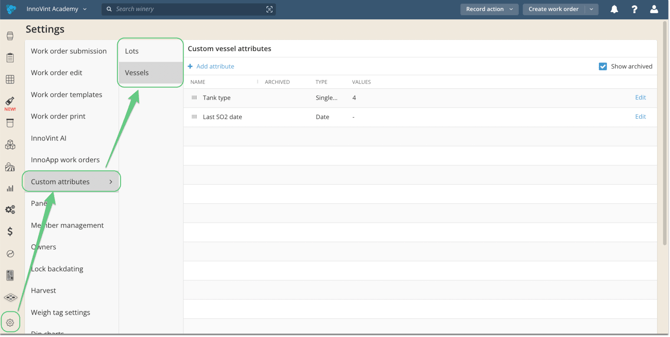
Steps to create a Custom Vessel Attribute
- Go to Settings.
- Open Custom Attributes.
- Select the Vessels tab.
- Click + Add attribute.
- Enter a Name for the attribute (each custom attribute name must be unique).
- Select a Data Type.
- If you select Single-Select, you will need to define the list of options (at least one).
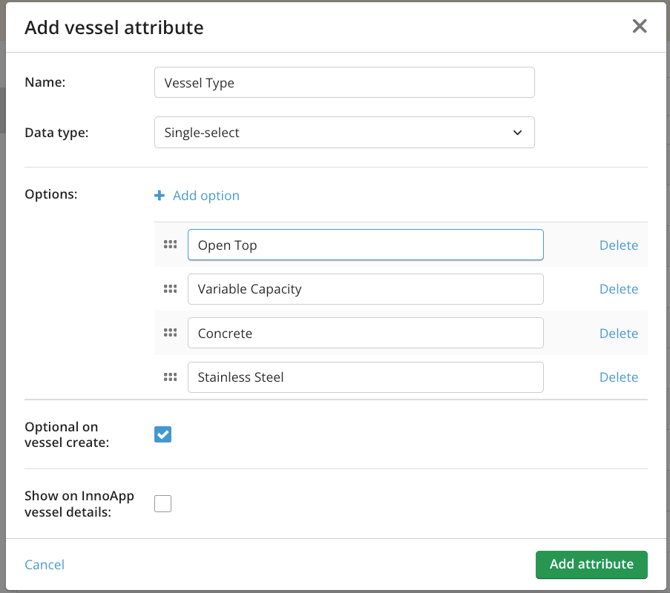
- If you select Single-Select, you will need to define the list of options (at least one).
- Specify settings:
- Will this attribute be required or optional at vessel creation?
-
- Do you want this attribute to display on the InnoApp Vessel Details page?
- Do you want this attribute to display on the InnoApp Vessel Details page?
- Click Add attribute.
Custom Attribute Data Types
Single-Select
Allows users to select one value from a predefined list. You can add, reorder, archive, or remove options in Settings at any point. Drag and drop the list options to reorder them; the order set in Settings determines how they appear throughout InnoVint, including on the Vessel Details page.
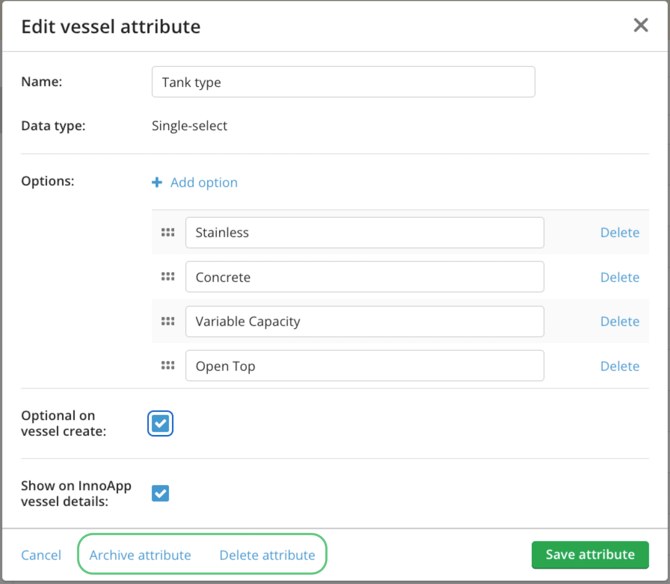
Example: Attribute: Tank type — Options: Open top, Variable Capacity, Concrete
Text
Allows users to enter free-form text. Examples: maintenance notes, special handling instructions.
Number
Stores only numeric values, up to 5 decimal places. Examples: target capacity, internal asset number.
Date
Stores calendar dates. Examples: last SO2 date, last inspection date, warranty expiration, sale date.
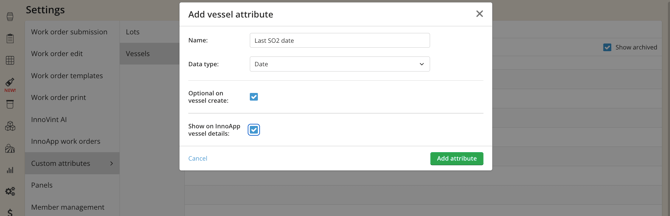
Attribute Settings
When creating a custom attribute you can configure the following options:
- Optional on vessel create. Controls whether the field is required when creating a vessel.
- If checked, the field is optional.
- If unchecked, you must enter a value for this attribute when creating a vessel. Note: the value is required at vessel creation, but may be removed via the Vessel Details page afterward — it does not mean this value is always required on a vessel.
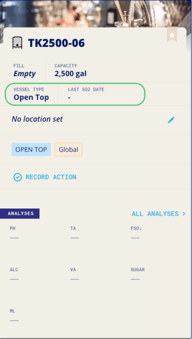
- Show on InnoApp vessel details. Ensures the attribute displays on Vessel Details in the InnoApp mobile app. If unchecked, the attribute will only appear in the desktop web app.
How to Add Custom Attributes to Vessels
Once created, custom attributes can be applied to vessels in a few ways, mirroring how Custom Lot Attributes work for lots.
On the Vessel Details Page
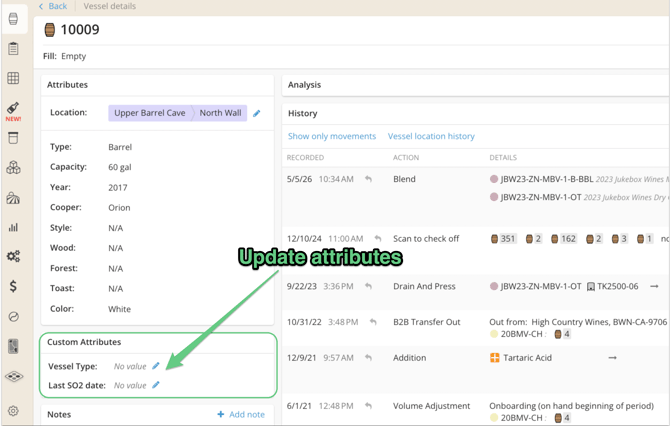
Each vessel includes a Custom Attributes section on the Vessel Details page.
If no Custom Attributes are set up for the winery, this section will not display.
To add or edit a value:
- Open the Vessel Details page.
- Locate the Custom Attributes section.
- Click the edit (pencil) icon.
- Enter or select a value.
- Save.
If no value is set, the field displays No value.
When Creating a Vessel
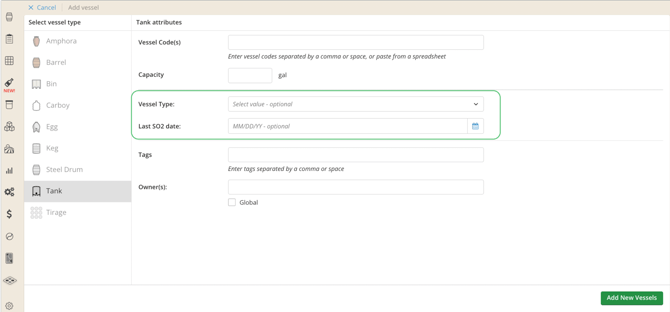
When creating a new vessel via +Add vessel custom attribute fields will appear in the Create Vessel form.
When creating new vessels via Vessel Import, you can add each Custom Attribute as a column header in the import template.
- If required (per the Attribute Settings), the custom attributes must be completed before the vessel can be created. These can be removed later via the Vessel Details page.
- When importing vessels, you can set custom attributes by adding additional columns to the import file.
- Each custom attribute must be added via a column in the import file.
- The column header(s) of the additional column(s) must match the custom attribute name(s).
- The attribute must already exist in Settings.
- For single-select attributes, the value in the vessel's row in the CSV file must match one of the defined options.
- If required attributes are missing or values don't match available options, the import will display an error.
Via bulk Select
Use the bulk Select option to update the Custom Attributes on one or more vessels at a time. Find out more here.
How to Edit or Remove Custom Attributes from a Vessel
Custom attribute values can be updated via the Vessel Details page:
Steps:
- Open the vessel.
- Click the edit (pencil) icon.
- Update the value.
- Save
For single-select attributes, you can also choose Clear value to remove the current selection.
Or, use the bulk Select option to update or remove Custom Attribute from multiple vessels at once.
How to View or Report on Custom Attributes
Custom attributes appear across multiple areas of InnoVint.
- Vessel Details: Each vessel includes a Custom Attributes widget displaying the Attribute name and current value.
- Vessel Explorer: Custom attributes can be found in the Vessel Explorer and used as sortable columns and filters. These will report as additional columns in the exported file.
- On the Vessel at Point in Time Report: A column for each Custom Vessel Attribute is displayed and it shows the custom attribute as of the point in time of that the report was generated.
- On InnoApp: On the Vessel details page, if you have set the attribute to appear in InnoApp
Tracking Changes on Custom Attributes
All changes to custom vessel attributes are tracked in the Vessel Property History Report. This report records:
- When a Custom Attribute was added
- When a Custom Attribute was changed
- When a Custom Attribute was removed
This report also tracks other vessel property changes (such as vessel code updates) - not just custom attributes, and is available to all clients — even those without a MAKE-Plus subscription.
You can also view this vessel properties history directly on the Vessel Details → History widget.
How to Archive or Delete Custom Vessel Attributes
Custom Attributes, or single-select options within an attribute, can be archived when they are no longer needed, or deleted if they have never been used.
Go to Settings > Custom Attributes > Vessels and click Edit on the Attribute you want to change:
Archiving
- Removes them from new vessel entries and filters.
- Preserves historical data on existing vessels.
- Keeps them visible in Settings if archived items are shown.
Archived attributes can be restored (unarchived) if needed.
Deleting
- Deletion is only possible if the attribute has never been used on a vessel.
- If the attribute has been used previously, it must be archived instead to preserve historical data.
Permissions
Custom attribute values can be added, edited, or removed by all users with write access to the winery, across all vessel creation types and Vessel Details edits.
Creating, editing, or archiving/deleting the attribute definitions themselves (in Settings) is restricted to Admin users.