![InnoVintSupportCenter - header.png]](https://support.innovint.us/hs-fs/hubfs/InnoVintSupportCenter%20-%20header.png?width=300&height=22&name=InnoVintSupportCenter%20-%20header.png)
InnoVint gives you two ways to update lots or vessels in bulk: the Manage Lots / Manage Vessels menus, and the Select workflow on the Lot Explorer and Vessel Explorer. This article covers how each one works, so you can pick whichever fits your task.
This article covers:
- What attributes can I edit in bulk?
- Which method should I use?
- Method 1: Manage Lots / Manage Vessels
- Method 2: Select
- Tracking bulk changes
- FAQ
What attributes can I update in bulk?
You can access and update the following attributes in bulk:
- Set or Edit owners on lots and vessels
- Set or Edit tags on lots and vessels
- Set or edit stages on lots
- Archive or unarchive lots and vessels
- Print lot labels or vessel QR codes
- Edit capacity on vessels
- Set or Edit barrel attribute on barrels
- Delete vessels
- Vessel locations
- Custom Lot and Custom Vessel Attributes
Which Method Should I Use?
You can update many lot and vessel attributes - and print labels - in bulk using one of two methods: Manage lots/vessel and Select. Both methods are located on the applicable explorer:
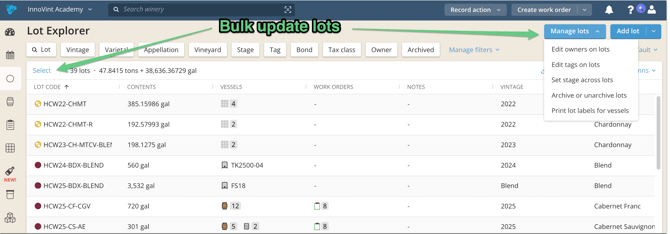
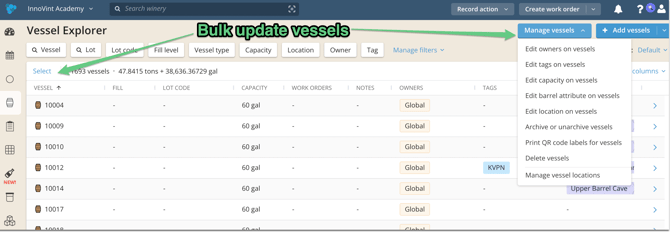
Each method supports slightly different capabilities - you can easily see which in the table below:
|
Capability |
Manage Lots / Manage Vessels |
Select |
|
Owners |
✓ |
✓ |
|
Tags |
✓ |
✓ |
|
Stage (lots) |
✓ |
✓ |
|
Capacity (vessels) |
✓ |
✓ |
|
Barrel attributes (vessels) |
✓ |
✓ |
|
Archive/Unarchive |
✓ |
✓ |
|
Delete vessels |
✓ |
✓ |
|
Custom attributes (lots & vessels) |
Not available |
✓ |
|
Vessel locations |
✓ |
✓ |
|
Print labels (lot labels / vessel QR codes) |
✓ |
Not available |
Method 1: Manage Lots / Manage Vessels
Open the Manage Lots/Vessels menu and use our lot and vessel pickers.
Bulk editing Lots
1. Go to the Lot Explorer.
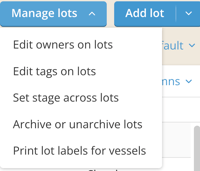
2. Click Manage Lots in the top right corner.
3. Choose an option from the dropdown:
Bulk editing Vessels
1. Go to the Vessel Explorer.
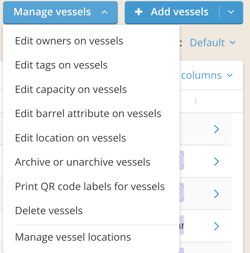
2. Click Manage Vessels in the top right corner.
3. Choose an option from the dropdown:
See Adding, Editing, or Removing Tags and How to Delete or Archive Lots and Vessels for more on those specific workflows.
Method 2: Select
Select lets you choose lots or vessels directly from the explorer — using the same filters and columns you already rely on — so you can see exactly what you're about to change before committing.
How Select Mode Works
-
Go to the Lot Explorer or Vessel Explorer.
-
Click Select at the far left of the table header.
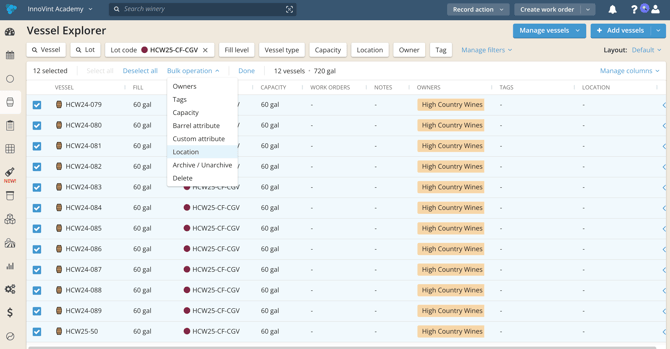
- Check the boxes next to the lots or vessels you want to update, or use select all option.
Your selection stays intact if you change filters or columns while in Select mode. If a filter change hides a selected item and you later remove or change that filter, the item is still checked.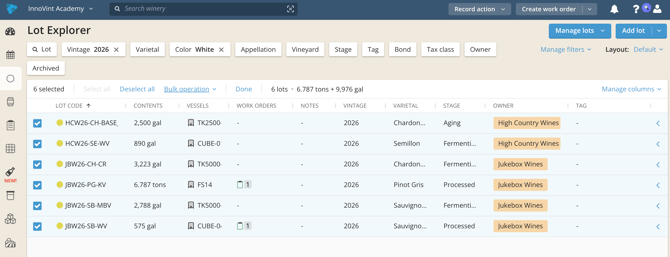
-
Choose the bulk operation you want to use.
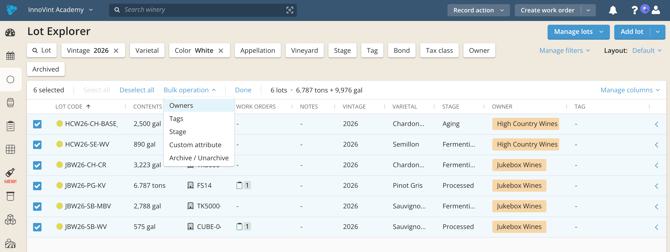
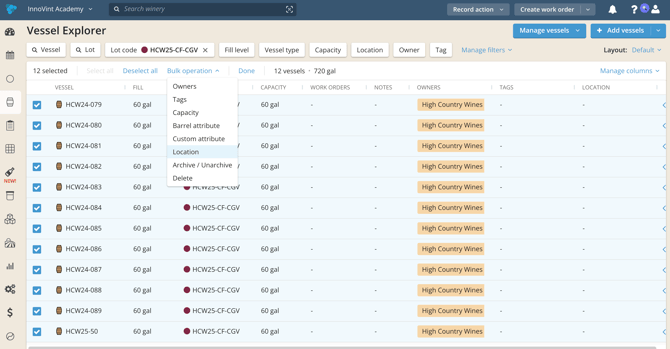
-
Fill in the modal for that attribute and submit.
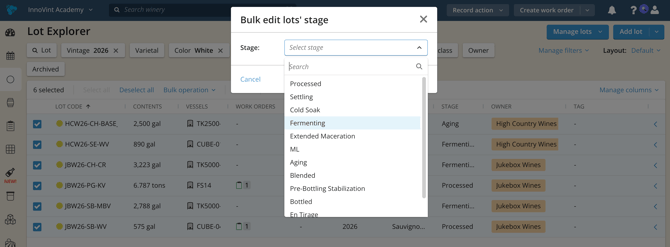
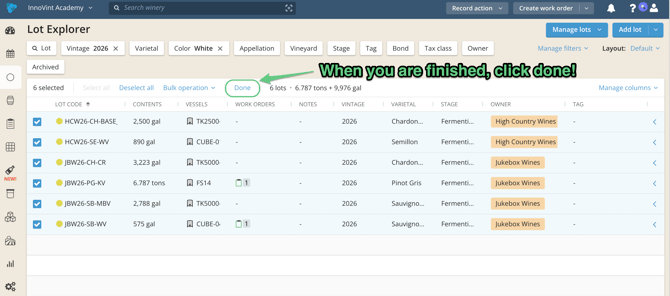
- Click Done to exit Select mode.
Once you submit a bulk operation, InnoVint applies it to everything currently selected — including any hidden by a filter — and shows a green "Bulk update success" message when it's done.
After a successful bulk update, your selections stay checked — handy if you want to make another change to the same set of records.
Bulk editing Lots via Select
|
Attribute |
What you can do |
|
Owners (if owners are enabled for your account) |
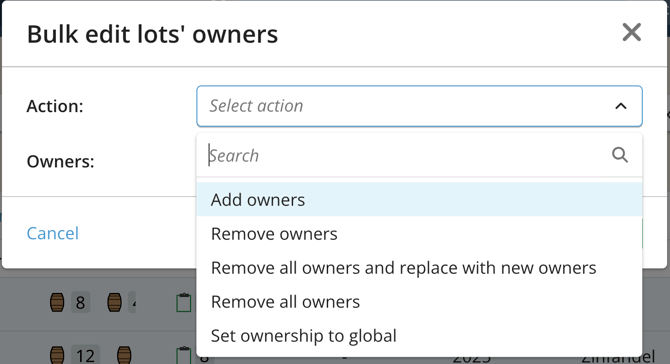
Add owners, remove owners, remove all owners and replace with new ones, remove all owners, or set ownership to global.
|
|
Tags |
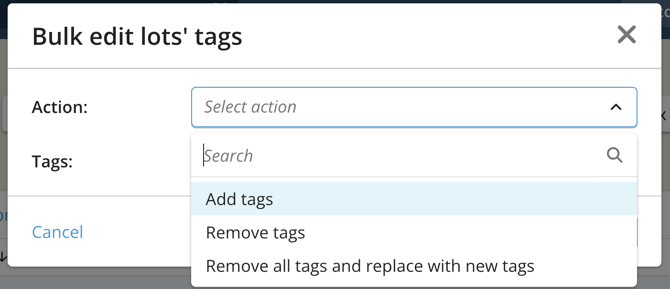
Add tags, remove tags, or remove all tags and replace with new ones.
|
|
Stage |
Set the stage to any of: Processed, Settling, Cold Soak, Fermenting, Extended Maceration, ML, Aging, Blended, Pre-Bottling Stabilization, Bottled, En Tirage (if sparkling is enabled), or Riddling (if sparkling is enabled). The previous stage is removed and the new one is set. |
|
Custom Attribute (if custom attributes are enabled & setup for your account) |
Choose any active custom lot attribute, then enter or select a value based on that attribute's data type (single-select, text, number, or date).
|
|
Archive/Unarchive |
Archive or unarchive the selected lots. |
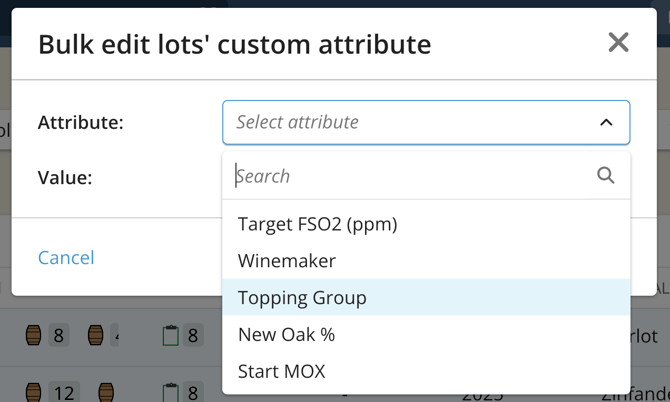
Bulk editing via Select isn't available yet for Fruit lots or Case Good lots, since those live in their own explorers. You can use Manage Lots for fruit lots (use the Fruit lot filter!).
Bulk editing Vessels via Select
|
Attribute |
What you can do |
|
Owners (if owners are enabled for your account) |
Add owners, remove owners, remove all owners and replace with new ones, remove all owners, or set ownership to global.
|
|
Tags |
Add tags, remove tags, or remove all tags and replace with new ones.
|
|
Capacities |
Enter a new capacity using your existing volume units |
|
Barrel Attribute (barrels only) |
Year First Used, Cooper, Barrel Style, Wood/Forest, Toast Level, or Color (Red, White, Rosé, or N/A).
|
|
Custom Attribute (if custom attributes are enabled and setup for your account) |
Choose any active custom vessel attribute, then enter or select a value based on that attribute's data type.
|
|
Locations (if locations are enabled and setup for your account) |
Choose a location from the same location picker used on the Vessel Details page.
|
|
Archive/Unarchive |
Archive or unarchive the selected vessels. |
|
Delete |
Delete the selected vessels, after confirming. Only vessels with no recorded actions can be deleted. |
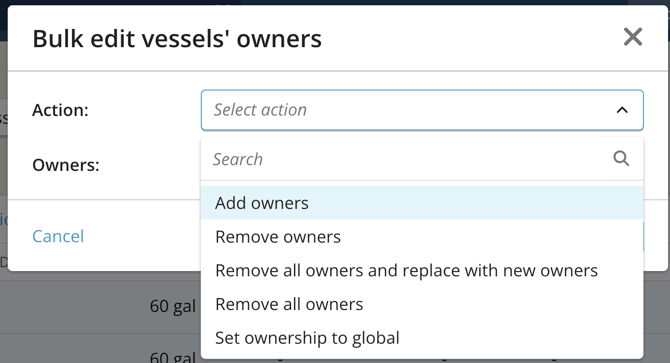
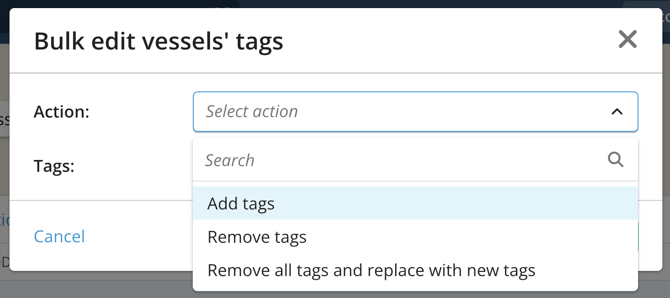
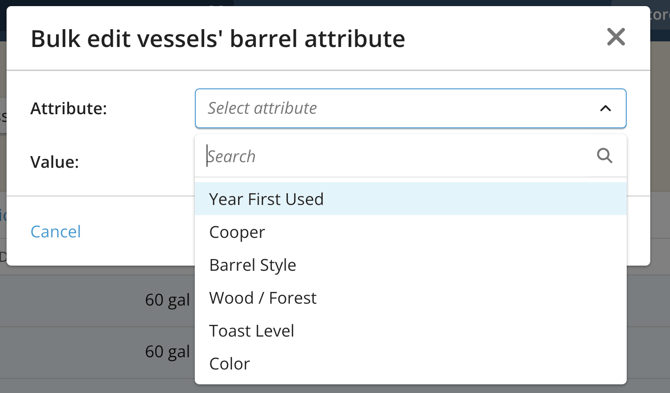
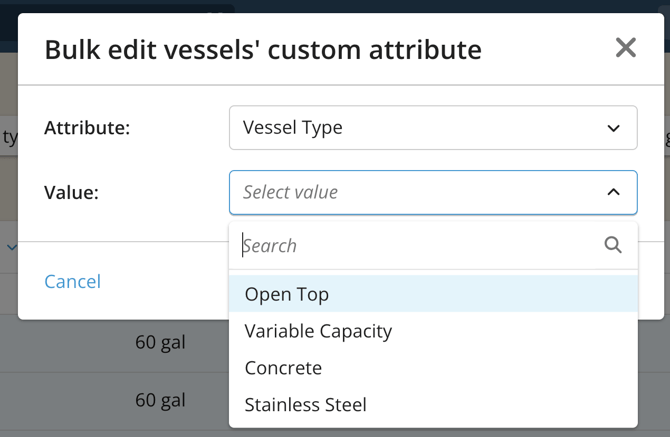
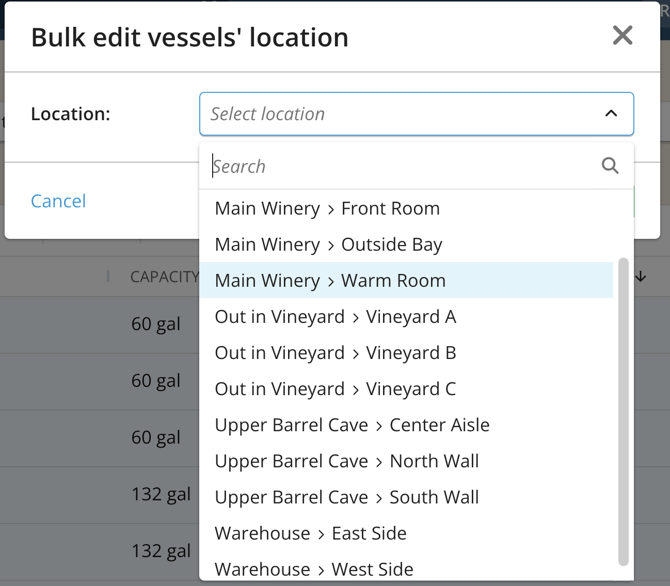
Select mode is also available on the Lot Details → Vessels table!
Tracking Bulk Changes
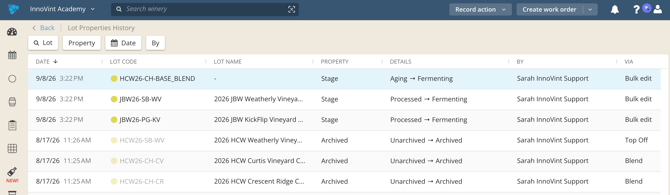
You can find changes made to lot and vessel attributes via your Lot Properties History Report and Vessel Properties History Report.
Lot changes (stage, custom attributes, archiving) appear in the Lot Properties History Report.
Vessel changes (owners, tags, capacity, barrel attributes, custom attributes, location, archiving) appear in the Vessel Properties History Report.
Changes made via both bulk management methods are logged, one line per lot or vessel updated, with Bulk edit shown in the Via column:
FAQ
Q: What's the difference between Manage Lots/Manage Vessels and Select?
A: Manage Lots and Manage Vessels open a menu where you pick which records to update from a list or picker. Select lets you check off records directly in your already-filtered Explorer grid, so you can see exactly what you're about to change before you commit. Select also supports two things Manage Lots/Manage Vessels don't: bulk-editing custom attributes and vessel locations.
Q: Can I bulk-print labels with Select?
A: Not yet — bulk label printing is currently only available through Manage Lots (lot labels) and Manage Vessels (QR code labels).
Q: Can I bulk-edit Fruit lots or Case Goods?
A: Not with Select — that's currently available on the Lot Explorer (Juice/Wine lots) and Vessel Explorer only. Fruit lots and Case Good lots still use their own bulk options for now.
Q: What happens to my Select selection if I change a filter mid-selection?
A: Nothing is lost. Selected items stay selected even if a filter hides them from view, and they're still included when you run a bulk operation.
Q: Where can I see what changed after a bulk update?
A: Check the Lot Properties History Report or Vessel Properties History Report.
Q: I'm getting an error that says: "Error performing bulk update. Cannot update barrel attribute since the vessel is not a barrel."
A: Check your filters and be sure that no non-barrels are included in your vessel selection. You cannot change barrel attributes on a tank, for example!