![InnoVintSupportCenter - header.png]](https://support.innovint.us/hs-fs/hubfs/InnoVintSupportCenter%20-%20header.png?width=300&height=22&name=InnoVintSupportCenter%20-%20header.png)
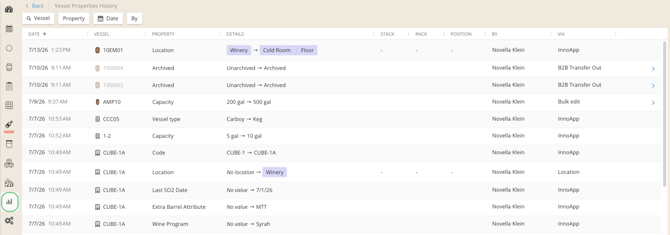
The Vessel Properties History Report gives you a winery-level view of all vessel property and attribute changes over time. You can use this report to audit changes to vessel properties including vessel code, capacity, type, archived status, owners, tags, barrel attributes, location, and any Custom Attributes.
This report tracks vessels starting in July 2026, and will not include historical changes prior to this point.
This article covers:
Where to find it
You can access the winery level Vessel Properties History Report in the Report Explorer, under Activity Reports, listed below the Lot Properties History Report.
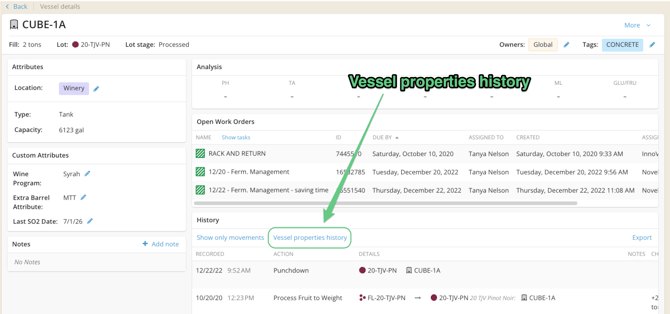
Navigate to the History tab on any Vessel Details page to see any Vessel property changes filtered for that specific vessel.
What it includes
Filters
The Vessel Properties History Report includes filters to help you narrow down results. Filters are always visible at the top of the report.
- Vessel — Search by vessel code to find changes for a specific vessel.
- Property — Filter by the type of property that was changed. Only properties that appear in your report will be listed. Available options include:
- Owners (only shown if Owners is enabled for your account)
- Tags
- Archived
- Including when done via a B2B Transfer Out
- Custom Vessel Attributes (only shown if Custom Attributes is enabled for your account)
- Vessel Code
- Vessel Capacity
- Vessel Type
- Barrel Attributes — Year First Used, Cooper, Barrel Style, Wood/Forest, Toast Level, Color
- Location (only shown if Vessel Location Management is enabled for your account)
- Date Range — Filter changes to a specific time period.
- By — Filter by the user who made the change. Only users who appear in your report will be listed.
Columns
The report includes the following columns. All columns can be sorted.
-
Date: the date and time the change was made.
-
Vessel: The vessel icon and vessel code.
-
Property: The property that changed.
-
Details: Show the change that was made, displayed as the prior value followed by the new value (for example, No value → Sarah Smile).
-
For location changes, this column displays the prior location tag followed by the new location tag, using the location tag component with nesting.
-
Position columns: If a vessel's location includes positions, the report includes up to three additional columns showing the position change. These columns only appear if Vessel Locations is enabled for your account and if positions with data exist — otherwise, they're hidden.
-
-
By: The user who made the change.
-
Via: Where the change was made, such as on the Vessel details page, via a bulk update, on InnoApp, or via an action.
FAQ
Q: Why are my changes grouped?
A: If multiple attributes are changed at the same time — for example, several Barrel Attributes updated together — they're reported on the same line.
Q: Can I see when vessels were created on this report?
A: Vessel creation is not included in this report — only additions, changes, and removals to properties on existing vessels are tracked.
Q: Can I see who deleted a vessel?
A: This report does not include vessels that have been deleted