---
title: Vessel Explorer
description: How to use the Vessel Explorer and save default vessel layouts
---
[Skip to content](https://support.innovint.us/hc/en-us/vessel-explorer#main-content)
[Submit a help ticket](https://support.innovint.us/hc/en-us/kb-tickets/new?hsLang=en)
![InnoVintSupportCenter - header.png\]](https://support.innovint.us/hs-fs/hubfs/InnoVintSupportCenter%20-%20header.png?width=300&height=22&name=InnoVintSupportCenter%20-%20header.png)
Open main navigation
Close main navigation
- [Submit a help ticket](https://support.innovint.us/hc/en-us/kb-tickets/new)
How can we help you today?
- There are no suggestions because the search field is empty.
1. [Support Center](https://support.innovint.us/hc/en-us?hsLang=en)
2. [MAKE](https://support.innovint.us/hc/en-us/make?hsLang=en)
3. [Vessels](https://support.innovint.us/hc/en-us/make?hsLang=en#vessels)
# Vessel Explorer
The Vessel Explorer is your window to your vessel inventory, giving you control and flexibility when viewing and managing your vessels. You can customize columns, apply advanced filters, save layouts, and quickly return to your preferred views.
This article covers:
- [What's in the Vessel Explorer](https://support.innovint.us/hc/en-us/vessel-explorer#whats-in-vessel-explorer)
- [Navigating the Vessel Explorer](https://support.innovint.us/hc/en-us/vessel-explorer#navigating-vessel-explorer)
- [Managing Filters & Columns](https://support.innovint.us/hc/en-us/vessel-explorer#managing-filters-columns)
- [Saving and using layouts](https://support.innovint.us/hc/en-us/vessel-explorer#saving-using-layouts)
- [Vessel Explorer export](https://support.innovint.us/hc/en-us/vessel-explorer#vessel-explorer-export)
- [How to bulk update vessels](https://support.innovint.us/hc/en-us/vessel-explorer#bulk)
- [Frequently asked questions](https://support.innovint.us/hc/en-us/vessel-explorer#faq)
### What's in the Vessel Explorer
The Vessel Explorer provides access to and views of all your current and historic vessels in inventory. It also provides:
- Customizable columns
- Advanced filtering options
- Saved layouts for personalized views
- Quick and easy exports to Excel
- Summary information (total vessels, total weight, total volume) displayed above the top row
- Easy methods to update vessel attributes in bulk
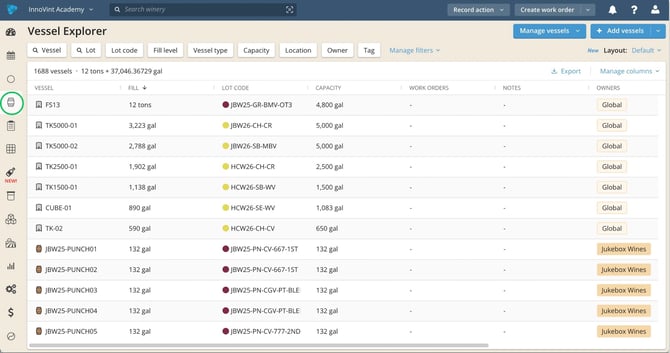
### Navigating the Vessel Explorer
The Vessel Explorer contains a row for each unique vessel in inventory, with associated visible vessel attributes.
- Click on any row to dive deeper into the [Vessel details!](https://support.innovint.us/hc/en-us/articles/205157275-what-can-i-see-on-a-vessel-detail-page-?hsLang=en)
- By default, archived vessels are hidden. Use the Archived filter to show these vessels.
#### Columns
The Vessel Explorer displays a number of default vessel attribute columns that can be customized as desired. Available columns include:
- Vessel
- Fill
- Lot code
- Lot name
- Capacity
- Work orders (displays icon/hover details)
- Notes (displays icon/hover details)
- Year
- Cooper
- Forest
- Toast
- Color
- Owners (if enabled)
- Tags
- Location (if vessel locations is enabled)
- Position (if vessel locations is enabled — up to 3 sub-columns based on your account's configured dimension names, e.g. Stack, Rack, Position)
- Style
- Wood
- Archived
- Fill level
- Vessel type
- Lot: Color
- Lot: Style (if Sparkling enabled)
- Lot: Stage
- Lot: Vintage
- Lot: Varietal
- Lot: Appellation
- Lot: Owner (if enabled)
- Lot: Bond (if bonds enabled)
- Lot: DBA (if bonds enabled)
- Lot: Intended Use (if enabled)
- Lot: Custom Attributes (each attribute becomes an available column)
#### Filters
The Vessel Explorer is more than a list — it's a report, too! Use the filters above the column headers to search, filter, and review vessels. 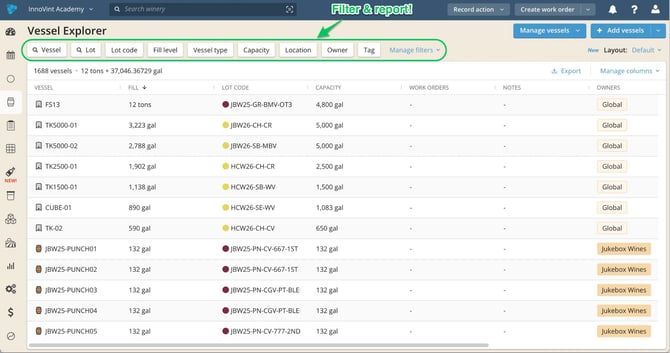
- The **Vessel** search field searches and filters based on vessel code. This field always displays and cannot be hidden.
- Most filters include **Any** and **Not** matching logic (and **All** for owner and tag filters) that allows for flexible and precise filtering:
- - **Any** — A vessel shows in the explorer if it matches any of the selected options (e.g. shows all vessels matching any of the selected vessel types)
- **Not** — A vessel shows in the explorer if it doesn't match any of the selected options (e.g. only shows vessels not assigned to the selected owner)
- **All** — A vessel shows in the explorer if it matches all of the selected options (e.g. only shows vessels that include all specified owners)
- Add additional filters or hide unwanted filters using the **Manage filters** menu.
- Available via Manage Filters:
- - - Lot search
- Lot code
- Fill level
- Vessel type
- Capacity
- Year first used
- Cooper
- Style
- Wood
- Forest
- Toast
- Color (vessel color)
- Location (if vessel locations are enabled)
- Owner (if enabled)
- Tag
- Archived
- Lot: Color
- Lot: Style (if Sparkling is enabled)
- Lot: Stage
- Lot: Vintage(the vintage filter returns all lots that contain at least 95% of the selected vintage)
- - - Lot: Varietal (the varietal filter returns all lots that contain at least 75% of the selected varietal)
- Lot: Appellation (the appellation filter that returns all lots that contain at least 85% of the selected appellation)
- Lot: Owner (if enabled)
- Lot: Bond (if bonds are enabled)
- Lot: Intended Use Search (if enabled)
- Lot: Intended Use (if enabled)
- **Lot: Custom Attributes** — If custom attributes are enabled; filter type varies by attribute data type:
- Text (search field only)
- Date (Date Range Filter)
- Number (search field only)
- Single select (filters ANY, NOT)
**BLEND** displays on for a lot on the vintage, varietal and appellation attribute when certain thresholds are not met. A lot must be 95% vintage, 85% appellation or 75% varietal in order for the specified designation to be met and displayed.
For example, if the lot is 74% Merlot, the varietal column will display BLEND. Use the BLEND filter on the Vintage, Varietal or Appellation columns.
### Managing Filters & Columns
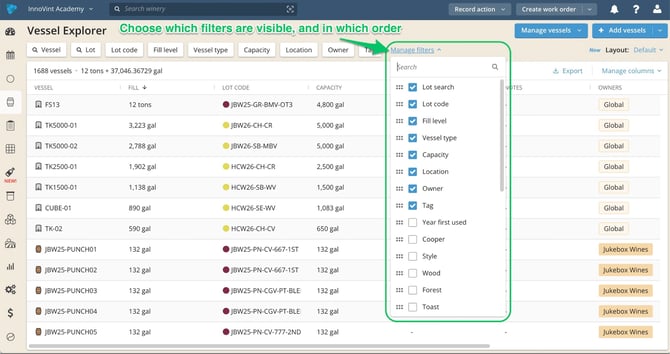
Use the **Manage Filters** and **Manage Columns** buttons to:
- Control which columns appear in your Vessel Explorer 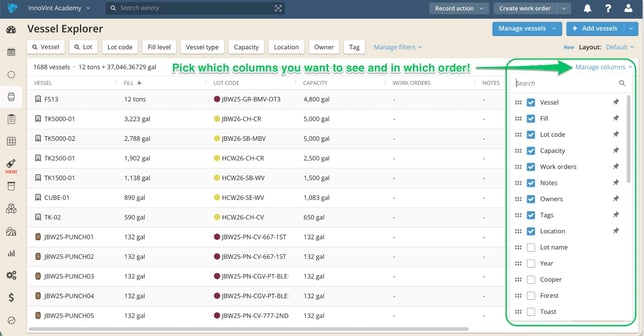
- Reorder columns by dragging
- Resize columns
- Pin specific columns to the left
- Customize which filters appear on your Vessel Explorer (Vessel search always displays and cannot be removed)
- Rearrange filter order by dragging
### Saving and Using Layouts
Layouts let you save your preferred filters and column settings. You can save up to 200 layouts. 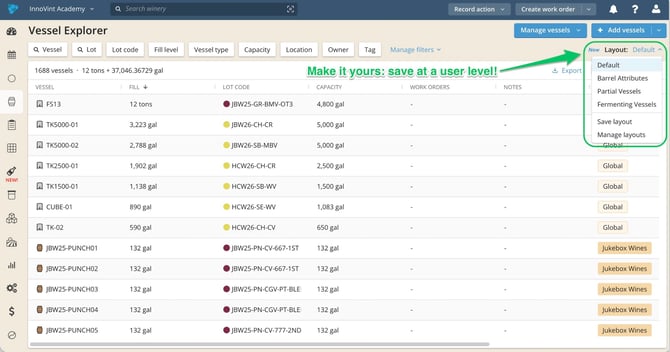
#### How to save a layout
1. Configure your filters and columns
2. Open the layout dropdown
3. Select **Save Layout**
4. Enter a unique name (maximum 50 characters)
5. Choose whether to include selected filter values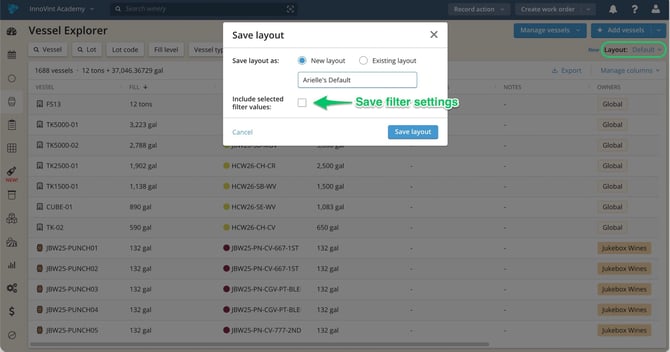
6. Save
Saved layouts include:
- Active filters and values (optional)
- Visible columns
- Column order and size
- Pinned columns
- Sorting
#### Managing Layouts
Select **Manage Layouts** to:
- Rename layouts
- Reorder layouts
- Delete layouts
At least one layout must always remain (the delete option will not be available if you only have one layout).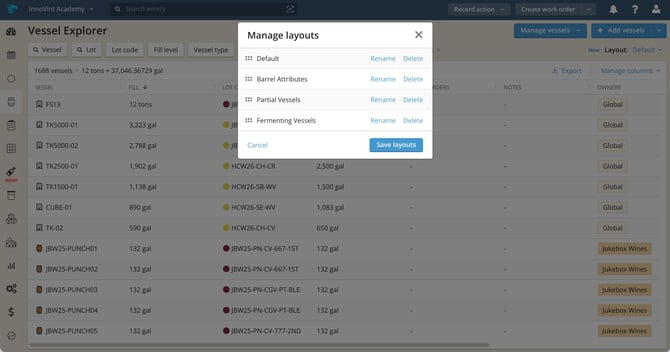
#### Loading Layouts
- Select a saved layout from the dropdown
- The table updates automatically
- The filter and column menus adjust to match the layout.
- Layouts are saved per user, per winery. When you return to the Vessel Explorer, it will automatically load the last layout you used.
#### Default Layouts
New wineries receive four default layouts — any of these can be renamed or deleted:
- **Default**
- Includes standard filters and columns, similar to the "original" Vessel Explorer view
- **Barrel Attributes**
- Focused on barrel-specific attributes.
- **Partial Vessel**
- Optimized for finding partially filled vessels, with pre-selected **Fill level** filter set to Partial.
- **Fermenting Vessels**
- Optimized for harvest and fermentation tracking, with pre-selected **Lot: Stage** filter set to Fermenting and sorts by Vessel type.
### Vessel Explorer Export
Want to export your report? You can export and download your vessel data from the Vessel Explorer.
What's included on an export?
- Exports will include only the vessels currently visible based on your filters.
- Your saved column visibility does not affect export format. All available Vessel Explorer columns will export.
### How to bulk update vessels
Use the Select or Manage Vessels buttons to quickly update many vessel attributes.

Find out more [here](https://support.innovint.us/hc/en-us/-bulk-editing-lots-vessels?hsLang=en)!
### Frequently Asked Questions
**Q: Why don't I see certain filters or columns?**
*A: Some filters and columns depend on:*
- *Your user permissions*
- *Whether specific features (Vessel Locations, Owner, Bonds, Custom Attributes, Sparkling) are enabled for your organization.*
*If you believe something is missing, [contact Support](mailto:support@innovint.us) to check your subscription and user access.*
**Q: Why did my layout disappear?**
*A: Layouts are saved per user, within the selected winery. If you switch user or winery accounts, your layouts will not appear.*
**Q: Can I share layouts with other users?**
*A: No. Layouts are currently saved at the individual user level. Other users in the winery cannot see your layouts.*
**Q: Why are archived vessels greyed out?**
*A: Archived vessels are visually distinguished to help you identify inactive records quickly.*
**Q: What happens if I don't save my changes?**
*A: If you make changes but don't save them as a layout and leave the Vessel Explorer, it will remember your last view for when you return. Your most recent filters and settings will be restored. This "last view" updates automatically and may be replaced when you change layouts, columns, or filters. A saved last view is different from a saved layout, which can be found again in the Layout menu.*
**Q: Can I see vessels for a specific lot?**
*A: Yes. You can use the **Lot code** filter to narrow the Vessel Explorer to vessels containing a specific lot. You can also view vessels associated with a lot directly from the **Lot Details \> Vessels tab**, which automatically filters to the current lot.*
**Q: What does BLEND mean on Lot: Vintage, Varietal, or Appellation filters?**
*A: BLEND displays when a lot doesn't meet the threshold for a specific designation — 95% for vintage, 85% for appellation, or 75% for varietal. Use the BLEND filter option to find lots that fall below these thresholds.*
- [New to InnoVint](https://support.innovint.us/hc/en-us/new-to-innovint?hsLang=en#main-content)
- [Accessing InnoVint](https://support.innovint.us/hc/en-us/new-to-innovint?hsLang=en#accessing-innovint)
- [Settings - MAKE, GROW & FINANCE](https://support.innovint.us/hc/en-us/new-to-innovint?hsLang=en#settings-make-grow-finance)
- [Getting Started - MAKE, GROW & FINANCE](https://support.innovint.us/hc/en-us/new-to-innovint?hsLang=en#getting-started-make-grow-finance)
- [MAKE](https://support.innovint.us/hc/en-us/make?hsLang=en#main-content)
- [Dashboard & Calendar](https://support.innovint.us/hc/en-us/make?hsLang=en#dashboard-calendar)
- [Lots](https://support.innovint.us/hc/en-us/make?hsLang=en#lots)
- [Vessels](https://support.innovint.us/hc/en-us/make?hsLang=en#vessels)
- [Work Orders](https://support.innovint.us/hc/en-us/make?hsLang=en#work-orders)
- [Recording Actions](https://support.innovint.us/hc/en-us/make?hsLang=en#recording-actions)
- [Movement Actions](https://support.innovint.us/hc/en-us/make?hsLang=en#movement-actions)
- [Topping](https://support.innovint.us/hc/en-us/make?hsLang=en#topping)
- [Analysis](https://support.innovint.us/hc/en-us/make?hsLang=en#analysis)
- [Analysis Reports](https://support.innovint.us/hc/en-us/make?hsLang=en#analysis-reports)
- [Additions](https://support.innovint.us/hc/en-us/make?hsLang=en#additions)
- [Case Goods in MAKE](https://support.innovint.us/hc/en-us/make?hsLang=en#case-goods-in-make)
- [Dry Goods](https://support.innovint.us/hc/en-us/make?hsLang=en#dry-goods)
- [Vineyards](https://support.innovint.us/hc/en-us/make?hsLang=en#vineyards)
- [Reporting](https://support.innovint.us/hc/en-us/make?hsLang=en#reporting)
- [Compliance](https://support.innovint.us/hc/en-us/make?hsLang=en#compliance)
- [Tags & Notes](https://support.innovint.us/hc/en-us/make?hsLang=en#tags-notes)
- [Printing Labels from InnoVint](https://support.innovint.us/hc/en-us/make?hsLang=en#printing-labels-from-innovint)
- [AI](https://support.innovint.us/hc/en-us/make?hsLang=en#ai)
- [GROW](https://support.innovint.us/hc/en-us/grow?hsLang=en)
- [FINANCE](https://support.innovint.us/hc/en-us/finance?hsLang=en#main-content)
- [Getting Started](https://support.innovint.us/hc/en-us/finance?hsLang=en#getting-started)
- [Reporting](https://support.innovint.us/hc/en-us/finance?hsLang=en#reporting)
- [Guidance & FAQ](https://support.innovint.us/hc/en-us/finance?hsLang=en#guidance-faq)
- [Harvest](https://support.innovint.us/hc/en-us/harvest?hsLang=en#main-content)
- [Preparing for Harvest](https://support.innovint.us/hc/en-us/harvest?hsLang=en#preparing-for-harvest)
- [Vineyard Harvest Reports](https://support.innovint.us/hc/en-us/harvest?hsLang=en#vineyard-harvest-reports)
- [Harvest Workflow & Fermentation Tracking](https://support.innovint.us/hc/en-us/harvest?hsLang=en#harvest-workflow-fermentation-tracking)
- [Settings & Preferences](https://support.innovint.us/hc/en-us/harvest?hsLang=en#settings-preferences)
- [MAKE: Advanced Features](https://support.innovint.us/hc/en-us/make-advanced-features?hsLang=en#main-content)
- [Owner-based Permissions System](https://support.innovint.us/hc/en-us/make-advanced-features?hsLang=en#owner-based-permissions-system)
- [Custom Attributes](https://support.innovint.us/hc/en-us/make-advanced-features?hsLang=en#custom-attributes)
- [Blend Trials](https://support.innovint.us/hc/en-us/make-advanced-features?hsLang=en#blend-trials)
- [Tank Maps](https://support.innovint.us/hc/en-us/make-advanced-features?hsLang=en#tank-maps)
- [Sparkling Wine Module](https://support.innovint.us/hc/en-us/make-advanced-features?hsLang=en#sparkling-wine-module)
- [Intended Use](https://support.innovint.us/hc/en-us/make-advanced-features?hsLang=en#intended-use)
- [Integrations](https://support.innovint.us/hc/en-us/make-advanced-features?hsLang=en#integrations)
- [SUPPLY](https://support.innovint.us/hc/en-us/supply?hsLang=en#main-content)
- [Getting Started with SUPPLY](https://support.innovint.us/hc/en-us/supply?hsLang=en#getting-started-with-supply)
- [Actions in SUPPLY](https://support.innovint.us/hc/en-us/supply?hsLang=en#actions-in-supply)
- [Using SUPPLY](https://support.innovint.us/hc/en-us/supply?hsLang=en#using-supply)
- [Order Management](https://support.innovint.us/hc/en-us/supply?hsLang=en#order-management)
- [InnoApp](https://support.innovint.us/hc/en-us/innoapp?hsLang=en#main-content)
- [InnoApp](https://support.innovint.us/hc/en-us/innoapp?hsLang=en#innoapp)
- [InnoApp - Work Orders](https://support.innovint.us/hc/en-us/innoapp?hsLang=en#innoapp-work-orders)
- [Guidance & FAQs](https://support.innovint.us/hc/en-us/guidance-faqs?hsLang=en#main-content)
- [Frequently Asked Questions](https://support.innovint.us/hc/en-us/guidance-faqs?hsLang=en#frequently-asked-questions)
- [Specialized Workflows](https://support.innovint.us/hc/en-us/guidance-faqs?hsLang=en#specialized-workflows)
- [Best Practices](https://support.innovint.us/hc/en-us/guidance-faqs?hsLang=en#best-practices)
- [Templates](https://support.innovint.us/hc/en-us/guidance-faqs?hsLang=en#templates)
- [InnoVint Academy](https://support.innovint.us/hc/en-us/innovint-academy?hsLang=en#main-content)
- [Video Trainings/Tutorials](https://support.innovint.us/hc/en-us/innovint-academy?hsLang=en#video-trainings-tutorials)
- [Video Informational Sessions](https://support.innovint.us/hc/en-us/innovint-academy?hsLang=en#video-informational-sessions)
- [Quick Video Tutorials](https://support.innovint.us/hc/en-us/innovint-academy?hsLang=en#quick-video-tutorials)
- [Product Updates](https://support.innovint.us/hc/en-us/product-updates?hsLang=en#main-content)
- [Product Updates: 2025-2026](https://support.innovint.us/hc/en-us/product-updates?hsLang=en#product-updates-2025-2026)
- [Product Updates: 2024](https://support.innovint.us/hc/en-us/product-updates?hsLang=en#product-updates-2024)
- [Product Updates: 2023](https://support.innovint.us/hc/en-us/product-updates?hsLang=en#product-updates-2023)
- [Product Updates: 2017 - 2022](https://support.innovint.us/hc/en-us/product-updates?hsLang=en#product-updates-2017-2022)
- [Support Hours & FAQs](https://support.innovint.us/hc/en-us/support-hours-faqs?hsLang=en)
[](https://support.innovint.us/hc/en-us?hsLang=en)
Copyright © 2025, InnoVint