![InnoVintSupportCenter - header.png]](https://support.innovint.us/hs-fs/hubfs/InnoVintSupportCenter%20-%20header.png?width=300&height=22&name=InnoVintSupportCenter%20-%20header.png)
With Email invoices and sales orders, you can send an order's invoice or sales order PDF to your customer directly from SUPPLY — no need to download the document and attach it to an email yourself. When you email an invoice, SUPPLY also updates the order's payment status and logs the email in the order's History, so you always know what was sent and to whom.
This article contains:
- How to set up your invoice and sales order emails
- How to email an invoice or sales order
- How to choose who receives the email
- What happens after you send
- Frequently Asked Questions
How to set up your invoice and sales order emails
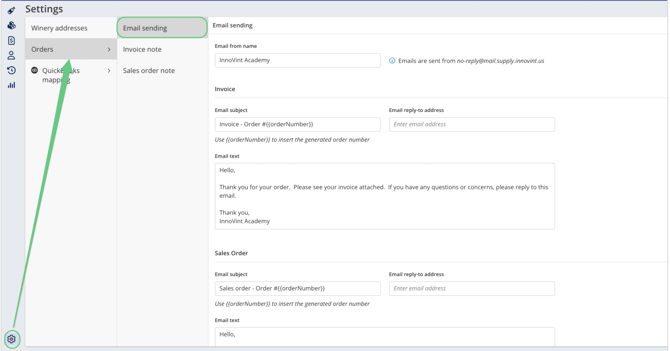
Before you send your first email, set the default subject line and email text for each document type in Settings. You only need to do this once — your saved settings apply to every invoice or sales order email sent from your organization.
- Go to Settings and open the Orders menu.
- Select Invoice emails or Sales order emails.
- Set the Email subject (see below).
- Enter your Email text (see below).
- Click Save invoice email or Save sales order email.
Email subject
By default, SUPPLY uses a standard subject line that includes the order number:
- Invoice emails: Invoice - Order #[order number] (for example, Invoice - Order #002181)
- Sales order emails: Sales order - Order #[order number]
Settings displays a sample order number. Sent emails always use the real order number.
To use your own subject line instead:
- Check the Custom box below the default subject. The default subject turns gray.
- Enter your subject line in the Enter email subject field that appears.
To go back to the default subject, uncheck Custom.
Personalize your custom subject
Custom subjects support two placeholders that SUPPLY fills in automatically for each email:
|
Placeholder |
Replaced with |
|---|---|
|
The order number, e.g. 002181 |
|
|
Your organization's name, as shown in the SUPPLY header |
For example, a custom subject of Invoice from becomes Invoice 002181 from Blonde Ambition Wines.
Click the info (i) icon next to the Custom checkbox anytime for a quick reminder of the available placeholders.
📌 Note: Type placeholders exactly as shown, including the double curly braces. Only these two placeholders are supported, and they work in the subject line only — not in the email text.
Email text
The Email text box is the body of your email. Use it for anything you want your customers to see every time, such as payment instructions, payment terms, or a contact for billing questions.
- Email text is plain text. Line breaks and blank lines are kept exactly as you enter them, but formatting like bold, links, or bullet lists is not supported.
- Until you save your own text, SUPPLY uses the default text below, with your organization name filled in at the bottom.
Default invoice email text:
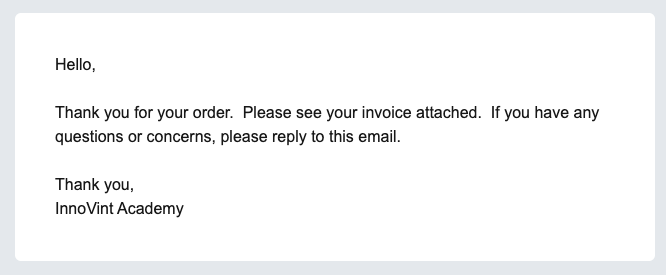
Hello,
Thank you for your order. Please see your invoice attached. If you have any questions or concerns, please reply to this email.
Thank you, [Your organization name]
Default sales order email text:
Hello,
Thank you for your order. Please see your sales order attached. If you have any questions or concerns, please reply to this email.
Thank you, [Your organization name]
Good to know:
- Changes to your email settings only affect emails sent from that point on. Emails that have already been sent don't change.
- Email settings are shared across your whole organization — they aren't set per user or per customer.
- Email settings are separate from your Invoice and Sales order notes. Notes print on the PDF itself; email text appears in the body of the email.
How to email an invoice or sales order
You can email a document once it has been created on the order. Need to create one first? See Creating an invoice and Creating a sales order.
- Go to Orders and select the order.
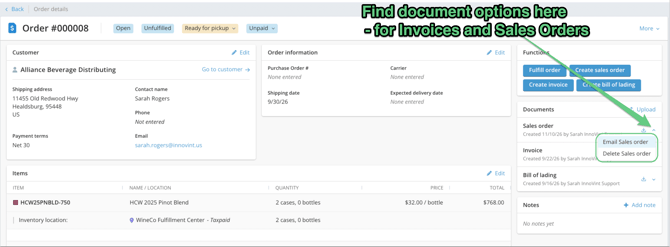
- In the Documents section, find the Invoice or Sales order you want to send.
- Click the down caret next to the download icon, then select Email invoice or Email sales order.
- The Email invoice or Email sales order modal opens. Review who the document will be sent to, and click Change email addresses to make any changes (see How to choose who receives the email).
- Click Email invoice or Email sales order to send. Or, click Cancel to close the modal without sending.
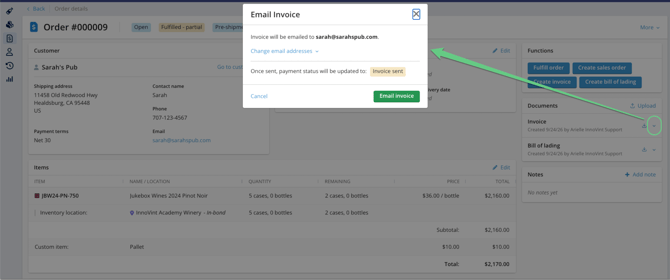
The modal closes right away and a confirmation message appears. SUPPLY sends the email in the background, so you can keep working while it's delivered — this usually takes about a minute.
📌 Note: When emailing an invoice, the modal shows Payment status will be updated to: Invoice sent. This line doesn't appear if the order's payment status is already past Invoice sent (for example, Payment received), or when emailing a sales order — in those cases, sending the email doesn't change the payment status.
How to choose who receives the email
By default, the email goes to all of the customer's billing emails. The modal lists them in a sentence at the top, for example: Invoice will be emailed to billing@bigdistribution.com and sarah@bigdistribution.com. This sentence updates as you make changes, so you can always see exactly who will receive the email before you send it.
Click Change email addresses to open the address list:
- Remove a recipient: Uncheck any billing email you don't want to send to.
- Add a recipient: Click Add custom address and type the email address in the Enter address field. You can add as many custom addresses as you need. Click the remove icon next to a custom address to delete it.
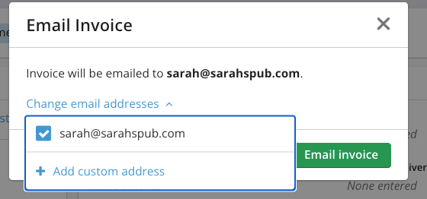
A custom address is checked when you click out of the field. Valid addresses are added to the recipient sentence; invalid addresses are not.
📌 Note: Recipient changes apply to this email only. Custom addresses are not saved to the customer, and the customer's billing emails don't change. To update a customer's billing emails for future orders, edit the customer record.
Troubleshooting recipient errors
- No emails selected! Select email addresses below
- Every billing email is unchecked and there's no valid custom address. When you close the address list, the Change email addresses link turns red. Check at least one billing email or add a valid custom address. If you click send with no recipients, nothing is sent and SUPPLY shows the error No email addresses.
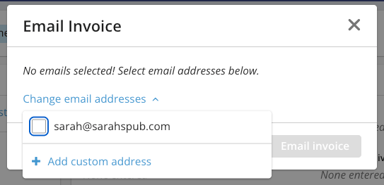
- Every billing email is unchecked and there's no valid custom address. When you close the address list, the Change email addresses link turns red. Check at least one billing email or add a valid custom address. If you click send with no recipients, nothing is sent and SUPPLY shows the error No email addresses.
- Invalid custom address
- A custom address isn't a valid email address. The field shows a red border (or, if the address list is closed, the Change email addresses link turns red). Correct or remove the address, then send again. Nothing is sent until the error is fixed.
What happens after you send
Your customer receives an email with:
- Subject: your default or custom subject from Settings, with any placeholders filled in.
- Body: your email text from Settings.
- Attachment: the invoice or sales order PDF — the same file you'd get by downloading it from the order's Documents section.
When you email an invoice:
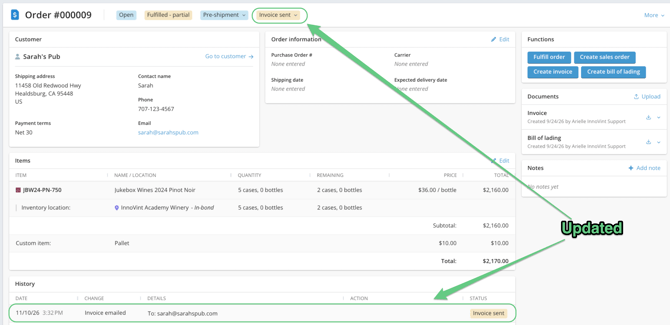
- Once the email is confirmed sent, the order's Payment status updates to Invoice sent.
- The payment status doesn't change while the email is still sending, or if it fails to send.
- If the payment status is already past Invoice sent (for example, Payment received), it stays the same.
- An Invoice emailed row is added to the top of the order's History table, listing the recipients in the Details column and the user who sent it.
When you email a sales order:
- The payment status doesn't change.
- A Sales order emailed row is added to the order's History table, listing the recipients and the user who sent it.
💡 Tip: Need to resend a document, or send it to someone new? You can email the same invoice or sales order as many times as you need. Each email adds its own row to History, so you have a full record of every send.
FAQ
Q: Can I email purchase orders, bills of lading, or documents I uploaded?
A: Not at this time. Only invoices and sales orders created in SUPPLY can be emailed. You can still download any document from the order's Documents section and send it from your own email.
Q: Can I email invoices or sales orders for several orders at once?
A: Not at this time. Emailing is done one document at a time from the order details page.
Q: Can I use different email text for different customers?
A: No. Email settings apply to your whole organization. To change who receives a specific email, use Change email addresses in the Email modal.
Q: Can I use the or placeholders in my email text?
A: No. Placeholders are only supported in a custom email subject.
Q: Will a custom address I add be saved to the customer?
A: No. Custom addresses are used for that one email only. To add a billing email permanently, edit the customer record.
Q: How do I know an invoice email was sent?
A: Check the order's History table for an Invoice emailed row, and the payment status in the order header, which updates to Invoice sent once the email is confirmed sent.