![InnoVintSupportCenter - header.png]](https://support.innovint.us/hs-fs/hubfs/InnoVintSupportCenter%20-%20header.png?width=300&height=22&name=InnoVintSupportCenter%20-%20header.png)
Save time by setting up negotiated SKU prices once, assigning them to the customers who get them, and have SUPPLY fill in those prices on your orders automatically.
This article covers:
What are price sheets
Each SKU can store one default price per unit or group, but many wineries sell the same SKU at different prices to different channels and customers.
A price sheet is a named list of SKUs with a price per item and a price per group for each one (for example, “Distributor West” or “Fall 26 Discount Prices”). You can assign a price sheet to one or more customers. When you create an order for one of those customers, SUPPLY selects their price sheet and fills in each SKU’s price from it, rather than the default SKU price.
- The price per item and price per group are separate prices. The group price isn’t calculated from the item price.
- A customer can be on more than one price sheet (see Customers on more than one price sheet).
Getting started with price sheets
Before you create a price sheet
Ensure that you have the following information added in SUPPLY:
- Make sure your SKUs have default prices. You can set them on each SKU (at SKU creation or by importing SKU updates), or on the Default SKU prices page. SKUs that aren’t on a price sheet use their default price when they are added to an order.
- Make sure your customers exist in SUPPLY. See SUPPLY: How to Create & Manage Customers.
Where to find & create price sheets
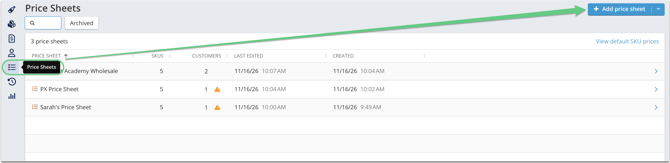
Click the Price sheets icon in the left navigation bar to open the Price sheet explorer. The Price Sheet explorer lists all of your price sheets.
- Use Search to find a sheet by name.
- Archived sheets are hidden. To see them, choose Show archived or Show only archived in the Archived filter.
How to create a price sheet
- In the Price sheet explorer, click Add price sheet. To create a sheet from a spreadsheet, see How to import a price sheet.
- Enter a Name. Names must be unique.
- Click Add price sheet.
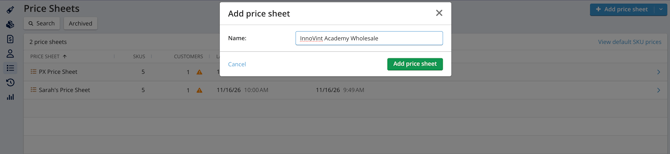
- SUPPLY creates the sheet and opens its details page in Edit mode, so you can add SKUs and customers right away. If you click Cancel now, the empty sheet is saved with the Price List name. It isn’t deleted.
- Add SKUs and customers.
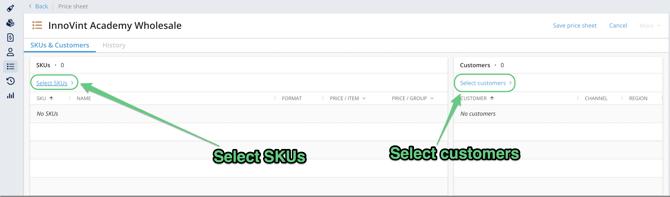
- To add SKUs, click Select SKUs. Choose SKUs in the SKU picker, then confirm.
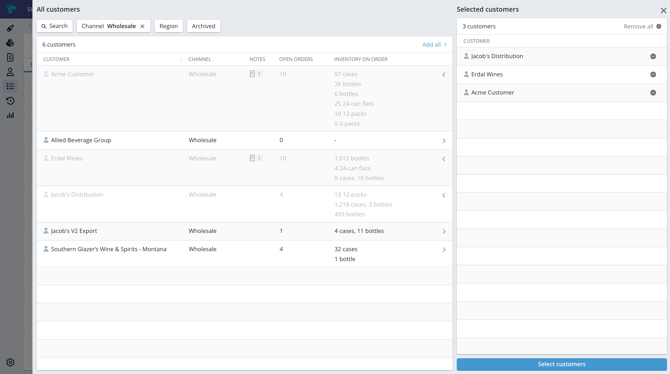
- To add customers, click Select customers. In the customer picker, search or filter by Channel or Region, then add your customers to the Selected customers list. Click Select customers.
- To add SKUs, click Select SKUs. Choose SKUs in the SKU picker, then confirm.
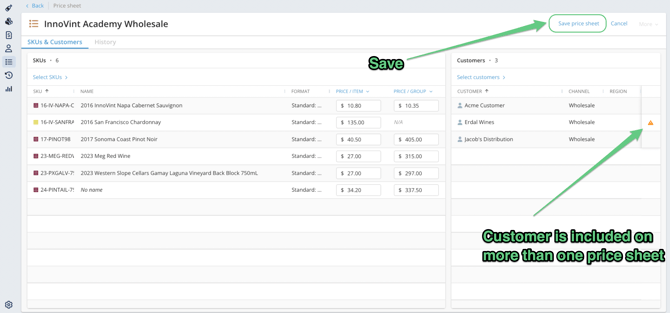
- After you've set your SKUs, set the prices. Manually type in the Price / Item and Price / Group per SKU, or use the column headers to easily bulk apply prices and discounts.
* Default SKU prices will populate initially.
* SKUs with one item per group won't have a group price.
* Bulk percentage discounts apply to the listed price on the row. - Click Save price sheet.
How to change prices in bulk
In Edit mode, the Price / Item and Price / Group column headers each have a dropdown.
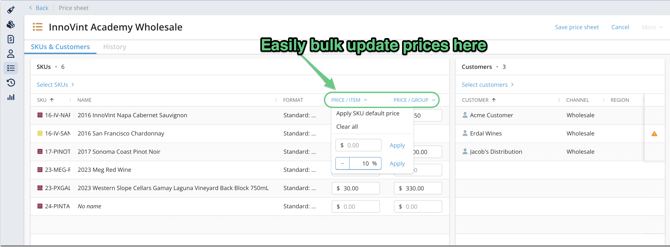
Each option applies to every SKU on the sheet, for that column (item or group) only:
- Apply SKU default price: resets each price to the SKU’s default price
- Clear all: clears every price in the column. You’ll need to fill them in again before you can save.
- Set price: enter a price and click Apply to give every SKU that price
- Adjust by percentage: choose + or − (click the sign to switch), enter a percentage, and click Apply
For example, to build a “5% off list” sheet:
- Choose Apply SKU default price.
- Choose Adjust by percentage, then − and 5.
When you adjust by a percentage:
- Prices are rounded to your currency’s decimal places.
- A price never goes below 0.00.
- If any price in the column is blank, you’ll see an error. Fill in or remove the blank price first. The price sheet will accept $0.00 but will not accept a blank input.
Bulk changes aren’t saved until you click Save price sheet.
All SKUs must have a listed price to save the price sheet
How to edit a price sheet
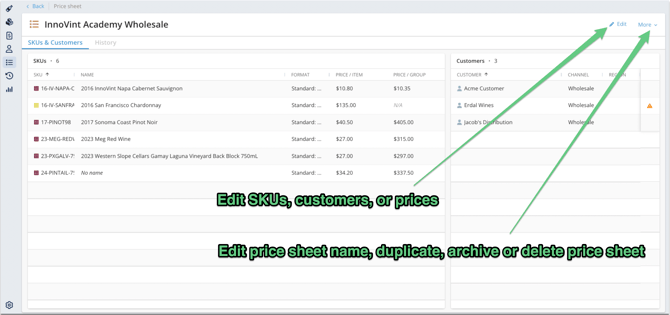
To edit the SKUs, SKU pricing or customers:
- Open the price sheet and click Edit at the top right.
- To add or remove SKUs, click Select SKUs. Choose SKUs in the SKU picker, then confirm.
- To set prices, type in the Price / Item and Price / Group columns. Newly added SKUs start at their default price. SKUs with one item per group won’t have a group price.
- To add or remove customers, click Select customers. In the customer picker, search or filter by Channel, Region or Archived, add customers to the Selected customers list, then click Select customers.
- Click Save price sheet.
To rename, duplicate, delete or archive the price sheet:
- Open the price sheet and click More at the top right.
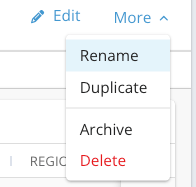
- Select your option:
-
- Rename: Edit the name and click Rename price sheet. Names must be unique.
- Duplicate: Creates “[name] Copy” with the same SKUs, prices and customers, and returns you to the explorer. Duplicating the same sheet again creates “[name] Copy 2”, then “[name] Copy 3”, and so on.
-
-
- If you duplicate an archived sheet, the duplicated sheet will be active.
- Because the duplicated sheet will have the same customers, it will show the ⚠️ warning unless you remove them from one of the sheets.
-
-
- Archive / Unarchive: Archived sheets are hidden in the explorer and can’t be selected on new orders or edited. Orders that already use the sheet still show it.
- You can’t archive a sheet that’s used on an Open order.
- Archive / Unarchive: Archived sheets are hidden in the explorer and can’t be selected on new orders or edited. Orders that already use the sheet still show it.
-
- Delete: Permanently deletes the sheet after you confirm.
- You can’t delete a sheet that has been used on any order: you must archive it instead.
- Delete: Permanently deletes the sheet after you confirm.
How to track edits to your price sheets:
A price sheet’s details page has two tabs:
-
SKUs & Customers: the SKUs on the sheet with their prices, and the customers assigned to it
-
History: every change to the sheet
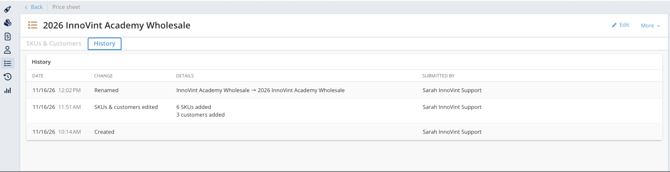
The History tab on a price sheet shows every change, newest first, with the date, the change, details, and who made it. Changes logged:
- Created
- Renamed (old name → new name)
- Archived and unarchived
- SKUs & customers edited, with a summary such as “15 SKUs added, 32 SKU’s prices changed, 3 customers added, 2 removed”
Price sheet tips
- Prices can’t be blank. If any price is empty when you save, you’ll see “SKU prices cannot be blank.” The price sheet will accept $0.00 but will not accept a blank input.
- Prices must be from 0 to 999,999,999.99. They use your currency’s decimal places (for example, 2 for USD).
- Cancel discards every change you made since you clicked Edit.
- If you leave the page with unsaved changes, SUPPLY asks before you leave. Changes you don’t save are lost.
- Limits: If you try to go over 10,000 SKUs or 1,000 customers, the picker asks you to remove some before continuing.
- Archived customers can be added. Include them by updating the Archived filter in the customer picker.
- Archived SKUs stay on a sheet if they’re archived after being added. They show an Archived tag, and you can still edit their prices.
- New SKUs aren’t added to existing price sheets automatically. Add them with Select SKUs. Until then, orders use their default price.
- Archived price sheets can’t be edited. Unarchive the sheet first.
- Customers on more than one price sheet. A customer can be assigned to more than one price sheet, for example a standing distributor sheet and a seasonal promotion. SUPPLY doesn’t block this, but it flags it:
- Price sheet explorer: a ⚠️ in the Customers column means at least one customer on that sheet is also on another price sheet.
- Price sheet details page: a ⚠️ appears next to each of those customers. Hover over it to see the other sheets they’re on.
- On orders: SUPPLY won’t automatically select a sheet for a customer who’s on more than one. You must select one for each order.
How to import a price sheet
Already tracking special pricing in Excel? You can easily build a new price sheet from a .csv or .xlsx file. Importing always creates a new price sheet. It doesn’t update an existing one.
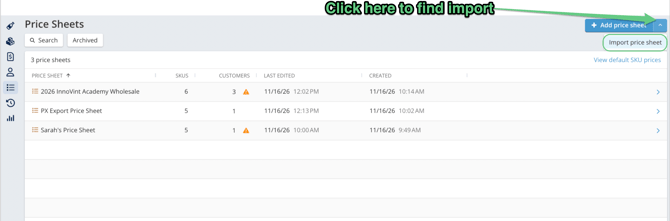
- In the Price sheet explorer, click the arrow next to Add price sheet and choose Import price sheet.
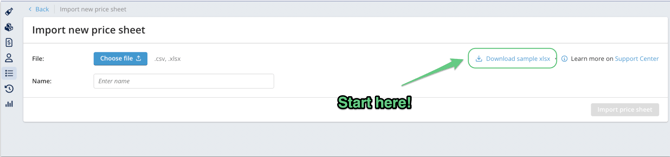
- Click Download sample xlsx to get a template.
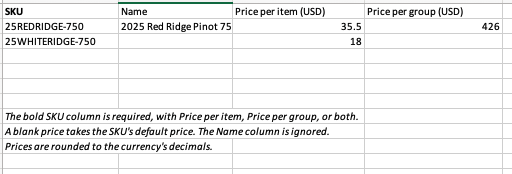
- Fill in one row per SKU (see the file specifications below). Save the updated import file.
- Click Choose file and select your file.
- Enter a Name for the new price sheet.
- Review the preview. Rows with problems are highlighted, with the reason in the Errors column.
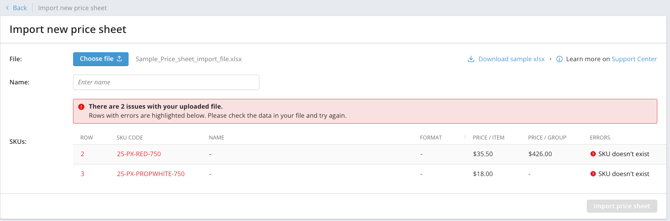
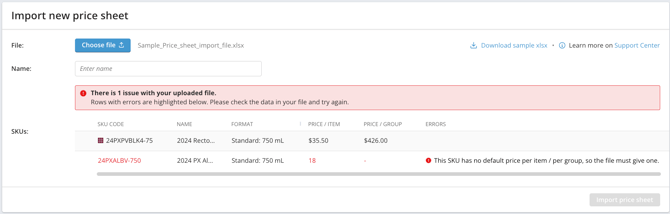
- Fix any errors in your file and upload it again. Import price sheet becomes available once every row is valid.
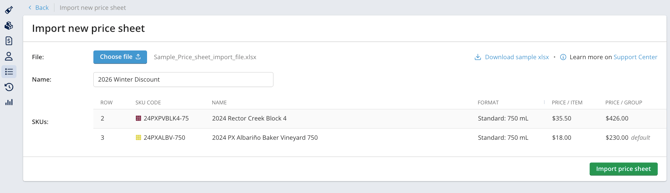
- Click Import price sheet.
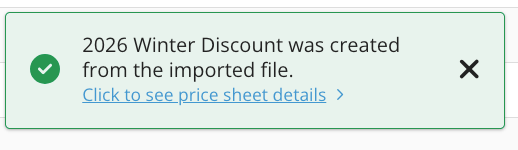
- Open the sheet to add customers. Customers can’t be included in the import file.
File specifications
|
Column |
Required? |
Notes |
|---|---|---|
|
SKU |
Required |
The SKU code. “SKU Code” or “Code” also work. |
|
Name |
Optional |
For your reference. SUPPLY will show the SKU’s name from SUPPLY after import. |
|
Price per item |
Column required |
“Item price” or “Price/item” also work. |
|
Price per group |
Column required |
“Group price” or “Price/group” also work. |
- Headers aren’t case sensitive.
- Both price columns must be in the file, but you can leave one of them empty. For example, fill in only the item prices.
- Enter prices as plain numbers, such as 12 or 1200. Text such as “$12” or “1,200” isn’t accepted.
- Prices are rounded to your currency’s decimal places and must be from 0 to 999,999,999.99.
- A price header can include your currency, for example “Price per item (USD)”. If a header names a different currency, the file is refused.
- The file can have up to 1,000 rows. You can add more SKUs after the import with Select SKUs, up to 10,000.
- The new sheet contains only the SKUs in your file.
- Archived SKUs in the file are accepted and flagged with a warning.
- Each SKU can appear only once.
- The SKU must already exist and have a default price set. Find out how to create new SKUs here and update default prices here.
Import error messages
|
Message |
What to do |
|---|---|
|
SKU doesn’t exist |
Check the SKU code against the SKU explorer. |
|
SKU is required |
Fill in the SKU column on that row. |
|
SKU appears more than once in the file |
Keep one row per SKU. |
|
Price per item / Price per group must be a number of 0 or more |
Use a plain number with no currency symbols or commas. |
|
This SKU has one item per group, so it can’t have a price per group |
Leave Price per group empty for that SKU. |
|
The file is missing these columns: [columns] |
Add the listed column headers. |
|
[headers] are in a different currency. Use [your currency], or remove the currency from the headers. |
Change or remove the currency in the price headers. |
|
The file has more than 1,000 rows. |
Split the file, or add the remaining SKUs after the import. |
|
The file could not be read. Check that it is a .csv or .xlsx file and try again. |
Save the file as .csv or .xlsx. |
How to use a price sheet on an order
When you create or edit an order, the Price sheet dropdown is in the Items section header, next to Select SKUs.
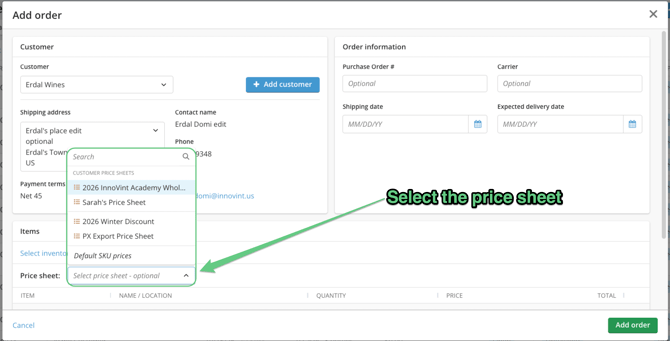
- Click +Add Order and select a customer.
- SUPPLY checks the customer’s price sheets. Archived sheets aren’t counted.
-
- If the customer is on one price sheet: that sheet is selected, and the SKU prices come from it.
- If the customer is on no price sheet, or is on more than one: the dropdown is cleared, and the lines use default SKU prices. Pick a sheet from the dropdown to apply it. The customer’s own sheets are listed first, under Customer price sheets.
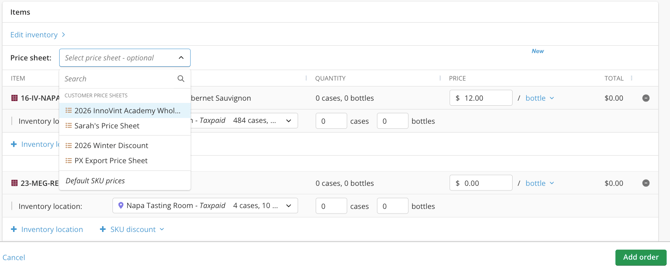
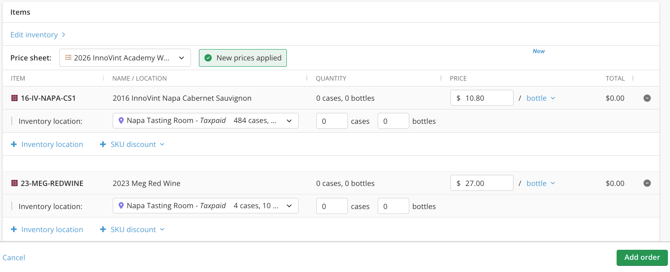
Finish the order as usual.
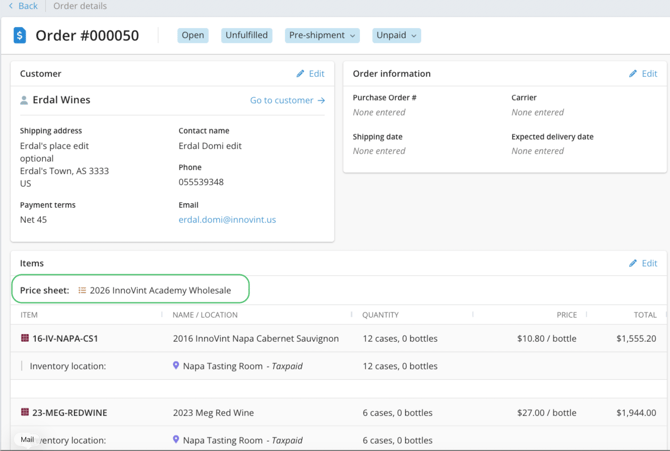
If you don’t pick a sheet, the order is saved with Default SKU prices.
Changing the price sheet
You can change the price sheet while creating an order, or by editing the Items card on an existing order.
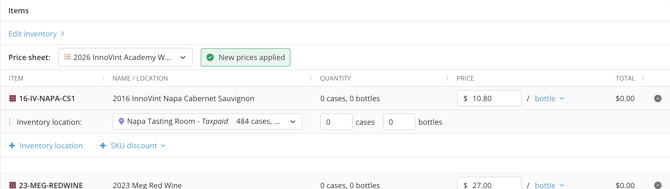
- SKUs that are on the new sheet get the new sheet’s prices. SKUs that aren’t on it keep their current price.
- Each line keeps its bottle or case selection. Only the price changes.
- “New prices applied” shows next to the dropdown.
- Prices you typed by hand on a line are replaced if that SKU is on the new sheet.
- The price sheet can’t be changed on a Closed or Canceled order.
- Clicking Cancel on the Items card restores the previous price sheet and prices.
Changing the price sheet on an order adds a Price sheet updated row to the order’s History

Tips! Orders and Price Sheets
- Changing the customer on an Open order doesn’t change its price sheet or prices.
- An order keeps the price sheet it was priced from, even if the customer’s sheets change later.
- If that sheet is later archived, the order still shows it, with an Archived tag.
- You can still type a different price on any line, for that order only.
Default SKU prices
Each SKU on a price sheet requires a price to save the sheet. To use the price sheet import, included SKUs must have a default price in SUPPLY. Are you missing default SKU prices?
The Default SKU prices page lists every unarchived SKU with its default price per item and price per group. These are the same prices as on each SKU’s details page. Orders will use these when no price sheet is selected, and for SKUs that aren’t on the selected sheet. Use the Default SKU prices page to easily review and update your default SKU prices.
To open it, click View default SKU prices at the top right of the Price sheet explorer table. Click a SKU code to open that SKU’s details page in a new tab.
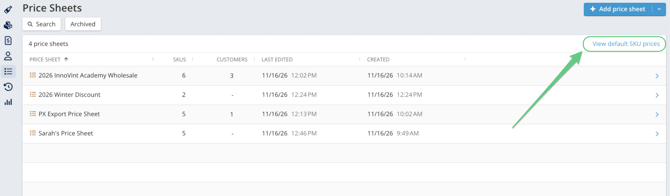
Use the Default SKU prices worksheet to Edit prices directly, or export an xlsx file to work with externally, and then import.
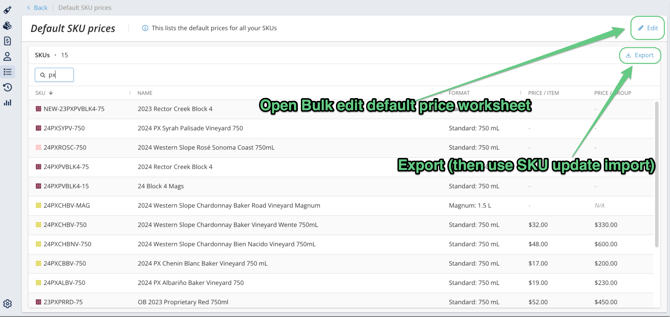
Edit default prices in worksheet
- Click Edit.
- Change the prices you need, one SKU at a time.
- Click Save default SKU prices.
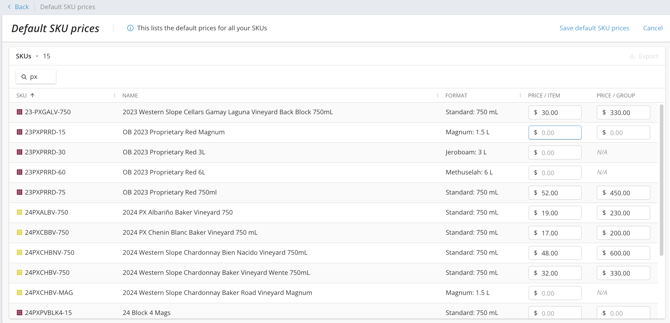
Saving changes each SKU’s default price everywhere in SUPPLY.
Change many default prices at once
- Click Export on the SKUs table to download an .xlsx of your default prices.
- Edit the prices in Excel.
- Re-import the file with Import SKU updates on the SKU explorer.
- The exported file can be re-imported as is. The import doesn’t rename SKUs from the Name column. Import files can have up to 1,000 rows.
FAQ
Q: Does a price sheet change the SKU’s default price?
A: No. Price sheet prices only apply to orders that use that sheet. To change a default price, use the Default SKU prices page or the SKU details page.
Q: I updated a price sheet. Do my existing orders change?
A: No. Prices are set on an order at the point in time that the sheet is applied.
Q: Can I see which price sheet an order used?
A: Yes. The price sheet is shown in the Items section on the order details page.
Q: What happens to a SKU on the order that isn’t on the price sheet?
A: It uses the SKU’s default price. If you change the order’s price sheet, SKUs that aren’t on the new sheet keep their current price.
Q: Can I export a price sheet?
A: Not at this time. You can export Default SKU prices.
Q: Can I update an existing price sheet by importing a file?
A: Not at this time. Importing always creates a new sheet. To change prices on an existing sheet, use the Edit capabilities.
Q: Where do I assign a price sheet to a customer?
A: On the price sheet’s details page, with Select customers. Customers aren’t assigned from the customer form.
Q: How many customers and prices can I set?
A: A price sheet can hold up to 10,000 SKUs and 1,000 customers.
Q: My price sheet explorer has a warning icon in the customer column - why?
A: The customer column showing ⚠️ means that at least one of the customers on the sheet is also on another price sheet.