Skip to content
  • There are no suggestions because the search field is empty.

Reporting in SUPPLY

This article outlines the different reporting options that exist in SUPPLY.  You will find some reports in the Report explorer, and some are located as explorer exports.


Inventory Explorer 

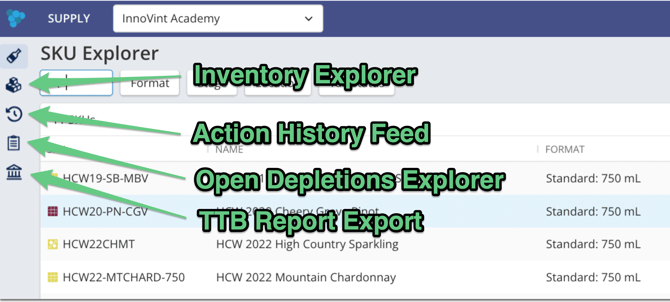
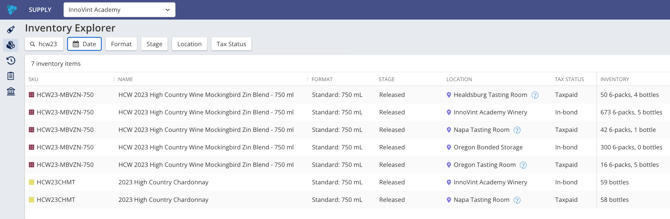
The Inventory Explorer allows you to view and export inventory quantities as of a specific date and time.  Find the Inventory Explorer on the lefthand navigation menu, beneath the SKU Explorer icon.

Use the Inventory Explorer when you need to:

  • See what inventory quantities were at a past point in time
  • Troubleshoot inventory discrepancies
  • Reconcile inventory for audits or reporting across locations
  • Export inventory data that reflects a historical date, not just current inventory

How to View Inventory at a Specific Date and Time

  • Inventory Explorer Filters:  the Inventory Explorer supports the same filters as the Inventory Picker, allowing you to narrow your results before viewing or exporting them. Available filters include:
    • Search - SKU code and SKU name
    • Date/Time -This filter controls what inventory quantities are displayed
      • By default, the filter is set to the current date and time
      • Selecting a date/time updates the list to show inventory quantities as of that moment
      • Inventory with a zero quantity at the selected time is automatically excluded
      • Selecting Today sets the date to today and the time to 11:59 PM
    • Format
    • Stage
    • Location
    • Tax Status
  • After setting your filters, the Inventory Explorer shows:
    • All inventory line items that had a quantity greater than zero at the selected date/time
    • Any Inventory associated with active SKUs

Having trouble viewing a column? Column widths for SKU Code and SKU Name can be resized.

How to Export Inventory

  1. Apply any desired filters, including Date/Time
  2. Click Export in the Inventory Explorer
    • The export reflects all active filters at the time of export
    • The file name includes the selected date and time

The Current Inventory Export in the SKU Explorer is no longer available - please use the point in time report as of today!

Action History Feed

This report can be found by clicking on the report's icon on the left navigation sidebar.  The Action History Feed is a list of all actions, displayed in reverse chronological order, that have been submitted.  
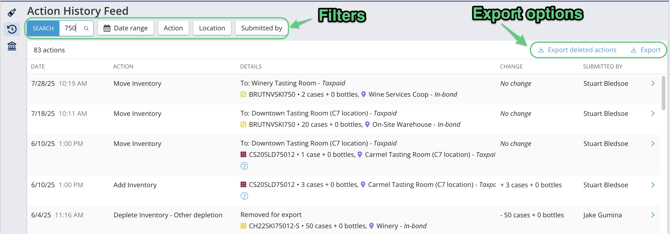
  • Use the filters to find the actions you are looking for. Filters include:  
    • Text filter (SKU, SKU name and notes text) - use the text field to find actions on specific SKUs, or actions with specific note text.
    • Date range filter - You can select just a start date, just an end date or a date range.
    • Action filter - All actions are included and those with reasons (Onboard, Add and Deplete) are listed both generically and broken out by reason to allow for both general and granular filtering.
    • Location filter - review all actions that moved inventory into or out of a location
    • Compliance reason filter - filters actions on in-bond locations based on Compliance reason, including 'Compliance reason not set'.
    • Submitted by filter - This filter shows all users in the account and filters actions by who most recently submitted the action or the action edit.
  • Export the reports in csv - each export respects the currently applied filters: 
    • Action History export - Export of all actions in the feed
    • Deleted actions export - Export of deleted actions
  • Exports will include the effective at date (i.e. the date an action was backdated to), the deleted at date (for deleted actions), the created at date (when you actually recorded the action), the action type, the compliance reason (if applicable), the action url, the involved SKU(s), involved location(s), the net inventory change, the Note on the action, who submitted the action, and the Commerce7 Order Number (if applicable). 
 

Orders

The Order Explorer includes two export options, giving you a quick way to pull your order data out of SUPPLY's Order Management System.  You can export a high-level summary of your orders, or a detailed, SKU-by-SKU breakdown — whichever fits your need.

How to export your orders

  1. Go to the Order Explorer.
  2. Click the Export button.
  3. Choose one of the two export options from the dropdown:
    • Orders
    • Orders by SKU
  4. Your file will begin downloading immediately.

The export respects whatever filters you currently have applied in the Order Explorer. If you've filtered down to a specific customer, date range, or status, only that filtered data will be included in your export.

    Orders export

    This is a high-level export with one row per order, reflecting the filters you had applied in the Order Explorer at the time of export.

    Filters section

    Right below the report's header, the export lists any filters applied when you generated the file:

    • Only filters with a value selected are shown 
    • Each listed filter shows an applied prefix. For example:
      • Date Range: MM/DD/YY to MM/DD/YY
      • Customer: ANY: Southern Glazer's Wine & Spirits - NY, Jacob's Distribution
      • Order status: NOT: Open, Canceled
      • Fulfillment status: ANY: Unfulfilled, Fulfilled - partial
      • Shipping status: NOT: Pre-shipment
      • Payment status: NOT: Unpaid, Invoice sent, Payment received
    Columns
    Column What it shows
    Order number The 6-digit order number
    Customer Full customer name
    Created Date/time the order was created (MM/DD/YYYY 00:00)
    Involved SKUs All SKUs on the order (custom items are not included)
    Order quantity Total order quantity, shown in the same format used in the Order Explorer
    Fulfilled quantity Total inventory quantity that's been fulfilled (shows 0 if nothing has been fulfilled)
    Remaining quantity Total inventory quantity still remaining (shows 0 if nothing is remaining)
    Last fulfillment Date/time of the most recent fulfillment event (blank if the order hasn't had any fulfillments)
    Order COGS The total cost of goods sold for the order — see note below
    Gross SKUs revenue Total revenue across all SKUs on the order (price × quantity), before any discounts
    SKUs discounts Total dollar amount of SKU-level discounts on the order ($0.00 if none)
    Order discounts Total dollar amount of order-level discounts ($0.00 if none)
    Net SKUs revenue Gross SKUs revenue minus SKU and order discounts
    Custom items revenue Total dollar amount from custom items on the order ($0.00 if none)
    Net order revenue The order's total amount — SKU revenue minus discounts, plus custom items
    Order status Current order status
    Fulfillment status Current fulfillment status
    Shipping status Current shipping status
    Payment status Current payment status
    Purchase order number Left blank if there isn't one
    Carrier Left blank if there isn't one
    Shipping date Left blank if there isn't one
    Expected delivery date Left blank if there isn't one
    Note 1, Note 2, etc. One column per note on the order. The number of Note columns matches whichever order in the export has the most notes; it will be blank where an order has fewer notes
    Errors Flags any issue with a row's data — see note below

    Order COGS: This is calculated by taking the COGS value for each SKU on the order (as of the export date/time), multiplying it by the quantity ordered, and summing across all SKUs.

    Errors: If one or more SKUs on the order doesn't have a COGS value set, the total is calculated using just the SKUs that do have one — if none of the SKUs have a COGS value, this column will show $0.00. In either case, the cell is highlighted red, and the Errors column for that row will list out which SKUs were missing a COGS value (e.g., "No COGS for: SKU A, SKU B").

    Orders by SKU export

    The Order by SKU export provides a detailed, SKU-level export of your orders, respecting the filters you had applied in the Order Explorer at the time of export.

    Unlike the Orders export, this file breaks each order out into multiple rows — one row per SKU on the order. Order-level details (like customer or order status) repeat across each of those rows, while SKU-specific details (like quantity or revenue) change row to row.

    Filters section

    This works the same way as in the Orders export — only applied filters are listed, values are comma-separated, and each filter shows its ANY/ALL/NOT prefix.

    Columns included
    Column What it shows
    Order number The 6-digit order number
    Customer Full customer name
    Created Date/time the order was created (MM/DD/YYYY 00:00)
    SKUs The specific SKU for this row
    Order quantity Quantity ordered for that SKU
    Fulfilled quantity Quantity fulfilled for that SKU (shows 0, e.g. "0 cases, 0 bottles," if nothing's been fulfilled)
    Remaining quantity Quantity remaining for that SKU (shows 0 if the SKU is fully fulfilled)
    Last fulfillment Date/time of the most recent fulfillment event for that SKU (blank if none)
    SKU COGS Cost of goods sold for that SKU — quantity multiplied by the SKU's COGS value as of the export date/time. See note below. 
    SKU price The dollar price of the SKU on the order as of the export date/time
    SKU price unit The unit the price is based on (e.g., bottle, case, 14-can flat)
    Gross SKU revenue Price × quantity for that SKU, before discounts
    SKU discounts Total dollar amount of discounts applied to that SKU ($0.00 if none)
    Proportional order discount The portion of any order-level discount attributed to that SKU, based on its share of the order subtotal
    Net SKU revenue Gross SKU revenue minus that SKU's discounts
    Custom items revenue Total dollar amount from custom items on the order ($0.00 if none) — same value across every SKU row for that order
    Net order revenue The order's total amount — same value across every SKU row for that order
    Order status Current order status
    Fulfillment status Current fulfillment status
    Shipping status Current shipping status
    Payment status Current payment status
    Purchase order number Left blank if there isn't one
    Carrier Left blank if there isn't one
    Shipping date Left blank if there isn't one
    Expected delivery date Left blank if there isn't one
    Note 1, Note 2, etc. One column per note on the order. The number of Note columns matches whichever order in the export has the most notes; it will be blank where an order has fewer notes
    Errors Flags any SKU that's missing a COGS value (see note below)


    SKU COGS & Errors:

    If a SKU doesn't have a COGS value set as of the export date/time, this column will show $0.00, the cell will be highlighted red, and the Errors column for that row will note it (e.g., "No COGS for SKU A").

    A note on Proportional order discount: If the order has a percentage-based discount, that percentage is applied directly to the SKU's net revenue. If the order has a flat-dollar discount, it's split across the SKUs in proportion to each SKU's share of the order subtotal.


    Revenue and Profit by Customer

    The Revenue and Profit by Customer report exports order data by customer, for orders that closed within a date range you select — giving you revenue, COGS, and profitability broken out by customer, channel, and region in a single export.

    Use this report when you need to:

    • See which region, channel, or customer is most profitable overall, or within a specific date range

    • Compare profitability between two customers

    • See how much revenue a particular customer brings in

    • See which region brings in the most revenue

    • Report volume sold to a specific channel or customer — handy for state compliance reporting

    How to export

    1. Go to Reports on the lefthand navigation  > Revenue and Profit by Customer

    2. Select the date range you want to report on. 

    3. Click "Download report."

    What the report includes
    • Each row is one customer

      • Customers with 0 orders within the date range selected are not included in the report

    • This report will ONLY pull from orders with Order status = CLOSED

      • It includes Customer Orders that had the final "Deplete Inventory - Sales" action submitted within your date range


    Columns

    Column

    What it shows

    Customer

    Full customer name

    Channel

    Current channel for that customer

    Region

    Current region for that customer

    Number of orders

    Number of orders for the customer within the selected period of time

    Orders COGS

    Sum of all closed order COGS for the customer. This uses the COGS value present on the SKUs as of the date/time that the export is created

    Gross SKUs revenue

    Sum of the gross revenue for all SKUs on all orders

    SKUs discounts

    Sum of the dollar amount of all SKU discounts on orders

     Order discounts

     Sum of the dollar amount sum of all order discounts

    Net SKUs revenue

    Gross SKUs revenue minus all SKU and order discounts on orders

    Custom items revenue

    Sum of all custom items on orders ($0.00 if none)

    Net order revenue

    Total order amounts (SKU revenue minus SKU discounts minus order discounts plus custom items)

    SKU profit

    [(Gross SKUs revenue - SKU discounts - order discounts)] - [Orders COGS]

    Total profit

     [(Gross SKUs revenue - SKU discounts - order discounts + Custom items revenue)] - [Orders COGS]

    SKU Profit %

     [SKU profit] / [Gross SKUs revenue]

    Volume sold (gal)

     Volume equivalent in gallons of all inventory fulfilled   from all the orders

    Errors

     If an order does not have a COGS value for all SKUS on the order, the SKUs will be listed here, and the cell highlighted red


    Order COGS: This is calculated by taking the COGS value for each SKU on a closed order (as of the export date/time), multiplying it by the quantity ordered, and summing across all SKUs and all orders for the customer.

    Errors: If one or more SKUs on the order doesn't have a COGS value set, the total is calculated using just the SKUs that do have one — if none of the SKUs have a COGS value, this column will show $0.00. In either case, the cell is highlighted red, and the Errors column for that row will list out which SKUs were missing a COGS value (e.g., "No COGS for: SKU A, SKU B").


    TTB Export

    This report can be found by clicking on the report's icon on the left navigation sidebar.   
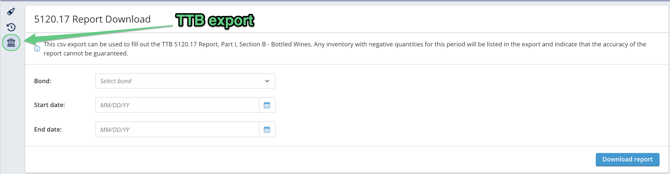
    SUPPLY Reports - TTB Export

    Get all the details on how the TTB export is created in this article!