![InnoVintSupportCenter - header.png]](https://support.innovint.us/hs-fs/hubfs/InnoVintSupportCenter%20-%20header.png?width=300&height=22&name=InnoVintSupportCenter%20-%20header.png)
Moving to InnoVint from Winemakers Database (WMDB)? This article walks you through cleaning up your WMDB program and exporting the files we need, so your data comes over correctly on the first try.
Read this alongside the Pre-Onboarding Guide & Checklist, which covers the rest of your onboarding prep: physical inventory, devices, labels, and team roles.
In this article:
Which Version of WMDB Do You Use?
Winemakers Database comes in two versions, and the menus and export steps are different in each:
WMDB FoxPro (Legacy): the original on-premise version.
WMDB Scion: the newer Cloud version.
Follow only the section for your version. If you’re not sure which one you have, ask your onboarding contact.
Before You Export
Pick your cutover date first. Your cutover date is the day your InnoVint history starts. Your lot composition export should reflect your inventory as of that date, so your volumes and lot compositions line up. Most wineries choose a date within the last 2–4 weeks.
Do a physical inventory. Counting your tanks, barrels, and lots before you export is the best way to catch records in WMDB that no longer match your cellar.
Clean up before you export, not after (optional). The cleanup steps below remove retired vessels and old codes from WMDB, so they don’t come over to InnoVint. Some prefer to clean up in WMDB vs in a spreadsheet.
Keep your WMDB access (Scion). Hold on to WMDB until your migration is complete and your team has reviewed the data in InnoVint. Common practice is to retain access for 30days after data import to compare TTB reporting periods. Export any historical records you’re legally required to keep before your access ends.
The Files We Need
WMDB exports most of your data as short codes (for example, a two-letter variety or cooper code). That’s why, along with your inventory exports, we also ask for your code definitions: they tell us what each code means so we can map it to InnoVint.
|
File |
FoxPro (Legacy) |
Scion |
What it gives us |
|
Vessel (tank) list |
Excel |
CSV |
Your tanks, totes, and other non-barrel vessels |
|
Barrel list |
Excel |
CSV |
Each barrel ID, with cooper, vintage, toast, and other attributes |
|
Lot compositions |
|
See Scion Step 5 |
What’s in each vessel and where each lot came from |
|
Code definitions |
|
|
What each WMDB code stands for |
Name your files clearly and with your winery name so we can keep them straight, for example “YourWineryName Vessels,” “YourWineryName BBLS,” and “YourWineryName Lot Comps.”
WMDB FoxPro (Legacy): Clean Up and Export
Step 1: (OPTIONAL) Clean up your vessels before exporting
Remove old vessels from WMDB so you start fresh in InnoVint. Good candidates to remove:
-
Old IBC totes and kegs
-
Most dummy or phantom tanks (you won’t need these as often in InnoVint)
-
Retired, sold, or destroyed barrels
-
Stainless upright or portable tanks that no longer physically exist
Important: Tanks and barrels must be empty before you can delete them.
Tanks
-
Go to Utilities → Tanks to open the Tank Utility.
-
Delete each tank you no longer need. Tanks are deleted one at a time.
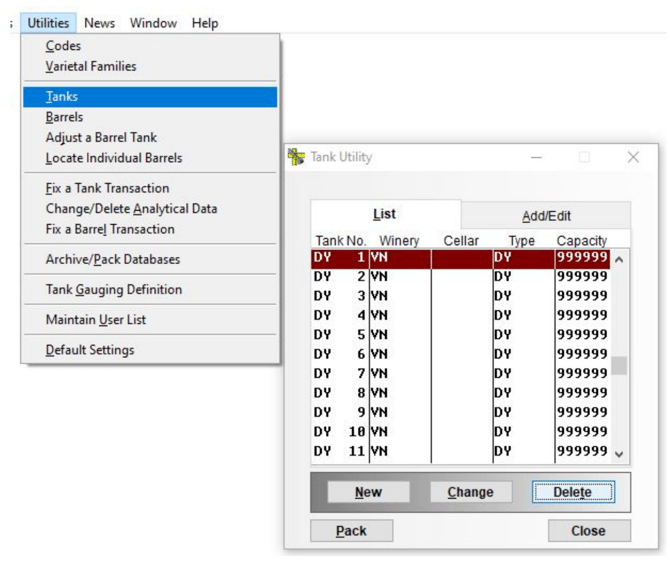
Tanks that haven’t been used in over a year can be safely deleted.
For tanks with recent transaction history, such as dummy tanks you used recently, don’t delete them in WMDB. Deleting a recently used tank can cause errors in WMDB. Instead, delete that tank’s row from your vessel export file instead.
Barrels
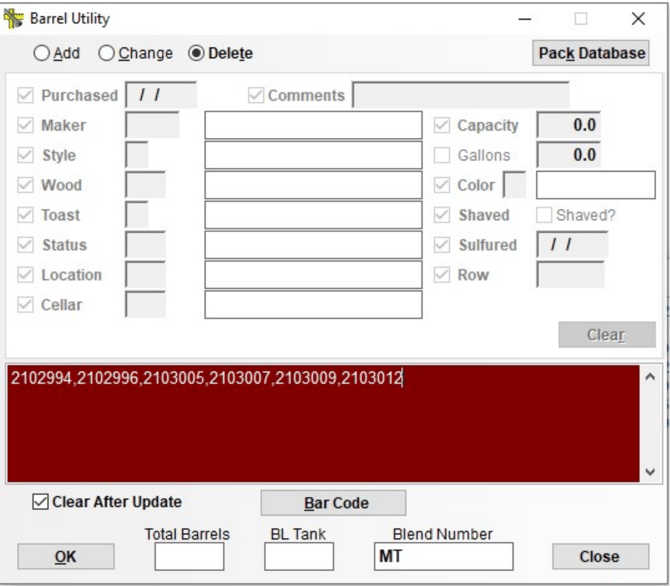
Barrels (tracked barrels, or any vessel with the BL tank type) are deleted through the Barrel Utility. You can delete several barrels at once.
-
Open the Barrel Utility.
-
At the top of the screen, make sure Delete is selected.
-
List the barrel IDs separated by commas, with no space after each comma (for example, A101,A102,A103).
-
Type any barrel ID that contains letters in all caps.
Step 2: Export your vessel list
This export includes your tanks and other non-barrel vessels. Barrels are exported separately in Step 3.
-
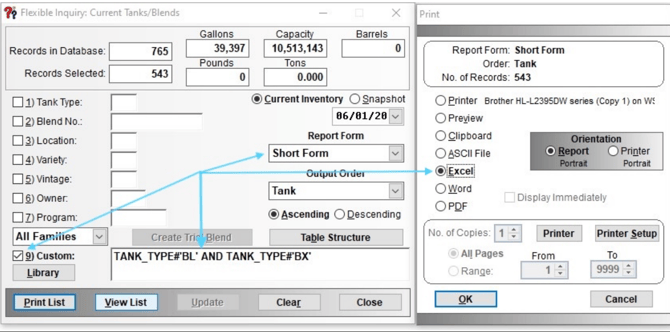
Go to Inquiry → Flexible Database Inquiry → Current Tanks/Blends.
-
In the #9 Custom box, copy and paste this statement to leave out barrel tank types: TANK_TYPE#'BL' AND TANK_TYPE#'BX'
-
Check the box next to #9 so the filter is applied.
-
Leave the other selections as they are. The defaults include everything we need.
-
Click Update, then Print List.
-
On the Print screen, select Excel, then click OK.
-
Save the file as “YourWineryName Vessels.”
Important: If you kept any unwanted, but recently used tanks in Step 1, open the file in Excel and delete the entire row for each tank you don’t want migrated to InnoVint.
Tip: Custom statements need exact formatting. Copy and paste the statement rather than typing it, and make sure the quote marks are plain straight quotes (’).
Step 3: Export your barrels
This export gives us each barrel ID and its attributes, such as cooperage, vintage, and toast.
-
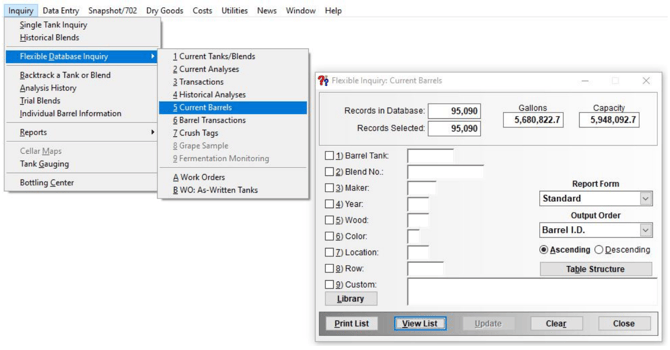
Go to Inquiry → Flexible Database Inquiry → Current Barrels.
-
Leave the default selections as they are.
-
Click Update, then Print List.
-
On the Print screen, select Excel, then click OK.
-
Save the file as “YourWineryName BBLS.”
Important: If you send barrel data, also send your barrel code definitions (Step 5). Without them, we can’t tell what your cooper, toast, and wood codes mean.
Step 4: Export your lot compositions
-
Go to Inquiry → Flexible Database Inquiry → Current Tanks/Blends.
-
Choose the point in time for your inventory: select Current Inventory, or pick the Snapshot Date that matches your cutover date from the dropdown.
-
In the Report Form dropdown, select Long Form. This includes your complete blend compositions.
-
In the #9 Custom box, copy and paste this statement to leave out empty tanks: GALLONS>0
-
Check the box next to #9 so the filter is applied.
-
Click Update, then Print List.
-
On the Print screen, select PDF, then click OK.
- Save the file as “YourWineryName Lot Comps.”
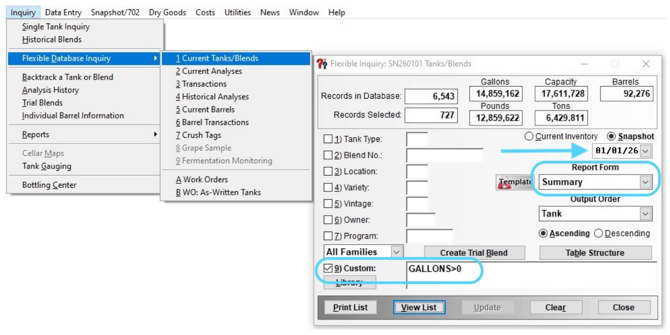
Your Onboarding Specialist may also request a Summary in Excel format.
Step 5: Export your code definitions
-
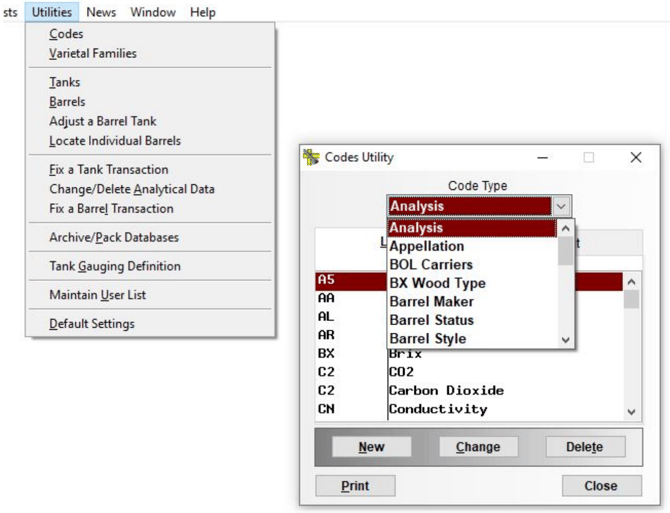
Go to Utilities → Codes.
-
Export each of the code lists below as a PDF.
Code lists to export:
-
-
Appellation
-
Grower
-
Tank Type
-
Variety
-
Owner (if you use more than one owner)
-
Wine Program (if you use them)
-
Barrel Maker, Barrel Status, Barrel Style, Barrel Toast, and Barrel Wood (if you use BL tank type barrels)
-
WMDB Scion: Clean Up and Export
Step 1: (OPTIONAL) Clean up your vessels before exporting
In Scion, you deactivate old vessels instead of deleting them. Good candidates to deactivate:
-
Old IBC totes and kegs
-
Most dummy or phantom tanks (you won’t need these as often in InnoVint)
-
Retired, sold, or destroyed barrels
-
Stainless upright or portable tanks that no longer physically exist
Important: Tanks and barrels must be empty before you can deactivate them.
Tanks
-
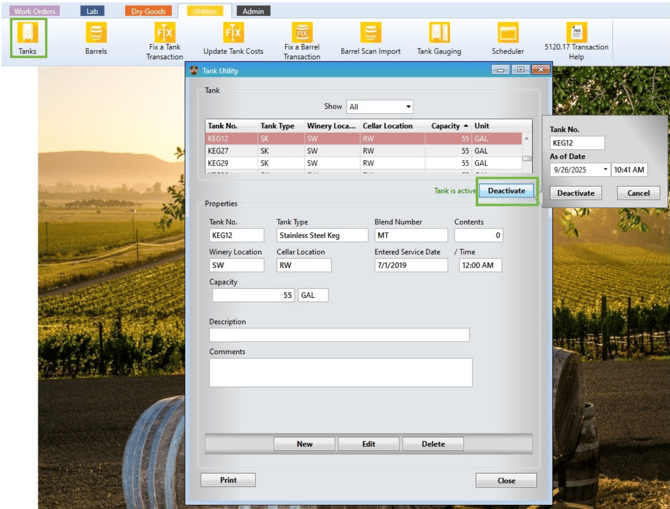
Go to Utilities → Tanks to open the Tank Utility.
-
Select the tank ID and click Deactivate.
-
Choose a date: either today, or a date after the tank’s last transaction (usually the transfer that emptied it).
-
Repeat for each tank. Tanks are deactivated one at a time.
Barrels
-
Go to Utilities → Barrels to open the Barrel Utility.
-
Select the barrel ID and click Deactivate.
-
Choose a date: either today, or a date after the barrel’s last transaction (usually a Pump Out of Barrel).
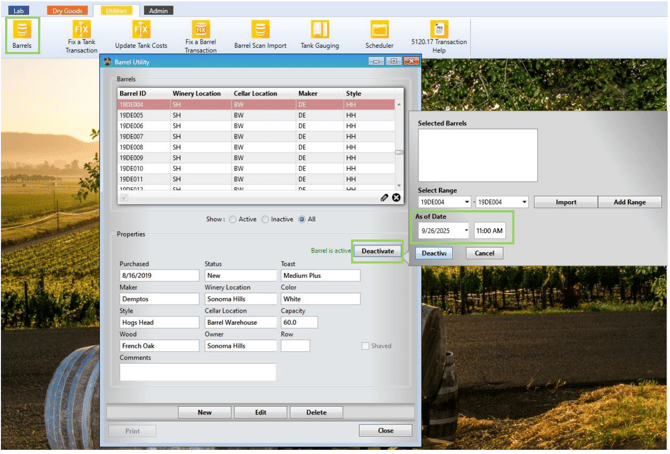
Tip: To deactivate a run of barrels with sequential numbers, use the Add Range tool.
Step 2: Clean up your dry goods
Mark old dry goods and additives as inactive so outdated codes don’t carry over. Inactivating keeps your history in Scion intact, so it’s better than deleting.
-
Select the item from the Inventory list.
-
Click Edit.
-
Near the bottom of the screen, just left of the Dry Good Name, check Inactive.
-
Save your changes.
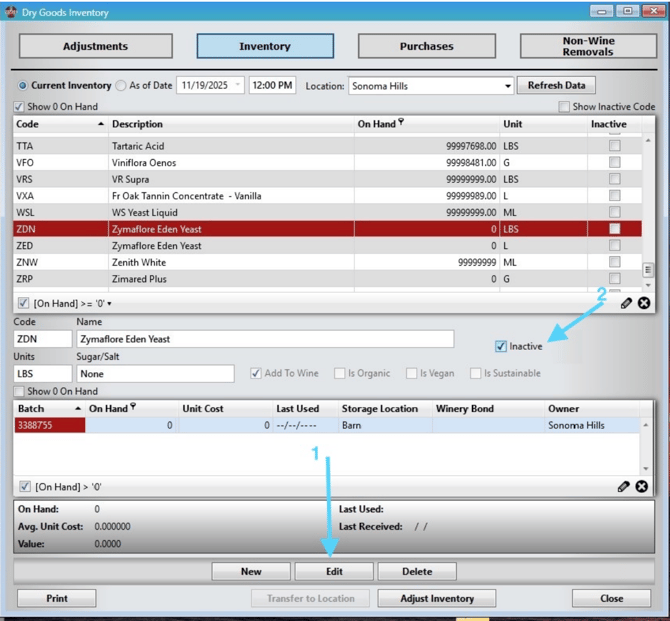
Inactive items no longer appear in reports from the Dry Goods Inventory screen or in the Additions dropdown on the Data Entry screen.
Step 3: Export your vessel list
-
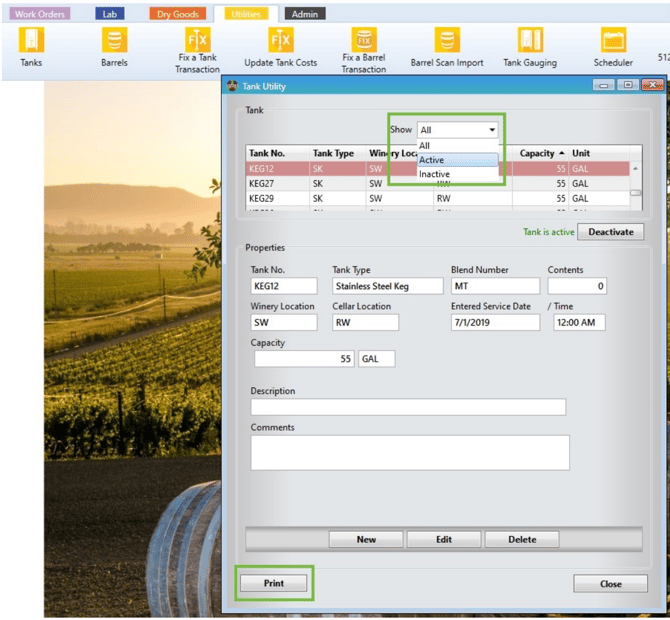
Go to Utilities → Tanks to open the Tank Utility.
-
Set Show to Active Only.
-
Click Print, then Print Preview.
-
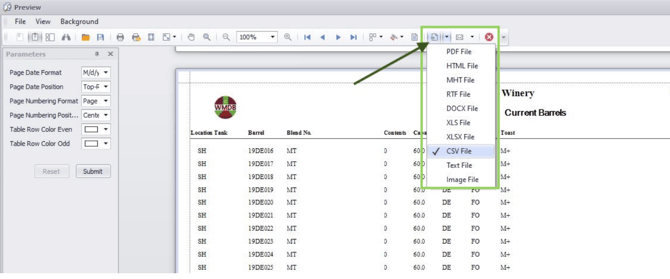
From the preview, export the list as a CSV file.
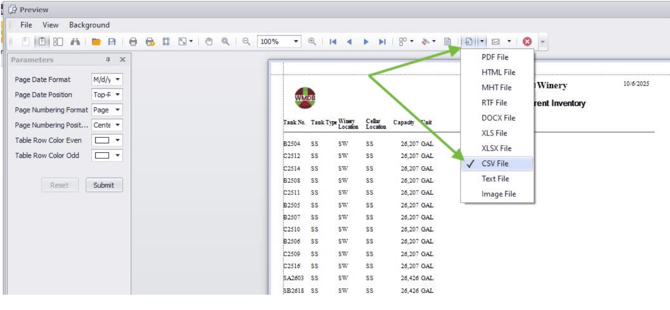
-
Save the file as “YourWineryName Vessels.”
Step 4: Export your barrels
-
Go to Inquiry → Flexible Inquiry Center → Flexible Inquiry into Barrels.
-
Select Current Inventory. This makes sure any barrels you just deactivated are left out.
-
Check Active Barrels Only.
-
Click Apply to generate the list.
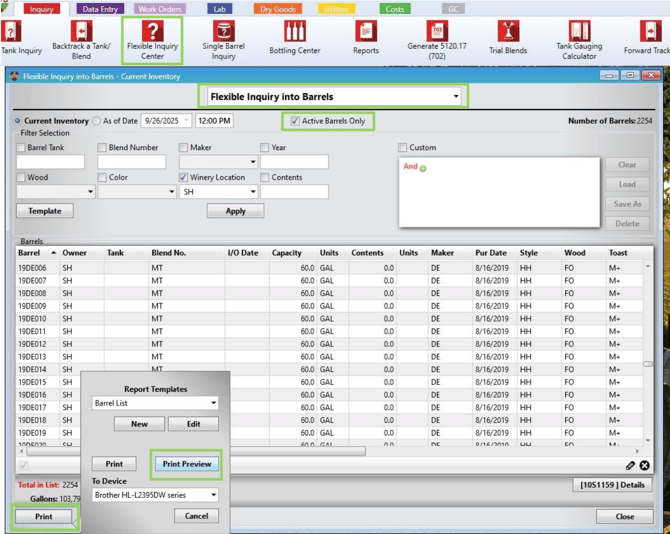
-
Click Print, then Print Preview.
-
From the preview, export the list as a CSV file.
-
Save the file as “YourWineryName BBLS.”
Step 5: Export your lot compositions
Your onboarding contact will walk you through exporting your lot compositions from Scion as of your cutover date.
Step 6: Export your code definitions
-
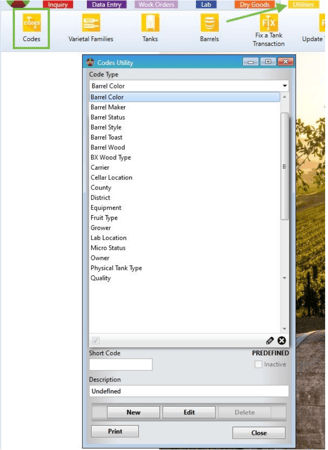
Go to Utilities → Codes.
-
Export each of the code lists below as a PDF.
Code lists to export:
-
-
Appellation
-
Grower
-
Physical Tank Type
-
Variety
-
Vineyard
-
Vineyard Block
-
Owner (if you use more than one owner)
-
Wine Program (if you use them)
-
Barrel Color, Barrel Maker, Barrel Status, Barrel Style, Barrel Toast, and Barrel Wood (if you use BL tank type barrels)
-
Check Your Files Before You Send Them
☐ Retired, sold, and destroyed vessels are deleted (FoxPro) or deactivated (Scion), or removed from your vessel export.
☐ Your lot compositions reflect your cutover date and include only tanks and BL groups with wine in them.
☐ You’ve included code definitions for every code list that applies to you.
☐ Each file is named with your winery name.
What Happens After You Export Your Files
If you have a paid Data Migration, send your files to your InnoVint onboarding contact.
Your onboarding team uses your code definitions to translate WMDB’s short codes into full names, then maps your data to InnoVint’s lists of appellations, varieties, coopers, and barrel attributes. Along the way, we’ll fix small mismatches such as spelling and naming differences.
Before anything is imported, we’ll send you a summary to review. It lists:
-
Changes we made to match InnoVint’s naming.
-
Assumptions we made, such as what a code or abbreviation stands for.
-
Anything we need you to fill in or decide.
Once you sign off, we import your data.
FAQ
Q: Why do you need my code definitions?
A: WMDB exports most of your data as short codes rather than full names. Without the definitions, we’d have to guess what a code like a cooper or toast abbreviation means. The definitions let us map each code to the right value in InnoVint.
Q: What are BL and BX tank types?
A: They’re WMDB’s barrel tank types. Your vessel export leaves them out because barrels come over in their own export. BL is used for tracked, individual barrels.
Q: Should I delete my dummy or phantom tanks?
A: Most of them, yes. InnoVint doesn’t rely on dummy tanks the way WMDB does. If a dummy tank was used recently, leave it in WMDB (FoxPro) and delete its row from your vessel export instead.
Q: My custom filter isn’t working. Why not?
A: Custom statements in the #9 box need exact formatting. Copy and paste the statement from this article, check that the quote marks are plain straight quotes, and make sure the box next to #9 is checked.
Q: Can I review my data before it’s imported?
A: Yes, in fact we'll encourage it! We’ll send you a summary of changes and open questions to approve before we import anything.
Q: My WMDB menus look different from this article. Help!
A: Menus can vary by WMDB version. Double-check that you’re following the section for your version (FoxPro or Scion). If you still can’t find a screen or setting, reach out to your onboarding contact or InnoVint Support and we’ll help you find it.