![InnoVintSupportCenter - header.png]](https://support.innovint.us/hs-fs/hubfs/InnoVintSupportCenter%20-%20header.png?width=300&height=22&name=InnoVintSupportCenter%20-%20header.png)
Onafis and InnoVint have partnered to enable two-way data synchronization between your InnoVint winery account and your Onafis densimeters. With this integration, your Onafis Densios densimeters can capture real-time temperature and density data during fermentation and automatically write those readings back to InnoVint as analysis results — mapped to the correct lots and vessels.
This article walks you through how to enable, configure, and use the integration.
Requirements
- An active InnoVint account
- An active Onafis account with a cellar set up for the same InnoVint winery account
- At least one Onafis Densios densimeter assigned to the cellar in Onafis
- Admin permissions on both platforms (or a colleague who has them) to configure the connection
Getting started
Before you connect the two systems, make sure each system is set up correctly.
On the InnoVint side
- Winery setup: ensure that each Onafis cellar maps to a single InnoVint winery instance
- Lots and vessels: Ensure that your wine lots and vessels (tanks) are set up according to how your winery operates - this ensures that you can map each device to the proper lot/vessel
- Access management:
- Make sure the user account(s) that will manage the integration has Admin permissions in InnoVint
- An Onafis Integration user will need to be added as a Team Member for your InnoVint account. The user name and email will be confirmed by Onafis and InnoVint Support.
On the Onafis side
- Cellar setup: Confirm a cellar exists in Onafis for the same InnoVint winery
- Access management: Create user accounts and assign them to the correct cellar. The user setting up the integration must be an admin in Onafis
Connecting the two platforms
After confirming that both platforms are setup, reach out to support@innovint.us. We will confirm your winery ID and request the connection from the Onafis team.
The Onafis team will activate the connection.
Sync your lots and vessels
Once the connection is active, your wine lots and vessels need to be synchronized from InnoVint into Onafis. This is what allows incoming sensor data in the vessels to be mapped to the correct lot and vessel and record the analysis result.
You can trigger this sync yourself in Onafis, or ask the Onafis support team to do it for you.
How to sync
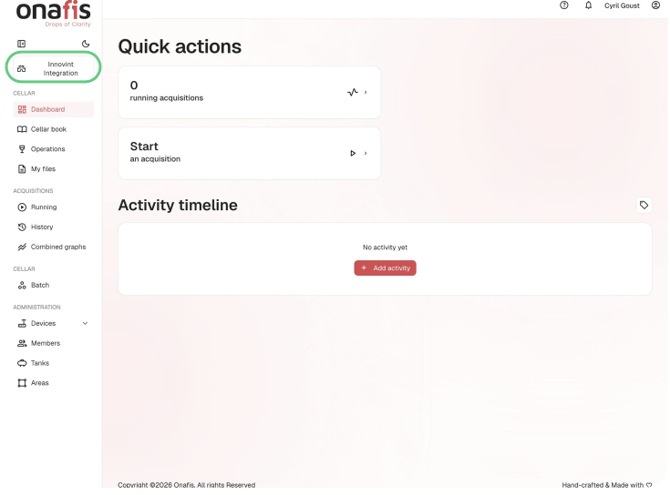
- Log in to Onafis and open the InnoVint Integration workspace.
- In the left sidebar, go to Cellar → Batch (for lots) or Tanks (for vessels) to synch each one
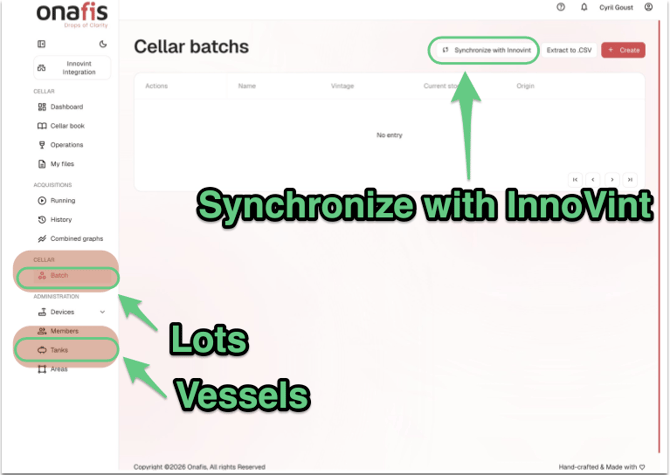
- Select batches, then click Synchronize with InnoVint at the top of the page.
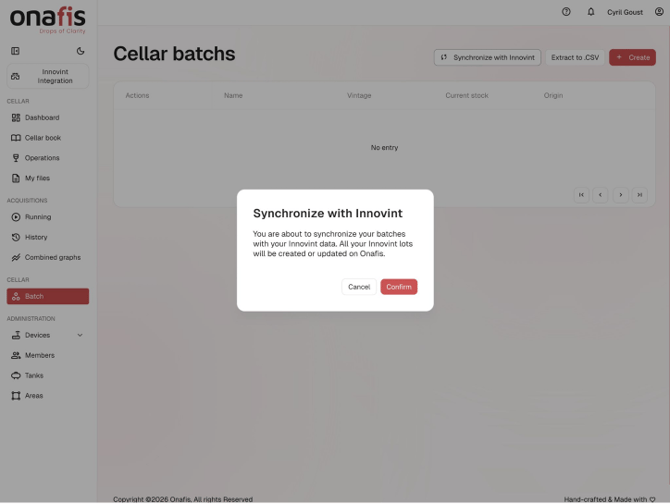
- In the confirmation pop-up, click Confirm to create or update your batches (lots) in Onafis.
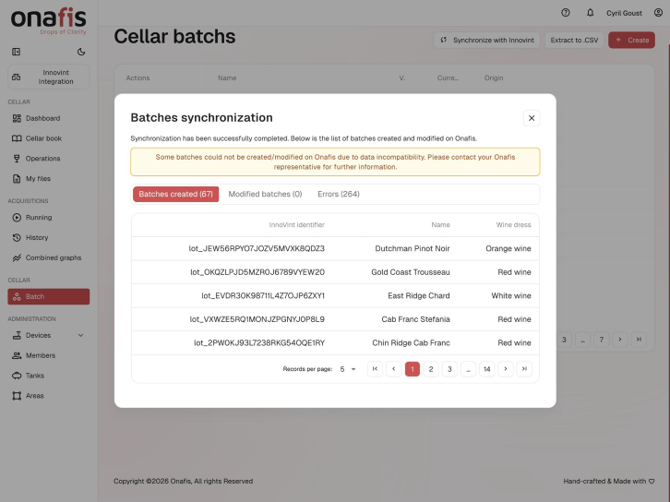
- Review the synchronization results screen. You'll see counts of batches created, modified, and any errors.
- Repeat steps 3-5 to synchronize tanks.
Tip — If you see errors in the sync results
Some batches may not sync if there's a data compatibility issue between InnoVint and Onafis. If you see batches under the Errors tab, contact your Onafis representative for help reconciling them.
Start recording density and temperature data
With the integration active and your assets synced, you're ready to start collecting fermentation data with your Densios densimeters!
Link Densios densimeters for data acquisition
In Onafis, go to Devices → Modules. This page lists all of the densimeters currently active and available to be assigned to your vessels. Make sure the Densios you plan to use show up here before continuing.
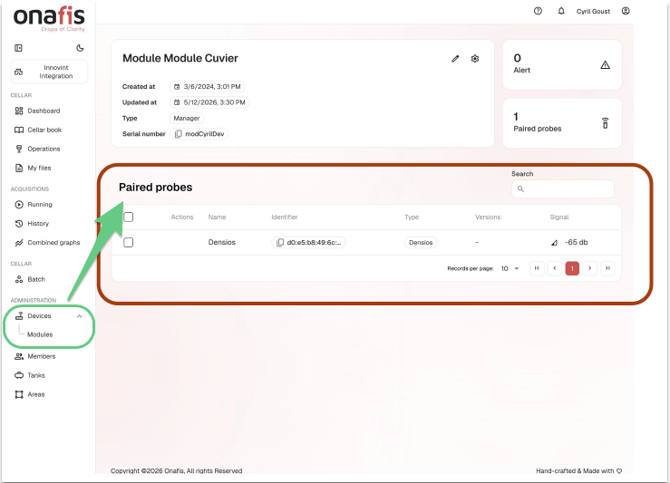
The Devices → Modules page lists every densimeter available for assignment.
Create a new acquisition
An "acquisition" is what links a specific Densios probe to a specific lot and vessel during fermentation. Starting an acquisition is what turns on the data feed back to InnoVint.
- In Onafis, go to Acquisitions → Running to see all active data streams.
- Click + Create in the top right to create an start a new acquisition.
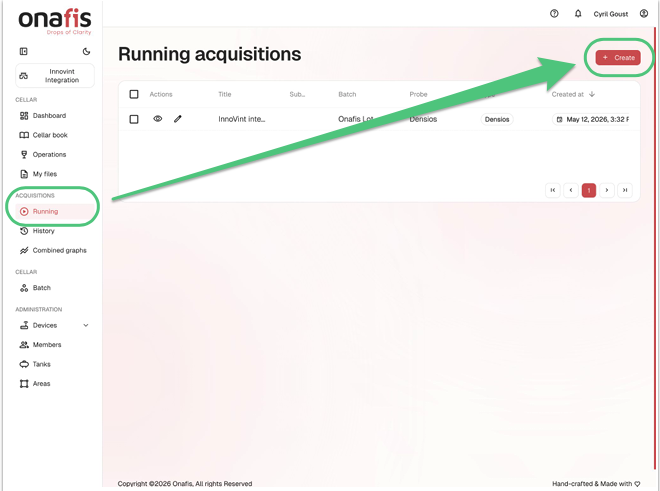
- Fill out the form
Probe to use for the acquisition: Select the Densios densimeter you want to use.
Title: A short label for this acquisition (e.g., the lot name).
Associated batch: Pick the lot that was synced from InnoVint.
Container: Pick the vessel (tank) that was synced from InnoVint.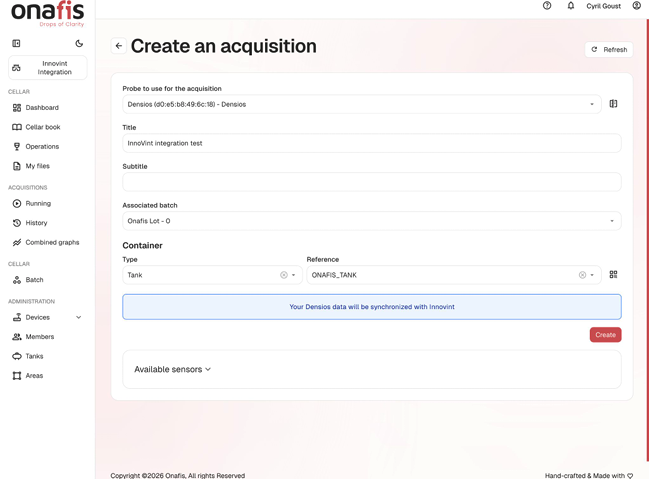
- Click Create to start the acquisition.
Only batches and tanks that were synchronized from InnoVint will appear in the dropdowns. If you don't see your lot or tank, re-run the sync first.
See the data flow into InnoVint
Once the Densios is running, Onafis will automatically push readings back to InnoVint.
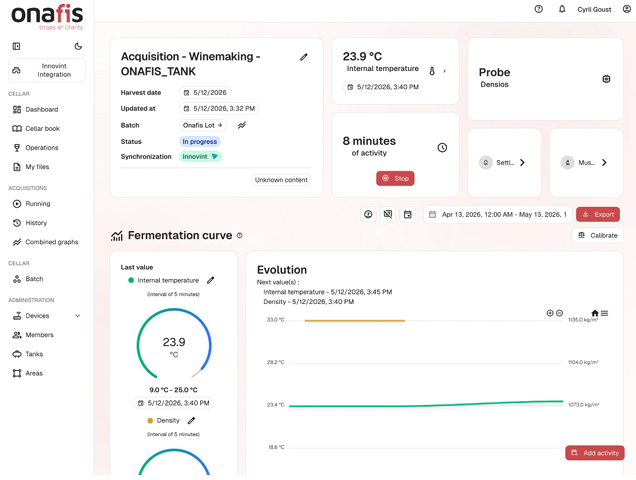
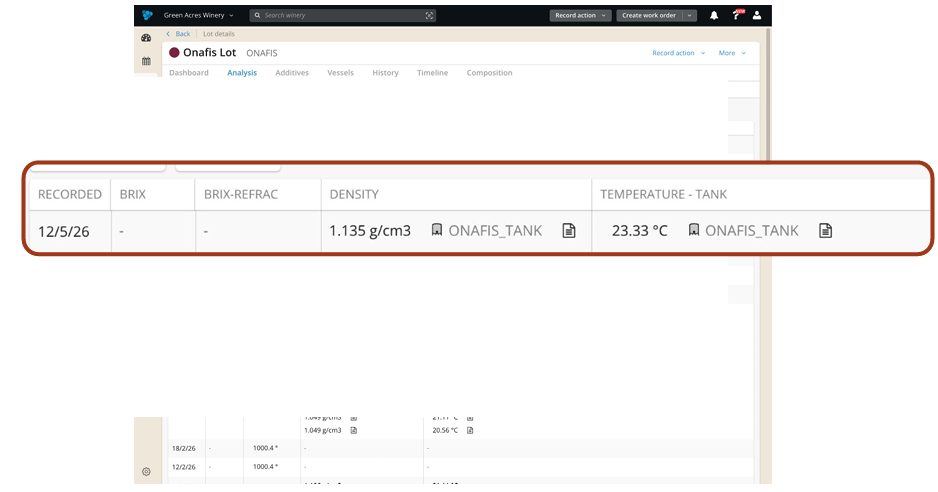
In InnoVint, open the lot and click the Analysis tab. Onafis-generated readings appear with the recorded date, density (g/cm³), and temperature (°C or °F, depending on your settings), as Individual Vessel analysis results.
Managing acquisition data
It is up to you to start and stop the fermentation acquisition via your Onafis account.
Example: Tank A is filled with Lot A for fermentation.
In InnoVint
- You fill the vessel with the lot.
- You start the Densios acquisition for the Vessel & Lot. If you cannot find them in the form, a manual synchronization may be required.
- Once fermentation is finished, you must stop the acquisition.
In InnoVint
- The vessel is emptied after fermentation
This cycle can then be repeated for a new lot in the same tank.
How data synchronization works
Onafis doesn't push every single reading. Instead, it sends results when the one of the following conditions is met:
- There is a significant change in analysis (there is a limit on the number of readings that will be recorded: no more than one reading will be taken every 15 minutes).
- Temperature: change of at least 1 °F (0.5 °C), or
- Density: change of at least 0.5 °Brix.
- It has been >12 hours since InnoVint last recorded a reading for the tank (ensuring a minimum of two readings per day).
Why this matters? This filtering is what prevents your InnoVint Analysis tab from being flooded with thousands of near-identical readings. If you don't see a brand-new entry every few minutes in InnoVint, that's expected — Onafis is still receiving the data, but only writes back meaningful changes.
A note on units. No, brix is not a typo - the measurement used to calculate the result's variance threshold is brix. The densimeter (Densios) collects density in kg/m³. Onafis performs a conversion to check the result variance and then sends the density result back to InnoVint with the appropriate unit based on your account's density units.
Troubleshooting & FAQ
Q: I don't see my InnoVint lot or tank in Onafis.
A: Lots and vessels only appear in Onafis after a sync. Go to Cellar → Batch (or Tanks) in Onafis and click Synchronize with InnoVint. If the asset still doesn't appear, confirm it exists in your InnoVint winery and that your InnoVint Winery ID is correctly entered in Onafis.
Q: Why isn't my integration activated in Onafis?
A: The connection is activated by the Onafis Technical Team after they receive your InnoVint Winery ID (format wnry_xxx) from InnoVint's Support team. Contact Onafis at equipe-tech@onafis.com or Innovint at support@innovint.us if you have any questions.
Q: I synced, but some batches show under "Errors"
A: This usually points to a data compatibility issue between InnoVint and Onafis (for example, a missing required field on the lot). Contact your Onafis representative with the list of failed batches and they will help reconcile them.
Q: Why aren't all my Densios readings showing up in InnoVint?
A: By design. Onafis applies limits (see "How data synchronization works" above) so only meaningful analysis changes are written to your InnoVint lot. The raw data stream is still available in Onafis.
Q: Where do Onafis readings show up in InnoVint?
A: Open the lot details page in InnoVint and click the Analysis tab. Density and temperature entries created by Onafis will be tagged with the matching vessel.
Q: Can I start an acquisition before I run the sync?
A: No. You need to pick the lot and the vessel when you create an acquisition, and those only appear in Onafis after they've been synced from InnoVint.
Where to get help
If you run into trouble at any step, please reach out!
- InnoVint Support: Contact your InnoVint Customer Success Manager, or visit support@innovint.us.
- Onafis General Support: contact@onafis.com · +33 2 52 88 00 07.