---
title: How to Reconcile Inventory in SUPPLY
description: Taking inventory? The Reconcile Inventory action allows you to true up your inventory after doing a physical count. It sets the absolute quantity of an inventory line item as of a point in time in ord
---
[Skip to content](https://support.innovint.us/hc/en-us/how-to-reconcile-inventory#main-content)
[Submit a help ticket](https://support.innovint.us/hc/en-us/kb-tickets/new?hsLang=en)
![InnoVintSupportCenter - header.png\]](https://support.innovint.us/hs-fs/hubfs/InnoVintSupportCenter%20-%20header.png?width=300&height=22&name=InnoVintSupportCenter%20-%20header.png)
Open main navigation
Close main navigation
- [Submit a help ticket](https://support.innovint.us/hc/en-us/kb-tickets/new)
How can we help you today?
- There are no suggestions because the search field is empty.
1. [Support Center](https://support.innovint.us/hc/en-us?hsLang=en)
2. [SUPPLY](https://support.innovint.us/hc/en-us/supply?hsLang=en)
3. [Actions in SUPPLY](https://support.innovint.us/hc/en-us/supply?hsLang=en#actions-in-supply)
# How to Reconcile Inventory in SUPPLY
Taking inventory? The Reconcile Inventory action allows you to true up your inventory after doing a physical count. It sets the absolute quantity of an inventory line item as of a point in time in order to reset your SUPPLY inventory.
This article contains:
- [Where to find the Reconcile Inventory action](https://support.innovint.us/hc/en-us/how-to-reconcile-inventory#where)
- [How to use the Reconcile Inventory action](https://support.innovint.us/hc/en-us/how-to-reconcile-inventory#how)
- [The Change column](https://support.innovint.us/hc/en-us/how-to-reconcile-inventory#change)
- [How the Change column works](https://support.innovint.us/hc/en-us/how-to-reconcile-inventory#change-how)
- [The Reconciliation worksheet](https://support.innovint.us/hc/en-us/how-to-reconcile-inventory#worksheet)
- [FAQ](https://support.innovint.us/hc/en-us/how-to-reconcile-inventory#FAQ)
#### Where to find the Reconcile Inventory action
It can be accessed:
- From the ‘**Record inventory action**’ dropdown menu in the top navigation bar
- From the ‘**Record inventory action**’ dropdown menu in the Inventory by Location widget on the SKU Details Page
#### How to use the Reconcile Inventory action
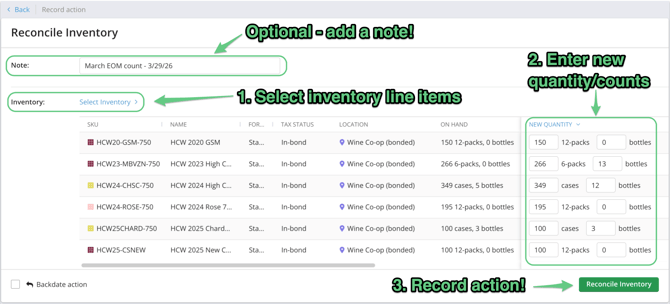
1. Select the inventory line items in the Inventory Picker.
*If a Reconcile inventory action is recorded from the Inventory by Location action menu then both the inventory line item and its location will be pre-selected. *
2. Enter the quantity of inventory. The amount entered should be the total quantity you physically counted, and must be a positive whole number (you may leave a field blank). Check the actual variance in [the Change column](https://support.innovint.us/hc/en-us/how-to-reconcile-inventory#change)!
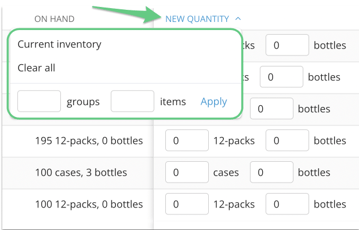
💡*Use the “New Quantity” bulk dropdown menu to enter the current inventory quantity, clear all quantities or apply the same number of groups and items across all inventory. *
💡*It is possible to record a "new" quantity that is the same as the existing quantity in inventory, i.e. confirm the existing count.*
3. Click the green **‘Reconcile Inventory**’ button.
The reconciliation action is the only action in SUPPLY where the quantity that you enter is an **absolute number**. This means that on a backdated action, you will enter the amount that was actually counted on that date. Any action submitted after this date will update according to this number.
💡 We recommend accessing the Reconcile Inventory action from the ‘**Record inventory action**’ dropdown menu in the top navigation bar when performing your routine physical counts (i.e. monthly, quarterly, etc). This will allow you to view all of your inventory line items at all locations, and therefore quickly true up your inventory across multiple SKUs and Locations at once.
#### About the Change column
See at a glance how far off your new inventory counts are from the current on-hand quantities with the **Change** column on the Reconcile inventory action. The column dynamically calculates the variance between each line item's on-hand inventory and the new quantity you enter, so you can confirm your adjustments in real time — no mental math required.
- Locate the **Change** column to the right of the **On hand** column in the action - you may need to scroll across the action to the right.
- The **Change** column shows the difference between the on-hand inventory and the new quantity entered for each inventory line item.
- As you enter new quantities, the Change column recalculates on the fly, making it easy to see how much inventory is being added to or removed from a line
- The Change column calculates the variance and rolls up/displays it as the largest grouping/item even when the new quantity is not a clean number of groups + items. For example: if your SKU's current on-hand inventory is 10 x 6-packs, and you record 10 6-packs and 13 bottles, then the Change column will show 2 x 6-packs, 1 bottle.
##### How the Change column works
*When recording an action, the Change column populates as soon as inventory line items are selected and updates live as you enter new quantities.*
- Because the **New quantity** input boxes always default to zero when line items are first selected, the Change column will always initially display the full negative of the on-hand inventory.
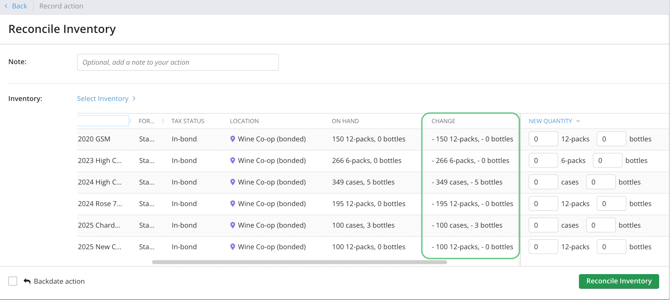
- Enter a value in the **New quantity** input boxes for each line item. The Change column updates in real time to reflect the new variance from the current on-hand quantity.
- If the new quantity matches the on-hand quantity exactly, the Change column displays **No change** for that line.
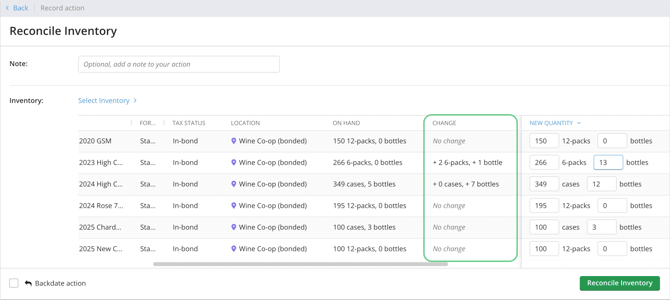
*The Change column also appears on submitted Reconcile inventory actions and stays interactive if you edit the action.*
##### A few things to keep in mind
- **Negative value**s (e.g., - 2 cases, - 3 bottles) indicate the new quantity is *lower* than the on-hand quantity — inventory will be removed from the line when the action is submitted.
- **Positive valu**es (e.g., + 1 case, + 6 bottles) indicate the new quantity is *higher* than the on-hand quantity — inventory will be added to the line when the action is submitted.
- **No change** displays when the new quantity and on-hand quantity are equal.
- **Available** and **On order** columns are not affected by the Change column.
- **New quantity** values are captured and displayed on the recorded action exactly as entered by the user.
- The Change column is automatically calculated and cannot be edited directly. To change the variance, update the value in the **New quantity** input box for that line item.
### Reconciliation Worksheet
Looking for a print out to walk around with? We built an app that you can use to easily generate a printable worksheet for physical counts.
It’s found [here, in a separate link](https://supply-reconciliation.web.app/v1/) and it allows you to upload any SUPPLY inventory export in order to create a printable reconciliation sheet. Find out more [here](https://support.innovint.us/hc/en-us/supply-reconciliation-worksheet?hsLang=en).
#### FAQ
**Q: How does the Reconcile inventory action work with my C7 inventory?**
*A: When your C7 integration is setup, the Reconcile inventory action will post as a "Manual Reset" in your C7 inventory transactions for properly linked inventory. *

**Q: Why do I have a Reconcile inventory action submitted by C7 integration?**
*A: If you perform a Reset inventory transaction in C7 on a linked SKU at a linked location, that will generate a Reconcile inventory action in SUPPLY for each involved (linked) SKU. Read more about how this C7 transaction posts into SUPPLY [here](https://support.innovint.us/hc/en-us/supply-commerce7-integration#C7-IV). *
**Q: I edited an Add inventory action that occurred before my last Reconcile inventory action, but the final on-hand inventory hasn't updated - what gives?**
*A: The quantity recorded in the Reconcile inventory action is "absolute" as of that point in time, based on the physical count that took place. Any action edit or deletion that may have occurred prior to that will not change the absolute quantity updated on the Reconcile inventory action. *
**Q: Can I edit or delete my Reconcile inventory action?**
*A: Yes. Learn more about editing and deleting actions [here](https://support.innovint.us/hc/en-us/how-to-edit-or-delete-inventory-actions?hsLang=en). *
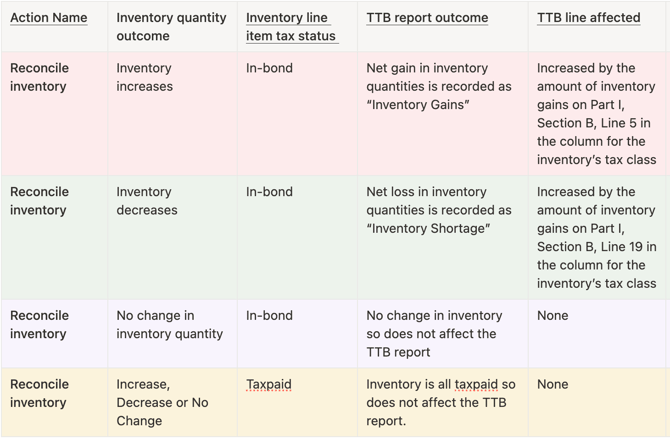
**Q: How does the Reconcile inventory action impact my TTB export?**
*A: SUPPLY will apply the quantity/volume to either Inventory Shortage, or Inventory Gains in Section B, depending on whether the **net** inventory increases or decreases in the action. This table describes the potential outcomes for your Reconcile inventory action:*
- [New to InnoVint](https://support.innovint.us/hc/en-us/new-to-innovint?hsLang=en#main-content)
- [Accessing InnoVint](https://support.innovint.us/hc/en-us/new-to-innovint?hsLang=en#accessing-innovint)
- [Settings - MAKE, GROW & FINANCE](https://support.innovint.us/hc/en-us/new-to-innovint?hsLang=en#settings-make-grow-finance)
- [Getting Started - MAKE, GROW & FINANCE](https://support.innovint.us/hc/en-us/new-to-innovint?hsLang=en#getting-started-make-grow-finance)
- [MAKE](https://support.innovint.us/hc/en-us/make?hsLang=en#main-content)
- [Dashboard & Calendar](https://support.innovint.us/hc/en-us/make?hsLang=en#dashboard-calendar)
- [Lots](https://support.innovint.us/hc/en-us/make?hsLang=en#lots)
- [Vessels](https://support.innovint.us/hc/en-us/make?hsLang=en#vessels)
- [Work Orders](https://support.innovint.us/hc/en-us/make?hsLang=en#work-orders)
- [Recording Actions](https://support.innovint.us/hc/en-us/make?hsLang=en#recording-actions)
- [Movement Actions](https://support.innovint.us/hc/en-us/make?hsLang=en#movement-actions)
- [Topping](https://support.innovint.us/hc/en-us/make?hsLang=en#topping)
- [Analysis](https://support.innovint.us/hc/en-us/make?hsLang=en#analysis)
- [Analysis Reports](https://support.innovint.us/hc/en-us/make?hsLang=en#analysis-reports)
- [Additions](https://support.innovint.us/hc/en-us/make?hsLang=en#additions)
- [Case Goods in MAKE](https://support.innovint.us/hc/en-us/make?hsLang=en#case-goods-in-make)
- [Dry Goods](https://support.innovint.us/hc/en-us/make?hsLang=en#dry-goods)
- [Vineyards](https://support.innovint.us/hc/en-us/make?hsLang=en#vineyards)
- [Reporting](https://support.innovint.us/hc/en-us/make?hsLang=en#reporting)
- [Compliance](https://support.innovint.us/hc/en-us/make?hsLang=en#compliance)
- [Tags & Notes](https://support.innovint.us/hc/en-us/make?hsLang=en#tags-notes)
- [Printing Labels from InnoVint](https://support.innovint.us/hc/en-us/make?hsLang=en#printing-labels-from-innovint)
- [AI](https://support.innovint.us/hc/en-us/make?hsLang=en#ai)
- [GROW](https://support.innovint.us/hc/en-us/grow?hsLang=en)
- [FINANCE](https://support.innovint.us/hc/en-us/finance?hsLang=en#main-content)
- [Getting Started](https://support.innovint.us/hc/en-us/finance?hsLang=en#getting-started)
- [Reporting](https://support.innovint.us/hc/en-us/finance?hsLang=en#reporting)
- [Guidance & FAQ](https://support.innovint.us/hc/en-us/finance?hsLang=en#guidance-faq)
- [Harvest](https://support.innovint.us/hc/en-us/harvest?hsLang=en#main-content)
- [Preparing for Harvest](https://support.innovint.us/hc/en-us/harvest?hsLang=en#preparing-for-harvest)
- [Vineyard Harvest Reports](https://support.innovint.us/hc/en-us/harvest?hsLang=en#vineyard-harvest-reports)
- [Harvest Workflow & Fermentation Tracking](https://support.innovint.us/hc/en-us/harvest?hsLang=en#harvest-workflow-fermentation-tracking)
- [Settings & Preferences](https://support.innovint.us/hc/en-us/harvest?hsLang=en#settings-preferences)
- [MAKE: Advanced Features](https://support.innovint.us/hc/en-us/make-advanced-features?hsLang=en#main-content)
- [Owner-based Permissions System](https://support.innovint.us/hc/en-us/make-advanced-features?hsLang=en#owner-based-permissions-system)
- [Custom Attributes](https://support.innovint.us/hc/en-us/make-advanced-features?hsLang=en#custom-attributes)
- [Blend Trials](https://support.innovint.us/hc/en-us/make-advanced-features?hsLang=en#blend-trials)
- [Tank Maps](https://support.innovint.us/hc/en-us/make-advanced-features?hsLang=en#tank-maps)
- [Sparkling Wine Module](https://support.innovint.us/hc/en-us/make-advanced-features?hsLang=en#sparkling-wine-module)
- [Intended Use](https://support.innovint.us/hc/en-us/make-advanced-features?hsLang=en#intended-use)
- [Integrations](https://support.innovint.us/hc/en-us/make-advanced-features?hsLang=en#integrations)
- [SUPPLY](https://support.innovint.us/hc/en-us/supply?hsLang=en#main-content)
- [Getting Started with SUPPLY](https://support.innovint.us/hc/en-us/supply?hsLang=en#getting-started-with-supply)
- [Actions in SUPPLY](https://support.innovint.us/hc/en-us/supply?hsLang=en#actions-in-supply)
- [Using SUPPLY](https://support.innovint.us/hc/en-us/supply?hsLang=en#using-supply)
- [Order Management](https://support.innovint.us/hc/en-us/supply?hsLang=en#order-management)
- [InnoApp](https://support.innovint.us/hc/en-us/innoapp?hsLang=en#main-content)
- [InnoApp](https://support.innovint.us/hc/en-us/innoapp?hsLang=en#innoapp)
- [InnoApp - Work Orders](https://support.innovint.us/hc/en-us/innoapp?hsLang=en#innoapp-work-orders)
- [Guidance & FAQs](https://support.innovint.us/hc/en-us/guidance-faqs?hsLang=en#main-content)
- [Frequently Asked Questions](https://support.innovint.us/hc/en-us/guidance-faqs?hsLang=en#frequently-asked-questions)
- [Specialized Workflows](https://support.innovint.us/hc/en-us/guidance-faqs?hsLang=en#specialized-workflows)
- [Best Practices](https://support.innovint.us/hc/en-us/guidance-faqs?hsLang=en#best-practices)
- [Templates](https://support.innovint.us/hc/en-us/guidance-faqs?hsLang=en#templates)
- [InnoVint Academy](https://support.innovint.us/hc/en-us/innovint-academy?hsLang=en#main-content)
- [Video Trainings/Tutorials](https://support.innovint.us/hc/en-us/innovint-academy?hsLang=en#video-trainings-tutorials)
- [Video Informational Sessions](https://support.innovint.us/hc/en-us/innovint-academy?hsLang=en#video-informational-sessions)
- [Quick Video Tutorials](https://support.innovint.us/hc/en-us/innovint-academy?hsLang=en#quick-video-tutorials)
- [Product Updates](https://support.innovint.us/hc/en-us/product-updates?hsLang=en#main-content)
- [Product Updates: 2025-2026](https://support.innovint.us/hc/en-us/product-updates?hsLang=en#product-updates-2025-2026)
- [Product Updates: 2024](https://support.innovint.us/hc/en-us/product-updates?hsLang=en#product-updates-2024)
- [Product Updates: 2023](https://support.innovint.us/hc/en-us/product-updates?hsLang=en#product-updates-2023)
- [Product Updates: 2017 - 2022](https://support.innovint.us/hc/en-us/product-updates?hsLang=en#product-updates-2017-2022)
- [Support Hours & FAQs](https://support.innovint.us/hc/en-us/support-hours-faqs?hsLang=en)
[](https://support.innovint.us/hc/en-us?hsLang=en)
Copyright © 2025, InnoVint