![InnoVintSupportCenter - header.png]](https://support.innovint.us/hs-fs/hubfs/InnoVintSupportCenter%20-%20header.png?width=300&height=22&name=InnoVintSupportCenter%20-%20header.png)
Harvest is when most of a vintage's cost of goods enters InnoVint, and it's also when costs are in flux and hardest to read. This guide walks through COGS tracking from pre-harvest setup to post-crush close-out, and calls out everything you need to know.
This article covers:
- Applying fruit costs: direct vs. indirect
- When fruit costs are calculated during harvest
- Allocating harvest overhead
- Bleed/Saignee, Drain and Drain & Press actions
- Estimated vs. actual fruit cost and contract true-ups
- How harvest affects COGS reporting
- Closing Out Harvest
- Start to Finish: Harvest Finance Checklist
- FAQ
- Additional Resources
Applying fruit costs: direct vs. indirect
For most wineries, direct fruit cost set on vineyard blocks is the recommended starting point; use indirect fruit cost items to fill the gaps and handles adjustments. Either way, every lot needs a fruit (or bulk wine) cost applied at least once.
|
Direct fruit cost |
Indirect fruit cost |
|
|---|---|---|
|
Where it's set |
On a vineyard block, per vintage |
On specific Fruit or Juice/Wine lots, via Add/Remove Cost |
|
How it's applied |
Automatically to all fruit received from that block, then to every lot that inherits that block's composition |
Manually, as a Fruit (Cost Item) entry with an Effective At date |
|
Units |
Per ton (or your weight unit), per acre (or your area unit), or per block |
A total amount, distributed across the lots you pick |
|
Best for |
Grower contracts and estate blocks with a known price or budget |
One-off fruit costs, vineyard overhead capitalized across lots, and reconciling adjustments |
|
Where to enter it |
Fruit Cost Worksheet (fastest, many blocks at once), Vineyard Explorer, or Vineyard Contracts |
COGS Tracking > Add/Remove Cost |
Best practices
- Know how your unit choice behaves. Per-ton costs update if a received weight is edited. Per-block and per-acre totals are fixed, but they're redistributed across lots as more fruit from that block is processed, so early lots can see their fruit cost decrease later in harvest.
- For indirect entries, check the lot picker date. Choose lots that have contents on the Effective At date (or will afterward). Cost added to a lot that has already been emptied stays on the empty lot and won't flow through.
See How to Add and Remove Fruit Costs for step-by-step instructions.
Before harvest: block costs and contracts
Setting up costs before you pick means fruit cost flows from the very first Receive Fruit action on a block.
💡TIP: Starting early doesn't hurt -- nothing here is locked in. Direct fruit costs can be added or edited at any time, and InnoVint recalculates downstream lots.
For all FINANCE subscriptions: Set block costs in the Fruit Cost Worksheet
- Go to COGS Tracking and open the Fruit Cost Worksheet for the current vintage.
- Use the blue New [YEAR] Cost drop-down to copy the previous vintage's costs, apply one value to all blocks, or enter costs row by row.
- Choose a Unit for each block: per ton (or your weight unit), per acre (or your area unit), or per block.
- Click Assign costs.
Estimated costs are fine at this stage. You can easily update them to final invoice amounts after harvest (see Estimated vs. actual fruit cost and contract true-ups below).
For subscriptions with Vineyard Contracts: Set block costs via vineyard contracts
If you purchase fruit under contract, record the contract in the Contract Explorer (under Vineyards). Contract costs, the Fruit Cost Worksheet and the block's Vintages tab are all linked, so an update in one place updates the others. InnoVint uses the most recent entry.
See How to Manage Vineyard Contracts for the full walkthrough.
Vineyard Contracts require both the FINANCE and GROW modules.
Handling Costs for Purchased Juice or Bulk Wine
Juice, must or bulk wine brought in at harvest doesn't come from a vineyard block, so it never receives direct fruit cost. Every lot needs a fruit or bulk wine cost applied at least once, so add it as an indirect cost after the volume is received.
Choose a cost category
|
What you received |
Recommended category |
|---|---|
|
Purchased juice or must, priced like fruit |
Fruit (Cost Item) |
|
Purchased bulk wine |
Bulk Wine |
Whichever you choose, use the same category every vintage so your reports and your chart of accounts line up.
How to apply the cost
- Record the receipt first (Receive juice, or a bond-to-bond transfer in for bulk wine) so the lot has contents.
- Go to COGS Tracking > Add/Remove Cost and choose Add.
- Select the category, enter the invoice amount as the total cost, and add the invoice number or supplier in the details.
- Set Effective At to just after the receipt, so the cost is on the lot before any later movements.
- Select the receiving lot (or lots) and distribute the cost. If the purchase was split across several lots, use Distribute proportionally across volume.
- Record the cost.
Note: If a cost item and a movement share the exact same Effective At date and time, InnoVint applies them in the order they were submitted. When backdating, enter the cost item first, or set it a minute earlier than the movement.
When fruit costs are calculated during harvest
A lot tracked in weight carries a total cost, but it won't display a cost per volume unit ($/gal or $/L) until it is entirely tracked in volume (after all weight on the lot code is pressed). The Drain & Press action is most often what moves the lot fully into volume and triggers its full cost calculation.
Here's how cost moves through a typical red harvest workflow:
- Receive Fruit adds weight to a Fruit lot. Direct fruit cost is calculated from the block's cost and the weight received.
- Process to a Juice/Wine lot (in weight) distributes fruit cost to the lot by the weight processed. The lot shows a total cost, but no volume-based unit cost.
- Process to a Juice/Wine lot (in volume) distributes fruit cost to lots by the weight processed. Unit costs now calculate, and cost distributes proportionally by volume
- Juice Bleed/Saignée moves some volume out of the lot in weight. The bleed lot's cost isn't calculated until the mother lot is entirely in volume.
- Drain & Press moves the lot fully into volume. Unit costs now calculate, and cost distributes proportionally by volume to the free run, press cut lots and any bleed lots.
What this means for you
- Expect blanks, not errors. A lot with some contents still in weight with no $/volume unit cost is working as designed.
- Wait for volume before judging accuracy. Direct fruit costs are most accurate once all fruit from a block is in volume, after Process to Volume, Bleed/Saignée, and Drain & Press actions are submitted.
- Backdated edits recalculate. Editing a received weight, a block's area, or a block cost after the fact will update costs on every lot that inherited that block, including lots processed earlier in harvest.
Allocating harvest overhead
Harvest overhead is any cost of bringing in and processing the vintage that isn't the fruit itself. Add it as indirect cost items using an Add/Remove Cost action, on a regular schedule, using the same categories every period.
Map harvest costs to categories
InnoVint has a fixed list of cost categories. Agree on a map with your finance team before harvest, so everyone enters the same cost the same way. A typical map might look like this:
|
Harvest cost |
Suggested category |
Which lots receive it |
|---|---|---|
|
Crush pad and cellar labor |
Labor & Cellar |
Current vintage lots |
|
Harvest interns and seasonal staff |
Labor & Cellar |
Current vintage lots |
|
Picking and hauling paid per ton |
Fruit (Cost Item) |
Lots from the blocks picked |
|
Trucking and freight |
Freight |
Lots from the fruit transported |
|
Harvest lab work |
Lab Analysis |
Current vintage lots |
|
Custom crush fees |
Custom Crush |
The client's or your own lots processed |
If your team uses the Vintage Crush category, write down what it holds (for example, all crush pad costs for the vintage, or other harvest specific costs) and use it consistently.
Recommended allocation schedule
- Monthly during harvest. Enter each month's harvest overhead with an Effective At date of the last day of the month, 11:59 pm.
- Allocate to lots with contents on that date. Use the lot picker filters to select the current vintage, then Distribute proportionally across volume.
- Lots still in weight. Lots in weight can receive cost items. Cost applied proportionally will be calculated based on the expected yield of each lot. You can manually update this for each lot.
- Lock the period once it's entered (see Closing Out Harvest).
Example
In October, a winery spends $18,000 on crush labor and harvest interns. At October 31, the current vintage holds 6,000 gallons across 4 lots in volume. Distributed proportionally, each gallon receives $3.00 of Labor & Cellar cost, so a 1,500-gallon lot receives $4,500.
See the FINANCE Guidance & FAQ section and How to Allocate and Remove Costs (indirect).
Bleed/Saignee, Drain and Drain & Press actions
Cost treatment of lots tracked in weight and their drained/bleed lots
Lots in weight will always show the proportionate direct cost of fruit - as well as any allocated direct or indirect costs - on the Lot details page in the Cost tab, the Lot Cost Report and the Cost Audit Report (although without a unit cost). However, lots in weight will not always appear as expected in other cost reporting (for instance, the lot contents are omitted from the Roll Forward Report, but the lot costs are included).
If you perform a bleed/saignee or drain action on a lot in weight, the unit cost will not be calculated and distributed to the new lot (now in volume) until the entire source lot is in volume (drained and pressed).
Please see the below example of a lot in weight, that had volume removed, and the ensuing rosé bleed lot:
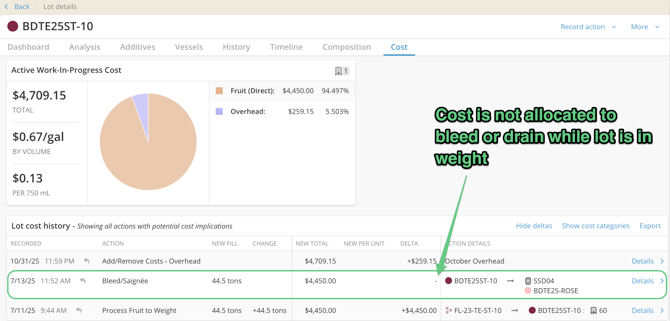
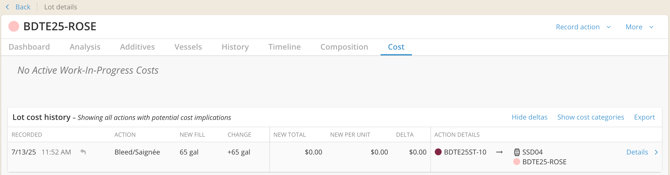
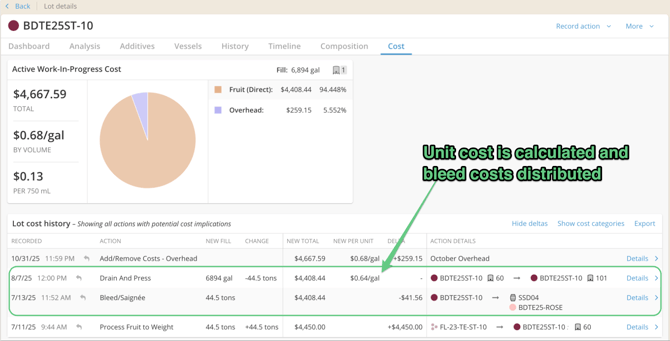
All of the relevant costs are retained in the winery (they are still held on the lot in weight), but you will not see the updated lot cost distribution until the final unit cost is calculated, and distributed proportionally. This occurs when the "mother" lot in weight is fully converted to volume:
Bleed/Saignee or Lees costs
InnoVint distributes cost proportionally to lot volume in all actions. This includes Bleed/Saignee actions (these drain volume from a lot tracked in weight), Drain & Press actions (including all press cut lots) and lees lots on Transfer/Rack type actions.
In some cases, having the full direct fruit cost proportionally transferred into less valuable bleed or lees lots is not desirable. When this occurs, that fruit cost (direct or indirect) can be removed from the "devalued" lot and reallocated back to the parent or desired lot. Find a short video on this process here - or read on.
How and when can I reallocate these?
You can remove cost using the Add/Remove cost button. When you select the option to "Remove" cost (rather than "Add"), you will have additional cost categories available in the Cost Category list. These additional cost categories are those for direct costs, including Fruit.
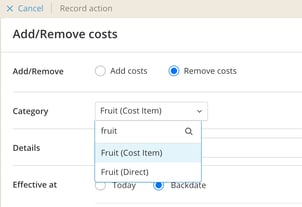
- Remove the unwanted cost in the selected cost category from a "devalued" lot.
Be sure to select the correct fruit cost (either direct or indirect) category, as you can only remove a cost category that exists on the selected lot at the specified point in time. This means that the cost removal must be timed to occur after the action that caused the cost to move (i.e. after the bleed action).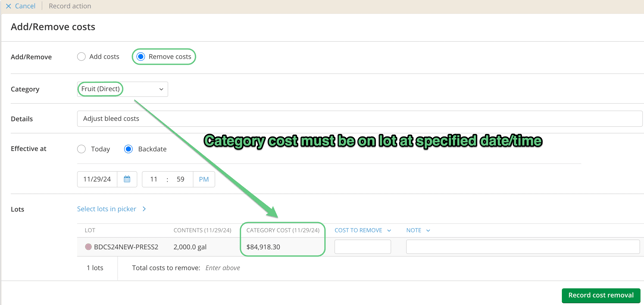
- Add all removed costs back into the higher value "mother" lot using the Add/remove cost action. See this article on adding or removing indirect costs. Add the cost back in the same category it was removed from.
- Use the Notes field on the cost actions to reference or link lots as necessary.
It’s recommended that adjustments to remove and then add back costs to the mother lot occur on the same date, which can be just after the action that distributed the costs originally. For example, select the same date, and a time just after the final Bleed/Saignée action occurred. This ensures the cost changes flow correctly through all subsequent activities on the involved lots.
Estimated vs. actual fruit cost and contract true-ups
Before fruit is received, InnoVint can only estimate fruit cost. After fruit is received, fruit costs automatically update to what you actually owe, based on weight, area or the block cost. After harvest is fully completed, confirm InnoVint's total matches your grower invoices.
Where estimates and actuals appear
|
Where |
What it shows |
|---|---|
|
Fruit Cost Worksheet |
Each block's cost and unit, plus the cost for the vintage. Shows estimated cost initially, and the estimated column updates as fruit is received . Exports for budgeting. |
|
Vineyard Contracts |
An calculated cost column is initially based on contracted tonnage (Est.) from the contract. If a block has received fruit in the past, the calculated cost will be based on the historic average yield (Avg). If a block has a crop estimates (CE) entered, the calculated cost updates to the estimate. A block with Received fruit will show the calculated cost based on the Received fruit weight. |
|
Fruit Cost Report |
Actual direct fruit cost per weigh tag, by vintage, based on weight received. |
- Per-weight unit pricing follows the weight actually received. If 20 tons were contracted but 17.5 were delivered, InnoVint costs 17.5 tons.
- Per-block and per-acre pricing stays fixed regardless of tons delivered. Use this when the contract pays a flat amount.
- If the invoiced weight differs from the weight received in InnoVint, the totals won't tie out. Correct the Receive Fruit action if the weight was recorded wrong; otherwise, adjust the block's cost or add the difference as a Fruit (Cost Item).
Applying bonuses, penalties and final prices
Contracts often adjust price for Brix, acid, or other quality terms after delivery. Innovint's Vineyard Contracts contain fields for these items, but do not calculate them for you. To true up:
- Calculate the final price per block from the grower's statement.
- Update the block's cost in the Fruit Cost Worksheet, the block's Vintages tab, or the contract. They're linked, so one update changes all three.
- If you'd rather not change the block's price (for example, a one-time bonus), add or remove the amount with Add/Remove Cost in the Fruit (Cost Item) category on the lots from that block.
- Re-run the Fruit Cost Report and confirm the vintage total matches your invoices.
📌 Note: Fruit cost edits on older vintages recalculate costs across your account, including wine that's already been blended or bottled. If finance has closed those periods, check with them before editing.
How harvest affects COGS reporting
Until a lot is entirely in volume, the Roll Forward and Cost Over Time reports (which display unit prices by volume) won't reflect a lot's contents, so a month-end close during harvest can look incomplete.
|
Report |
Lots in weight |
What to expect during harvest |
|---|---|---|
|
Roll Forward |
Starting and/or ending contents show as 0 |
Use to reconcile juice/wine lots in volume. Costs show with no contents for any lot in weight |
|
Cost Over Time |
Starting and/or ending contents show as 0 |
Costs show with no contents for any lot in weight. A lot in weight shows zero contents until it's entirely in volume. |
|
Lot Cost |
Are included |
Cost and contents show for juice/wine lots in weight. Use the Lot Type filter to add Fruit lots. |
|
Fruit Cost Report |
Included (per weigh tag) |
Confirms the total direct fruit cost received, regardless of whether lots are in volume yet. |
|
Cost Audit Report |
Included |
Shows every action that moved cost, including Receive, Process, Bleed/Saignée and Drain & Press. |
Closing Out Harvest
Once the last lot is pressed, reconcile the vintage's costs, clean up any stranded cost, and lock the period so closed numbers can't change.
Post-crush reconciliation checklist
- Fruit Cost Report vs. the books: Download the Fruit Cost Report for the vintage and confirm total direct fruit cost matches your grower invoices and contracts.
- Roll Forward: Run it for harvest months after all final Drain & Press actions.
- Stranded cost on fruit lots: Run the Lot Cost Report with Fruit lots included and look for fruit lots with cost but no weight (often after fruit sales or weight adjustments).
- Stranded cost on emptied lots: Look for Juice/Wine lots with cost but no contents, such as lots fully depleted with a Volume Adjustment. Remove or reallocate that cost.
- Bleed, press cut and lees lots: Confirm reallocations were entered and dated just after the action that distributed the cost.
- Estimates replaced with actuals: Confirm every block's cost reflects the final price, including bonuses and penalties.
Set a Cost Item Lock date
After finance closes the harvest period, an Admin should lock cost item and action backdating so no one can change, add, remove or backdate costs into closed months.
- Go to Settings > Lock Backdating.
- Click Set a new date for cost items and actions, choose the end of the closed period, and click Set lock date.
The cost item lock is separate from the winery action lock, and both apply to the whole account. If a correction is needed later, an Admin can move the lock earlier, make the edit, and reset it.
See Winery Lock Backdating for details.
Start to Finish: Harvest Finance Checklist
Before harvest
- ✅ If available, enter direct fruit costs for each block (Keep in mind, direct fruit costs can always be added after harvest too.)
- ✅ Confirm the cost unit for each block (per weight unit, per acre or per block)
- ✅ Enter grower contracts in Vineyard Contracts (if available and applicable)
During harvest
- ✅ Apply cost to any purchased juice or bulk wine using an Add Cost action. Be sure to set the Effective At date and time to when the lots first have contents
- ✅ Tag bleed/saignée lots that may need cost reallocated
- ✅ Track harvest overhead for allocation
After everything is pressed
- ✅ Review the Lot Cost tab on pressed lots to confirm cost per unit looks correct
- ✅ If needed, move fruit cost from bleed lots back to the mother lot, dated just after the Drain & Press
At period close
- ✅ Reconcile total fruit cost with the Fruit Cost Report
- ✅ True up fruit costs with final invoice amounts
- ✅ Re-run harvest monthly reports after all lots are in volume
- ✅ Check for stranded cost on emptied lots
- ✅ Set both Backdate Locks once harvest is closed or at your standard period-close
FAQ
Q: I'm selling some fruit from one of my blocks, how do I account for costs?
A: When you sell part of your fruit, the sold weight leaves your inventory. When you use a fruit weight adjustment to set a sold fruit lot to zero weight, the cost will remain stranded on the empty fruit lot. Plan to check all fruit lots after each sale, or at the end of harvest, and move any remaining cost.
How to clean up cost after a fruit sale:
- Run the Lot Cost Report with the Lot Type filter set to include Fruit lots, as of the day after the sale. Look for fruit lots with cost but no weight.
- Go to COGS Tracking > Add/Remove Cost and choose Remove. Change the Lot Contents filter to include lots with no contents so the empty fruit lot appears.
- Select the Fruit (direct) category and remove the stranded amount, dated just after the sale.
- Decide where the cost belongs:
- If the sold fruit's cost should leave the winery's COGS (for example, it's recorded as cost of fruit sold in your books), stop here and note the sale in the details field.
- If some of the cost belongs on wine you kept, add it back to those Juice/Wine lots in the same category and on the same date.
Talk with your finance team before the sale about how they want sold fruit recorded, so the InnoVint entry matches the books. Learn more about how to Sell Fruit here.
Additional Resources
- How costs follow the wine: from vineyard to bottle in InnoVint
- How does InnoVint Distribute Costs?
- Cost Reports & Reconciliation
- Winemaking & Finance: Cost Flow Considerations
- COGS Entry Checklist
- Knock Out Your Production Costs! (InnoVint Academy webinar)
Questions? Contact Customer Success at support@innovint.us.