---
title: Custom Lot Attributes
description: Find out how to create and use custom attributes for your lots
---
[Skip to content](https://support.innovint.us/hc/en-us/custom-attributes-lots#main-content)
[Submit a help ticket](https://support.innovint.us/hc/en-us/kb-tickets/new?hsLang=en)
![InnoVintSupportCenter - header.png\]](https://support.innovint.us/hs-fs/hubfs/InnoVintSupportCenter%20-%20header.png?width=300&height=22&name=InnoVintSupportCenter%20-%20header.png)
Open main navigation
Close main navigation
- [Submit a help ticket](https://support.innovint.us/hc/en-us/kb-tickets/new)
How can we help you today?
- There are no suggestions because the search field is empty.
1. [Support Center](https://support.innovint.us/hc/en-us?hsLang=en)
2. [MAKE: Advanced Features](https://support.innovint.us/hc/en-us/make-advanced-features?hsLang=en)
3. [Custom Attributes](https://support.innovint.us/hc/en-us/make-advanced-features?hsLang=en#custom-attributes)
# Custom Lot Attributes
This is available with the MAKE-Plus subscription. Please reach out to InnoVint Support if you do not see Custom Attributes in your Settings.
Custom Attributes allow your winery to define, create and add **custom data fields** to lots in InnoVint. Tags can become broad, inconsistent, and cluttered; notes are unstructured and difficult to report on - consider Custom Attributes to be the lot attributes that you've always wanted to assign to your lots in a standard way, capturing your winery-specific information.
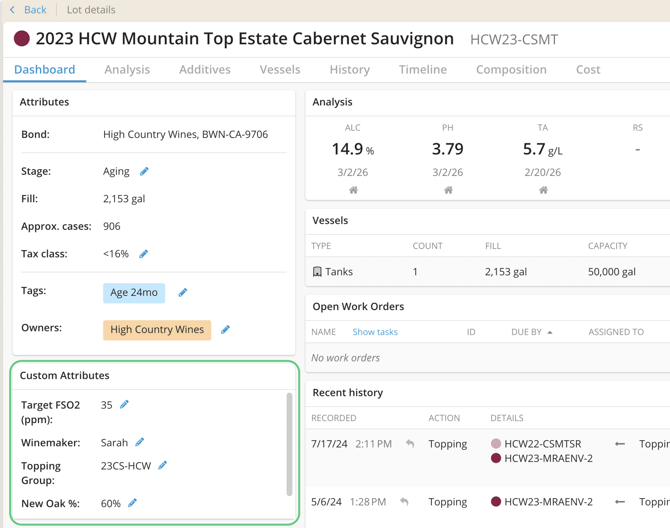
Once created, Custom Attributes can be: added to lots and viewed on the Lot Details page, and are included in the Lot Explorer, Custom Reports, and other additional report exports. This allows you to track the information that matters most to your winery and integrate that data more easily into your workflows.
This article covers:
- [What are Custom Attributes?](https://support.innovint.us/hc/en-us/custom-attributes-lots#what)
- [How to create Custom Attributes](https://support.innovint.us/hc/en-us/custom-attributes-lots#how)
- [How to add Custom Attributes to Lots](https://support.innovint.us/hc/en-us/custom-attributes-lots#Add_CA)
- [How to edit or remove Custom Attributes](https://support.innovint.us/hc/en-us/custom-attributes-lots#edit_remove)
- [How to View or Report on Custom Attributes](https://support.innovint.us/hc/en-us/custom-attributes-lots#report)
- [Tracking Changes](https://support.innovint.us/hc/en-us/custom-attributes-lots#Changes)
- [How to Archive or Delete Custom Attributes](https://support.innovint.us/hc/en-us/custom-attributes-lots#archive-delete)
- Video Tutorial
### What Are Custom Attributes?
Custom Attributes are **additional fields you define** to store information about lots.
Examples of attributes that can be created include: Winemaker, Fermentation protocol, Barrel program or % new oak, Target alcohol, MOX Start/Stop date, Contract reference number, or a unique internal project code.
When you create a custom attribute, you specify the data format and how the field is used:
- Supported data formats include:
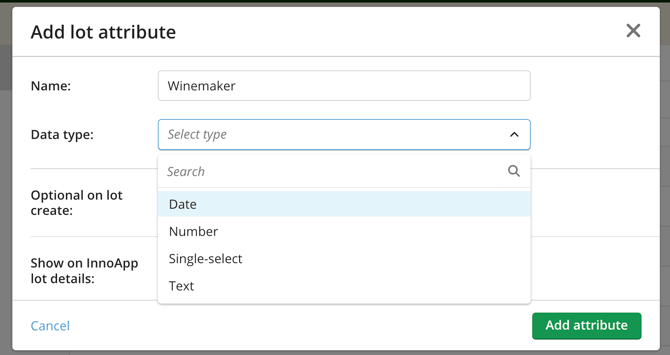
- Single-select (specify a list of predefined options for the attribute)
- Text (alphanumeric)
- Number (no leading zeros or commas)
- Date
- Custom Attributes can be required at lot creation (via the UI and lot import), or optional.
- Custom Attributes can be used with all lot types (fruit lots, juice/wine lots and case good lots)
### How to Create Custom Attributes
Custom Attributes are created and managed in **Settings**.
Only **Admin users** can create or manage custom attributes.
#### Steps to create a Custom Attribute
1. Go to **Settings**
2. Open **Custom Attributes**
**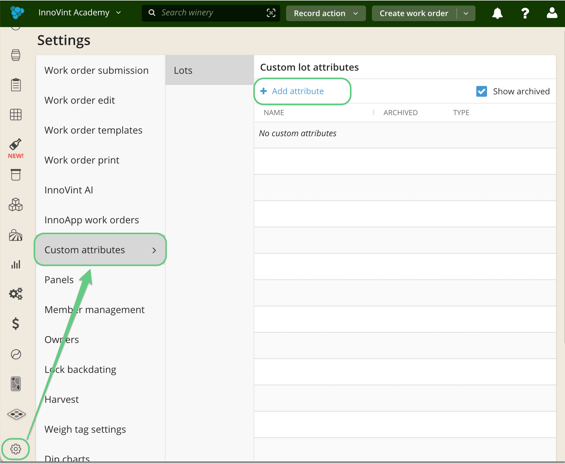**
3. Click **+ Add attribute**
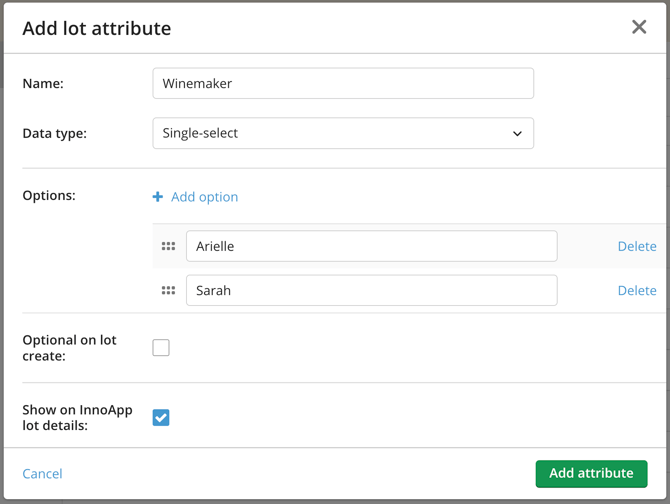
4. Enter a **Name** for the attribute (each custom attribute name must be unique)
5. Select a **Data Type**
****
1. If you select Single-Select, you will need to define the list of options (at least one)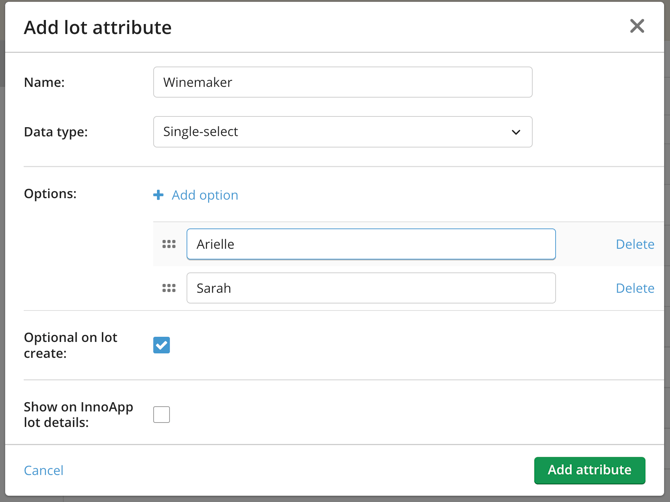
6. Specify settings:
1. Will this attribute be required or optional at lot creation?
2. Do you want this attribute to display on the InnoApp lot details page?
7. Click **Add attribute**
#### Custom Attribute Data Types
**Single-Select**
The single-select attribute allows users to select **one value from a predefined list**. You can add, reorder, archive, or remove options in Settings at any point. Drag and drop the list options to reorder them; the order set in Settings determines how they appear throughout InnoVint.
Example of single-select attribute:
**Attribute:** Winemaking Program
**Options:** Estate, Custom Crush, or Experimental
**Text**
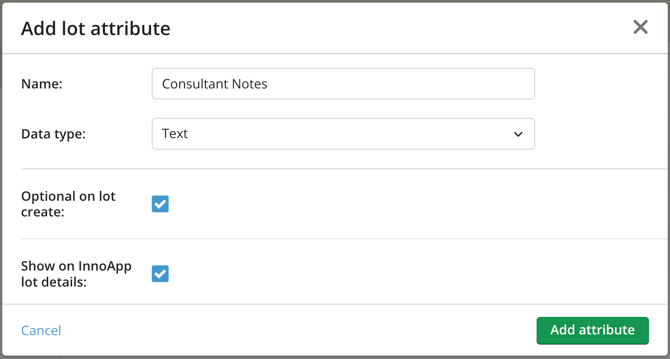
A text attribute allows users to enter **free-form text**. Example:
- - Consultant notes
- Special handling instructions
**Number**
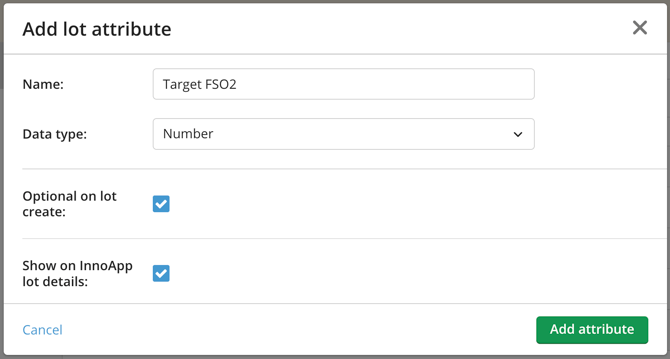
A number attribute stores only numeric values, up to 5 decimal places. Example:
- - Target alcohol or FSO2
- Residual sugar
- Internal tracking number
**Date**
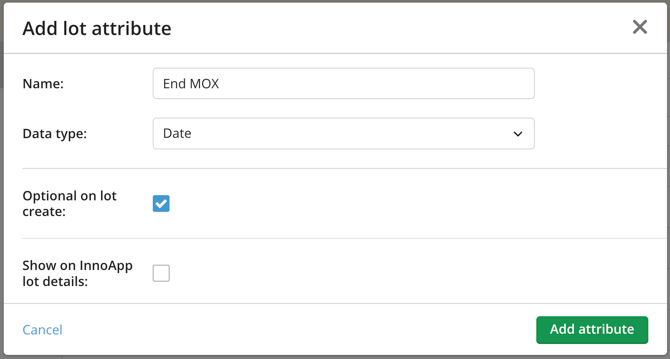
A date attribute stores calendar dates. Example:
- - Blend approval date
- Lab review date
- Sensory panel date
- MOX on/off
#### Attribute Settings
When creating a custom attribute you can configure the following options:
- **Make Custom Attributes Optional on Lot Creation.** This controls whether the field is required when creating a lot
- If the box is checked, the field is optional
- - If the box is not checked, then you must enter a value for this attribute when creating a lot. NOTE: the value is required at lot creation, but may be removed via the Lot details page after creation; it does not mean that this value is *always* required on a lot.
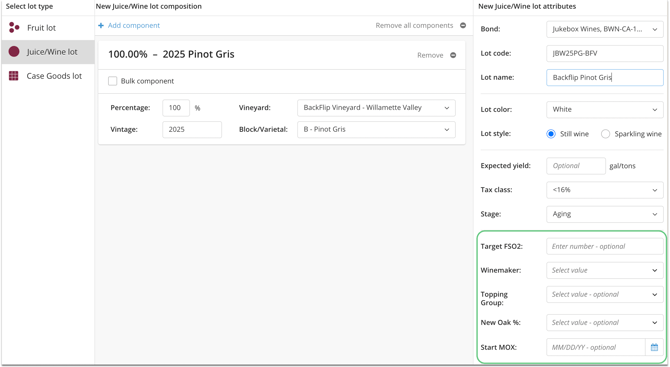
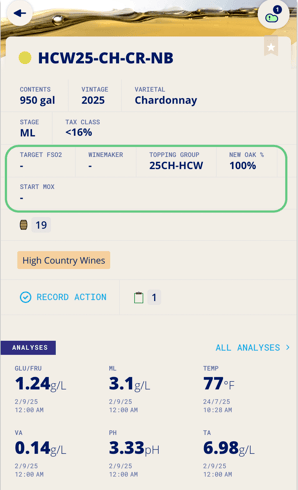
- **Show on InnoApp Lot Details.** This option ensures that the attribute displays on Lot Details in the InnoApp mobile app.
- If this option is unchecked, the attribute will only appear in the desktop web app
### How to add Custom Attributes to Lots
Once created, custom attributes can be applied to lots two ways.
#### On the Lot Details Page
Each lot includes a **Custom Attributes** section underneath the main lot attribute box.
If no Custom Attributes are setup for the winery this section will not display.
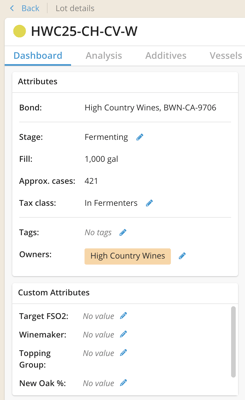
To add or edit a value:
1. Open the **Lot Details** page.
2. Locate the **Custom Attributes** section.
3. Click the **edit (pencil) icon**.
4. Enter or select a value.
5. Save.
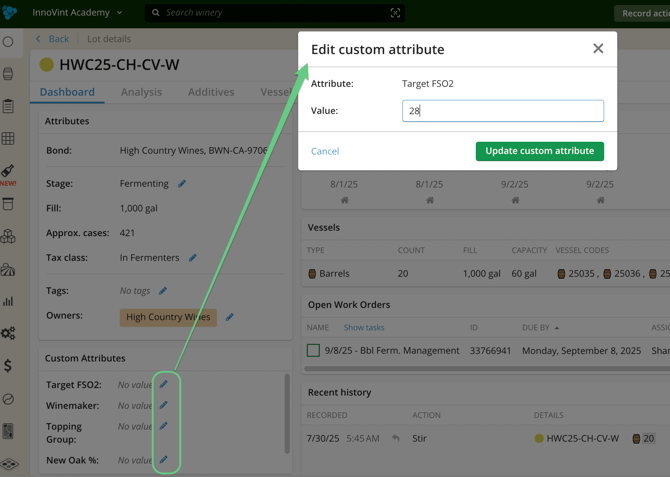
If no value is set, the field displays **No value**.
#### When Creating a Lot
When creating a new lot (via +Add lot or inline or via Lot Import) custom attribute fields will appear in the **Create Lot** form.
- If required (per the Attribute Settings) the custom attributes must be completed before the lot can be created. These can be removed later via the Lot details page.
- When creating a lot in-line (via an action or work order task), a new fill "to" lot will default to the custom attributes of the drained "from" lot.
- When [importing lots](https://support.innovint.us/hc/en-us/how-to-import-lots-via-csv?hsLang=en), you can set custom attributes by adding additional columns to the import file.
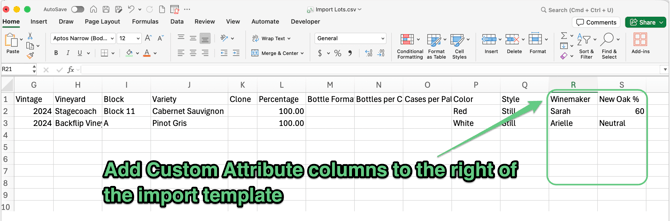
- Each custom attribute must be added via a column in the import file.
- The column header(s) of the additional column(s) must match the custom attribute name(s).
- The attribute must already exist in Settings.
- For **single-select attributes**, the value in the lot's row in the CSV file must match one of the defined options.
- If required attributes are missing or values don’t match available options, the import will display an error.
#### Via bulk Select
Use the bulk Select option to update the Custom Attributes on one or more lots at a time. [Find out more here.](https://support.innovint.us/hc/en-us/-bulk-editing-lots-vessels?hsLang=en#Select)
### How to Edit or Remove Custom Attributes from a Lot
Custom attribute values can be updated via the **Lot Details page**.
Steps:
1. Open the lot.
2. Click the **edit (pencil) icon**.
3. Update the value.
4. Save.
For single-select attributes, you can also choose **Clear value** to remove the current selection.
Or, use the [bulk Select option](https://support.innovint.us/hc/en-us/-bulk-editing-lots-vessels?hsLang=en#Select) to update or remove Custom Attribute from multiple lots at once.
### How to View or Report on Custom Attributes
Custom attributes appear across multiple areas of InnoVint.
- **Lot Details:** Each lot includes a **Custom Attributes widget** displaying the Attribute name and current value.
- **Lot Explorer:** Custom attributes can be found in the **Lot Explorer** and used as sortable columns and filters. These will report as additional columns in exported files. [See how to report and filter for custom attributes in the Lot Explorer](https://support.innovint.us/hc/en-us/lot-explorer?hsLang=en).
- Custom Reports: Custom attributes can also be used in **Custom Reports**. Add them as report columns or filter reports using attribute values
- **Fruit Lot Explorer:** Export only.
- **Case Good Lot Explorer:** Export only.
- **Winery Activity Feed:** Export only. Custom attributes appear for the lots involved in each activity - these are not "point in time" attributes, but those that are currently recorded on the lot when you run the report (as of today’s values).
- **Inventory at Point in Time:** Export only. Custom attribute values are included as additional columns as of the point in time of the report.
- **Lot Cost Report:** Export only. Each attribute appears as its own column as of the point in time of the report.
### Tracking Changes on Custom Attributes
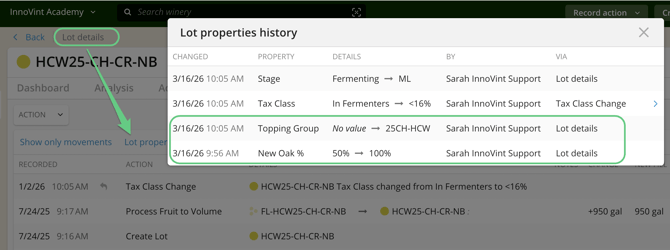
All changes to custom attributes are tracked in the **Lot Property History Report**.
This report records:
- When a value was added
- When a value was changed
- When a value was removed
You can also view this history directly on the **Lot Details → History** tab.
### How to Archive or Delete Custom Attributes
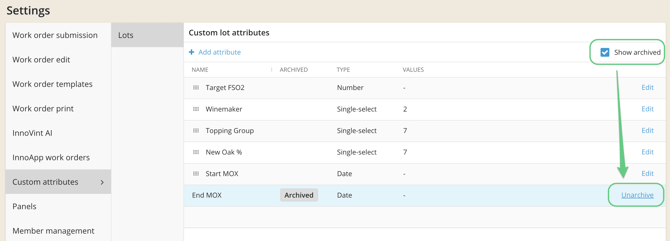
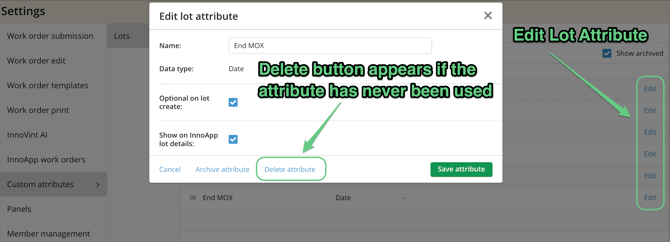
Custom Attributes or single-select options within an attribute can be **archived** when they are no longer needed, or deleted if they have never been used.
**Archiving**
- Removes them from new lot entries and filters
- Preserves historical data on existing lots
- Keeps them visible in Settings if archived items are shown
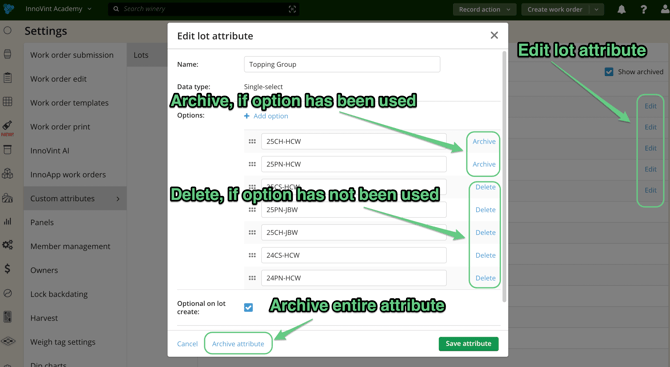
Archived attributes can be **restored (unarchived)** if needed.
**Deleting**
- Deletion is only possible if the attribute **has never been used on a lot**.
- If the attribute has been used previously, it must be **archived instead** to preserve historical data.
There are no Owner permissions around custom attributes. Everyone with access to the winery can view these. Users with write capabilities (Admin, Team Member and Team Member Cannot Submit) can edit custom attributes on lots
### Video Tutorial
- [New to InnoVint](https://support.innovint.us/hc/en-us/new-to-innovint?hsLang=en#main-content)
- [Accessing InnoVint](https://support.innovint.us/hc/en-us/new-to-innovint?hsLang=en#accessing-innovint)
- [Settings - MAKE, GROW & FINANCE](https://support.innovint.us/hc/en-us/new-to-innovint?hsLang=en#settings-make-grow-finance)
- [Getting Started - MAKE, GROW & FINANCE](https://support.innovint.us/hc/en-us/new-to-innovint?hsLang=en#getting-started-make-grow-finance)
- [MAKE](https://support.innovint.us/hc/en-us/make?hsLang=en#main-content)
- [Dashboard & Calendar](https://support.innovint.us/hc/en-us/make?hsLang=en#dashboard-calendar)
- [Lots](https://support.innovint.us/hc/en-us/make?hsLang=en#lots)
- [Vessels](https://support.innovint.us/hc/en-us/make?hsLang=en#vessels)
- [Work Orders](https://support.innovint.us/hc/en-us/make?hsLang=en#work-orders)
- [Recording Actions](https://support.innovint.us/hc/en-us/make?hsLang=en#recording-actions)
- [Movement Actions](https://support.innovint.us/hc/en-us/make?hsLang=en#movement-actions)
- [Topping](https://support.innovint.us/hc/en-us/make?hsLang=en#topping)
- [Analysis](https://support.innovint.us/hc/en-us/make?hsLang=en#analysis)
- [Analysis Reports](https://support.innovint.us/hc/en-us/make?hsLang=en#analysis-reports)
- [Additions](https://support.innovint.us/hc/en-us/make?hsLang=en#additions)
- [Case Goods in MAKE](https://support.innovint.us/hc/en-us/make?hsLang=en#case-goods-in-make)
- [Dry Goods](https://support.innovint.us/hc/en-us/make?hsLang=en#dry-goods)
- [Vineyards](https://support.innovint.us/hc/en-us/make?hsLang=en#vineyards)
- [Reporting](https://support.innovint.us/hc/en-us/make?hsLang=en#reporting)
- [Compliance](https://support.innovint.us/hc/en-us/make?hsLang=en#compliance)
- [Tags & Notes](https://support.innovint.us/hc/en-us/make?hsLang=en#tags-notes)
- [Printing Labels from InnoVint](https://support.innovint.us/hc/en-us/make?hsLang=en#printing-labels-from-innovint)
- [AI](https://support.innovint.us/hc/en-us/make?hsLang=en#ai)
- [GROW](https://support.innovint.us/hc/en-us/grow?hsLang=en)
- [FINANCE](https://support.innovint.us/hc/en-us/finance?hsLang=en#main-content)
- [Getting Started](https://support.innovint.us/hc/en-us/finance?hsLang=en#getting-started)
- [Reporting](https://support.innovint.us/hc/en-us/finance?hsLang=en#reporting)
- [Guidance & FAQ](https://support.innovint.us/hc/en-us/finance?hsLang=en#guidance-faq)
- [Harvest](https://support.innovint.us/hc/en-us/harvest?hsLang=en#main-content)
- [Preparing for Harvest](https://support.innovint.us/hc/en-us/harvest?hsLang=en#preparing-for-harvest)
- [Vineyard Harvest Reports](https://support.innovint.us/hc/en-us/harvest?hsLang=en#vineyard-harvest-reports)
- [Harvest Workflow & Fermentation Tracking](https://support.innovint.us/hc/en-us/harvest?hsLang=en#harvest-workflow-fermentation-tracking)
- [Settings & Preferences](https://support.innovint.us/hc/en-us/harvest?hsLang=en#settings-preferences)
- [MAKE: Advanced Features](https://support.innovint.us/hc/en-us/make-advanced-features?hsLang=en#main-content)
- [Owner-based Permissions System](https://support.innovint.us/hc/en-us/make-advanced-features?hsLang=en#owner-based-permissions-system)
- [Custom Attributes](https://support.innovint.us/hc/en-us/make-advanced-features?hsLang=en#custom-attributes)
- [Blend Trials](https://support.innovint.us/hc/en-us/make-advanced-features?hsLang=en#blend-trials)
- [Tank Maps](https://support.innovint.us/hc/en-us/make-advanced-features?hsLang=en#tank-maps)
- [Sparkling Wine Module](https://support.innovint.us/hc/en-us/make-advanced-features?hsLang=en#sparkling-wine-module)
- [Intended Use](https://support.innovint.us/hc/en-us/make-advanced-features?hsLang=en#intended-use)
- [Integrations](https://support.innovint.us/hc/en-us/make-advanced-features?hsLang=en#integrations)
- [SUPPLY](https://support.innovint.us/hc/en-us/supply?hsLang=en#main-content)
- [Getting Started with SUPPLY](https://support.innovint.us/hc/en-us/supply?hsLang=en#getting-started-with-supply)
- [Actions in SUPPLY](https://support.innovint.us/hc/en-us/supply?hsLang=en#actions-in-supply)
- [Using SUPPLY](https://support.innovint.us/hc/en-us/supply?hsLang=en#using-supply)
- [Order Management](https://support.innovint.us/hc/en-us/supply?hsLang=en#order-management)
- [InnoApp](https://support.innovint.us/hc/en-us/innoapp?hsLang=en#main-content)
- [InnoApp](https://support.innovint.us/hc/en-us/innoapp?hsLang=en#innoapp)
- [InnoApp - Work Orders](https://support.innovint.us/hc/en-us/innoapp?hsLang=en#innoapp-work-orders)
- [Guidance & FAQs](https://support.innovint.us/hc/en-us/guidance-faqs?hsLang=en#main-content)
- [Frequently Asked Questions](https://support.innovint.us/hc/en-us/guidance-faqs?hsLang=en#frequently-asked-questions)
- [Specialized Workflows](https://support.innovint.us/hc/en-us/guidance-faqs?hsLang=en#specialized-workflows)
- [Best Practices](https://support.innovint.us/hc/en-us/guidance-faqs?hsLang=en#best-practices)
- [Templates](https://support.innovint.us/hc/en-us/guidance-faqs?hsLang=en#templates)
- [InnoVint Academy](https://support.innovint.us/hc/en-us/innovint-academy?hsLang=en#main-content)
- [Video Trainings/Tutorials](https://support.innovint.us/hc/en-us/innovint-academy?hsLang=en#video-trainings-tutorials)
- [Video Informational Sessions](https://support.innovint.us/hc/en-us/innovint-academy?hsLang=en#video-informational-sessions)
- [Quick Video Tutorials](https://support.innovint.us/hc/en-us/innovint-academy?hsLang=en#quick-video-tutorials)
- [Product Updates](https://support.innovint.us/hc/en-us/product-updates?hsLang=en#main-content)
- [Product Updates: 2025-2026](https://support.innovint.us/hc/en-us/product-updates?hsLang=en#product-updates-2025-2026)
- [Product Updates: 2024](https://support.innovint.us/hc/en-us/product-updates?hsLang=en#product-updates-2024)
- [Product Updates: 2023](https://support.innovint.us/hc/en-us/product-updates?hsLang=en#product-updates-2023)
- [Product Updates: 2017 - 2022](https://support.innovint.us/hc/en-us/product-updates?hsLang=en#product-updates-2017-2022)
- [Support Hours & FAQs](https://support.innovint.us/hc/en-us/support-hours-faqs?hsLang=en)
[](https://support.innovint.us/hc/en-us?hsLang=en)
Copyright © 2025, InnoVint