![InnoVintSupportCenter - header.png]](https://support.innovint.us/hs-fs/hubfs/InnoVintSupportCenter%20-%20header.png?width=300&height=22&name=InnoVintSupportCenter%20-%20header.png)
InnoVint's FINANCE product entwines closely with production workflows. In some cases, winemaking transaction entries can derail the flow of costs. Here are a few key actions that should be called out and discussed between teams to ensure that finance and winemaking are on the same page!
Oftentimes, these are the winemaking actions that underpin troubleshooting for "lost" costs in your bulk wines.
- Volume & Weight Adjustments
- Bleed/Saignee/lees costs - how and when to reallocate these
- Bleed/Saignee, Drain and Drain & Press Actions
- Bond to Bond transfers within the winery
Volume & Weight Adjustments
Volume Adjustments: the impact of the "Reason"
The "Reason" you choose for your Volume Adjustment action not only impacts the TTB Report, but also impacts your lot cost and cost reports. Most reasons will not remove cost from the lot, and no reason can add cost to wine.
- These volume adjustment reasons for losses result in reduced volume, and will "concentrate" the cost per unit of your lot.
In the event that you fully remove volume from a lot with cost via a volume adjustment, that cost will NOT be removed from your lot. This is OK if you plan to volume adjust up again with a "Produced by..." reason (see the next bullet below), but less so if you want to remove that last few gallons of a bottling tank; these reasons can leave cost and no volume on your lot:
- Inventory losses
- Used for amelioration
- Used for sweetening
- Used for addition of wine spirits
- Used for effervescent
- Bottled
- These volume adjustment reasons for gains result in increased volume, and will "dilute" the cost per unit of your lot, and will not increase overall lot cost.
In the event that you are following our workflow for fortification, sweetening, and amelioration, if you previously volume adjusted down using the "used for...addition of wine spirits/sweetening/amelioration/effervescent wine," the original lot cost will still reside with the lot code (see Inventory losses below); you will only need to add any additional cost for the added material:- Onboarding
- Inventory gains
- Produced by amelioration
- Produced by sweetening
- Produced by addition of wine spirit
- Bottled wine dumped to bulk (returned volume from dumped case good)
- B2B Transfer In
- These are the only volume adjustment reasons that will remove cost from your wine (and the winery!).
- Losses other than Inventory: This reason triggers the cost reduction to be recorded as "shrinkage", and will report as such on the Cost over Time and Roll Forward Reports.
- B2B Transfer Out: this reason automatically converts the action type to a B2B Transfer Out and will remove cost with volume.
Weight Adjustments
A Fruit Weight Adjustment, similar to a volume adjustment, will concentrate or dilute existing fruit lot costs. The action will not add or remove costs.
If you are fully depleting a fruit lot, this action will leave costs on the fruit lot. See the section below for recommendations on reallocating cost.
Bleed/Saignee, Drain and Drain & Press actions
Cost treatment of lots tracked in weight and their drained/bleed lots
Lots in weight will always show the proportionate direct cost of fruit - as well as any allocated direct or indirect costs - on the Lot details page in the Cost tab, the Lot Cost Report and the Cost Audit Report (although without a unit cost). However, lots in weight will not always appear as expected in other cost reporting (for instance, the lot contents are omitted from the Roll Forward Report, but the lot costs are included).
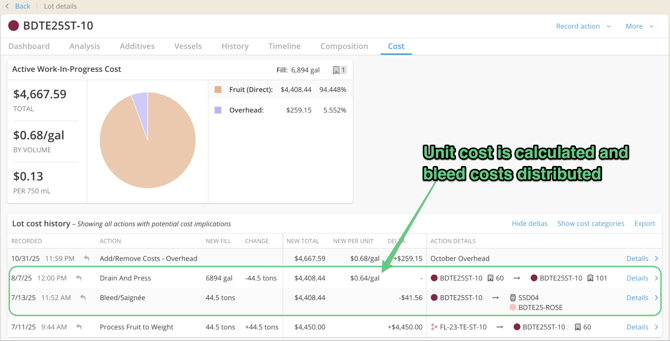
If you perform a bleed/saignee or drain action on a lot in weight, the unit cost will not be calculated and distributed to the new lot (now in volume) until the entire source lot is in volume (drained and pressed).
Please see the below example of a lot in weight, that had volume removed, and the ensuing rosé bleed lot:
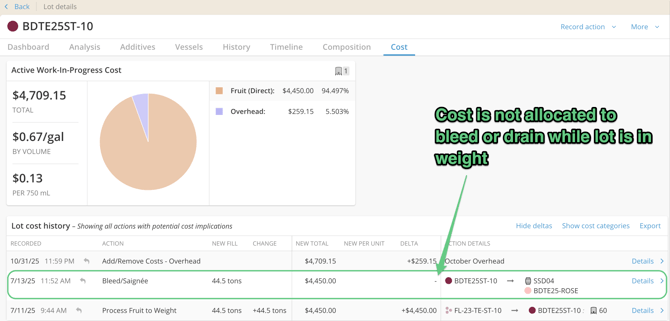
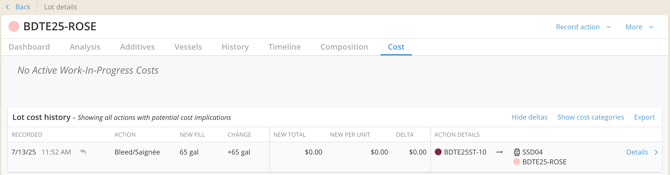
All of the relevant costs are retained in the winery (they are still held on the lot in weight), but you will not see the updated lot cost distribution until the final unit cost is calculated, and distributed proportionally. This occurs when the "mother" lot in weight is fully converted to volume:
Bleed/Saignee or Lees costs
InnoVint distributes cost proportionally to lot volume in all actions. This includes Bleed/Saignee actions (these drain volume from a lot tracked in weight), Drain & Press actions (including all press cut lots) and lees lots on Transfer/Rack type actions.
In some cases, having the full direct fruit cost proportionally transferred into less valuable bleed or lees lots is not desirable. When this occurs, that fruit cost (direct or indirect) can be removed from the "devalued" lot and reallocated back to the parent or desired lot. Find a short video on this process here - or read on.
How and when can I reallocate these?
You can remove cost using the Add/Remove cost button. When you select the option to "Remove" cost (rather than "Add"), you will have additional cost categories available in the Cost Category list. These additional cost categories are those for direct costs, including Fruit.
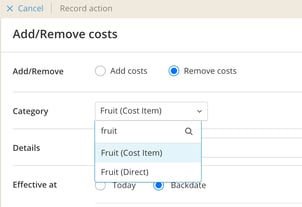
- Remove the unwanted cost in the selected cost category from a "devalued" lot.
Be sure to select the correct fruit cost (either direct or indirect) category, as you can only remove a cost category that exists on the selected lot at the specified point in time. This means that the cost removal must be timed to occur after the action that caused the cost to move (i.e. after the bleed action).
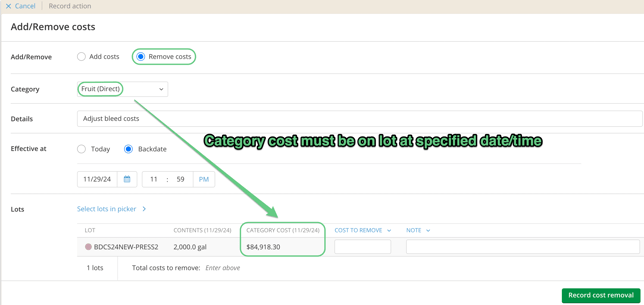
- Add all removed costs back into the higher value "mother" lot using the Add/remove cost action. See this article on adding or removing indirect costs. Add the cost back in the same category it was removed from.
- Use the Notes field on the cost actions to reference or link lots as necessary.
It’s recommended that adjustments to remove and then add back costs to the mother lot occur on the same date, which can be just after the action that distributed the costs originally. For example, select the same date, and a time just after the final Bleed/Saignée action occurred. This ensures the cost changes flow correctly through all subsequent activities on the involved lots.
The video below contains a short tutorial on how to reallocate cost for a bleed lot.
Bond transfers that occur within your winery
Which one do I use and how does it impact my cost flows?
InnoVint supports multiple types of actions for completing bond transfers within or between wineries. When using bond transfers within your winery, or transferring wine between InnoVint wineries, there are some important factors to consider for cost outcomes and troubleshooting. The type of B2B action selected will have an impact on cost behavior, especially the ability to backdate costs and have them flow through the volume.
1. B2B to another InnoVint winery and B2B within your winery actions operate with a "lot copy" mechanism. They create a snapshot copy of the source lot's attributes and costs at the point in time the transfer action is submitted.
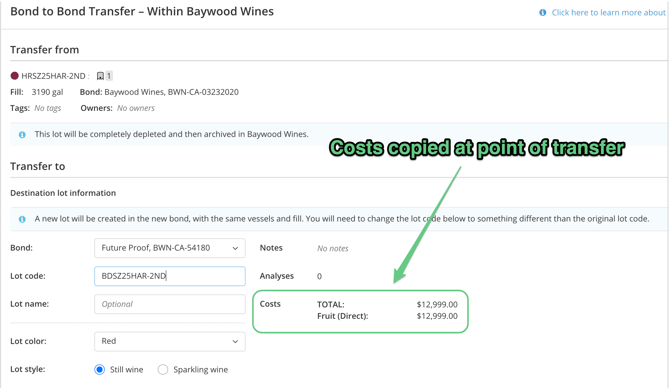
This impacts the following:
- Costs applied to the source lot after the transfer - even if backdated prior to the transfer - will not flow into the destination lot.
Example: Lot A is transferred to a new bond after harvest on November 24. A new Lot A-1 is created in the new bond, with a cost category snapshot as of November 24 . On December 2, you add October overhead on Lot A, backdated to October 30. The cost appears to be removed correctly from Lot A.
Except - there is no cost change to Lot A-1 - that lot cost remains as copied at the point of transfer.
Outcome: your fruit inputs no longer reconcile to the on hand fruit cost of your wines.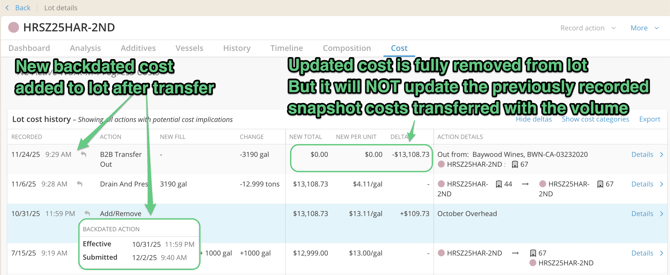
- Reporting - these "lot copy" type actions generate new cost items as a part of creating the new destination lot. These cost items will display as inputs for the period in the Roll Forward Report, and are also included on the Cost Item Report. If you do not consider these "new inputs" you may want to consider filtering them out in the reporting, as otherwise your input totals will be inflated.

- Editing or deleting the B2B action - these action types create a brand new lot with the point in time copied lot attributes and cost; please note the following when editing or deleting actions of this B2B "lot copy" type.
- B2B within winery: After submission of this action, it will display as two separate and unrelated actions in the lot history: 1) as a B2B Transfer out on the source lot, and 2) as a B2B Transfer in action on the destination lot.
- If the B2B-In action on the new lot is deleted, volume is removed, but the copied costs generated by the action will remain on the empty lot, and must be removed manually.
- The B2B Out action is not impacted after deleting the B2B In action (the volume and cost is still removed from your source lot by the B2B Out action) unless you delete that action. If you delete the B2B Out action, cost and volume will revert to the source lot.
- In order to fully delete a B2B within winery action, you must delete BOTH actions, and then also manually remove the cost on the new lot.
- B2B to another winery: After submission of this action, you will see a B2B Transfer out on the source lot, and the new lot created at the destination winery with the copied attributes and cost. A B2B Transfer in action must be performed on this newly created lot.
- If the B2B-In action on the new lot is deleted, the copied costs generated by the action will remain on the empty lot, and must be removed manually.
- If the B2B-In action on the new lot is deleted, the B2B Out action is not impacted (the source lot volume and cost is still removed by the B2B Out) unless you delete it. If you delete the B2B Out action, cost and volume will revert to the source lot.
- In order to fully delete a B2B to another InnoVint winery, you must delete BOTH actions, and then also manually remove the cost on the new lot.
- B2B within winery: After submission of this action, it will display as two separate and unrelated actions in the lot history: 1) as a B2B Transfer out on the source lot, and 2) as a B2B Transfer in action on the destination lot.
2. B2B Transfer (Inter-facility) actions and tasks are designed to support transfers between bonds within a single winery account, but operate like a standard transfer action, in which costs flow with the contents, and there is a perpetual link between the source and destination lots.
If you backdate and update the costs on a source lot after the B2B Transfer (Inter-facility) is recorded, costs will automatically adjust and flow into the destination lot.
Don't see the B2B Transfer (Inter-facility) action in your Record action or Task menus? Contact support to activate it!