![InnoVintSupportCenter - header.png]](https://support.innovint.us/hs-fs/hubfs/InnoVintSupportCenter%20-%20header.png?width=300&height=22&name=InnoVintSupportCenter%20-%20header.png)
This feature requires activation. If you wish to activate it please contact our Customer Success Team at support@innovint.us.
Find our basic feature overview here.
This article covers:
- What is the Sparkling wine module?
- How to get started
- InnoVint Traditional Method Sparkling Workflow Diagram
What is the Sparkling Wine Module?
The Sparkling Wine Module in InnoVint allows you to track the full Traditional Method sparkling wine production process, including:
-
Bottling en tirage
-
Aging and riddling
-
Disgorge, dosage, and final packaging
The module can also support Charmat (Tank Method), Pét-Nat, and Forced Carbonation workflows. Recommended steps for these methods are outlined in the FAQ section.
Getting Started (Traditional Method)
Prerequisite
Create your sparkling base wine as you normally would. Once you’re ready to bottle en tirage, begin using the Sparkling Wine Module.
Step 1: Create your tirage vessels
Tirage vessels represent your bins of bottles used for secondary fermentation.
Navigation
-
Go to Vessels → + Add Vessels
-
Select the Tirage vessel type
Required fields
-
Vessel Codes
-
Enter one or more codes (comma- or space-separated)
-
Allowed characters: A–Z, 0–9, dash (-), underscore (_)
-
-
Bottle Type
-
Capacity (number of bottles per vessel group)
- InnoVint calculates the total volume of your Tirage Bin automatically.
- InnoVint calculates the total volume of your Tirage Bin automatically.
Optional fields
-
Owners (if Owner-based permissions are enabled)
-
Tags
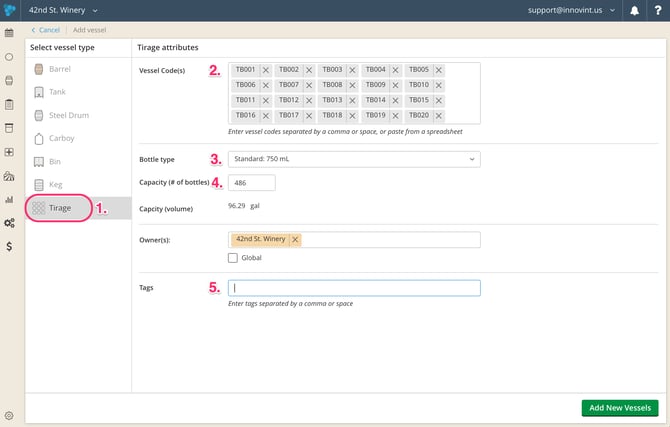
📌 TIP: If you have your vessels in a spreadsheet, you can also copy and paste the vessel codes into the text field (limit 100 at a time.)
Step 2: Perform a Bottling en Tirage action
Use the Bottling en Tirage action to move base wine into tirage bins and bottles.
Best practices
-
If bottling occurs over multiple runs, consider using unique lot codes per run.
-
If you track packaging in InnoVint, this action can also:
-
Deplete packaging
-
Track packaging costs during tirage aging
-
TTB considerations
-
Declare the base wine (e.g., <16%) before bottling en tirage.
-
To map gains/losses correctly:
-
Bottle into the same tax class as the base wine.
-
Step 3: update your lot properties - Lot Style!
Set Lot Style = Sparkling
-
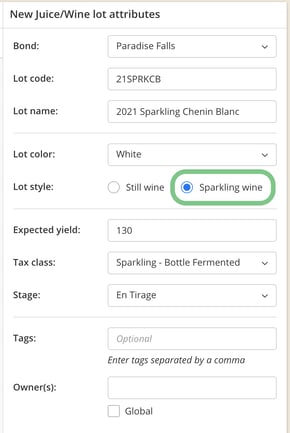
If a new lot is created during Bottling en Tirage:
-
Select Sparkling Wine as the Lot Style during creation.
-
-
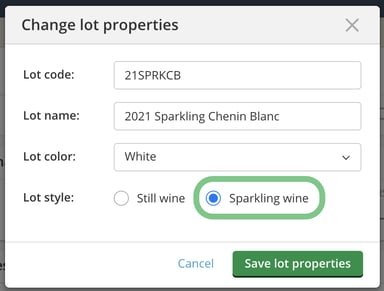
If retaining an existing lot code:
-
Update the Lot Style via Lot Properties from the Lot Details → More menu.
-
Result
-
The lot icon updates to show bubbles, and the lot style will update on relevant filters and exports
Step 4: Update the tax class to sparkling
After Bottling en Tirage, update the lot’s tax class.
Supported Sparkling tax classes
-
Sparkling – Bottle Fermented (maps to Column (e), "BF")
-
Sparkling – Bulk Processed (maps to Column (e), "BP")
Compliance notes
-
After a Bottle en Tirage action, both flow to TTB 5120.17, Section A, Column (e), Line 2.
-
Declare the wine before changing the tax class.
To edit the tax class, reference our article here.
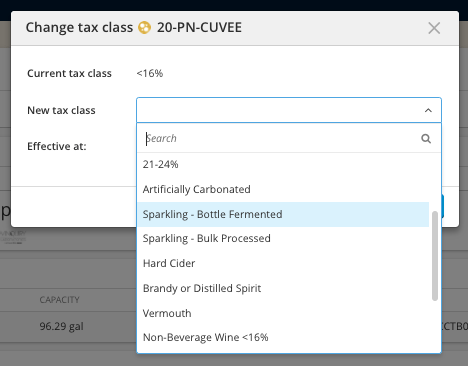
🚨 Please be sure to declare your wine before recording a tax class change to either Sparkling - Bottle Fermented or Sparkling - Bulk Processed.
Step 5: Set the sparkling lot stage
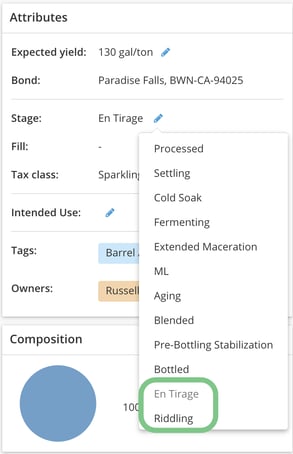
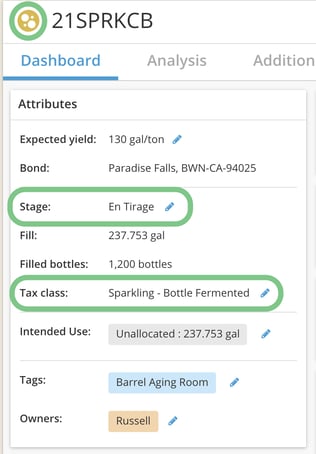
These properties can be seen in the Lot Attributes on the Lot Details Page, and display in filters and exports throughout InnoVint. Available sparkling stages include:
-
En Tirage
-
Riddling
How to update
-
From the Lot Details page
-
Or automatically via the Bottling en Tirage action
Step 6: Disgorge and package your sparkling wine
After aging and riddling, it is time to disgorge, record dosage (if applicable) and then complete your final packaging step.
Follow the recommendations in our Disgorge, Dosage and Package article.
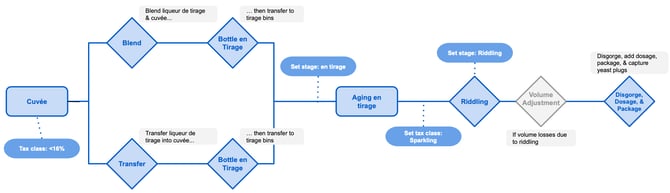
InnoVint Traditional Method Sparkling Workflow Diagram

Frequently Asked Questions
Q. Can I create Work Orders for sparkling actions?
A. Currently, only Bottle en Tirage and Riddling tasks are supported as standalone tasks. Review the Disgorge, Dosage and Package article to find out about creating templates for this process.
Q. Can I use these actions to record the Charmat process?
A. The Sparkling actions are intended for the Traditional Method workflow. To record the Charmat process we recommend the following steps:
Charmat Workflow
-
Set Lot Style = Sparkling
-
Record a Blend or Transfer to add liqueur de tirage to tank
-
Change tax class to Sparkling – Bulk Processed
-
Record a Filter action
-
Record a Blend or Transfer to add dosage
-
Record a Bottle action to add packaging and create finished wine
Additional compliance notes
-
Set the tax class at any point that supports your reporting, but before the Bottle action.
-
When changing tax class to Sparkling - Bulk Processed (if the lot is reported in Part 1, Line 1, Column A (On hand beginning of period, <16%):
-
Volume moves from Part 1, Line 1, Column a
-
To Part 1, Line 22, Column a (Used for effervescent wine) and
-
To Part 1, Line 2, Column e (BP) (Produced by fermentation)
-
Appears in the next period as Part 1, Line 1, Column e
-
Tips
-
Add extra actions as needed for your process.
-
Use Tags and Notes to document tank-specific steps.


Q. How do I record the Pét-Nat method?
A. We recommend using a simplified Traditional Method-style workflow with fewer steps for your Pét-Nat wines:
- Mark the lot as "Sparkling" using the check box in the Lot details page.
- Record a Bottle en Tirage action into tirage bins.
- Set the tax class to <16% and the stage to "En Tirage."
- Update the tax class to Sparkling-Bottle Fermented
- Depending on if you disgorge or not, decide to either record a Bottle action or Riddling and Disgorge, Dosage & Package actions.
- Utilize Tags or Notes to mark the lot using this method
ADDITIONAL NOTES:
- Set your tax class at any time that makes sense for your compliance reporting, but before recording the bottling/disgorge, dosage & packaging action. If the volume is reported in Part 1, Line 1, Column A (On hand beginning of period, <16%), when you change the tax class it will move to Part 1, Line 22, Column A (Used for effervescent wine, <16%) and Part I, Line 2, Column E - BF (Produced by fermentation). Once bottled, it will move to Part 1, Line 13, Column E.
- Be sure to add any additional actions or steps that you use in your Pét-Nat workflow and remember that you can utilize Tags and Notes to mark either the lot using this method.
Pétillant Naturalle (Pét-Nat) Sparkling Workflow Diagram


Q. How do I record forced carbonation?
A. We recommend the following workflow for your forced carbonation wines:
-
- Mark the lot as "Sparkling" using the check box in the Lot details page.
- Record a Custom Action and edit the title using the blue pencil to record the addition of CO2. Add any additional information to the note.
- Note - if you track compressed gases as additives, you could instead record an additive action to add your CO2.
- Record any relevant Analysis
- Update the tax class to Artificially carbonated when you want to move the gallons from Part I, Section A column a (<16%) to column d (artificially carbonated wine) of the TTB report (be sure to do this before you record a Bottle action)
- Record a Bottle action when you are ready to move the gallons from Bulk wines in Part I, Section A to Bottled Wines in Part I, Section B of the TTB report
- Utilize Tags or Notes to mark the lot or using this method
- Additionally, record any other actions relevant to your workflow!