---
title: How to Edit a Work Order
description: Open work orders can be edited to change the title, due date, and assigned to, as well as instructions, and vessel & lot selections within the tasks. Please note that these attributes cannot be edited
---
[Skip to content](https://support.innovint.us/hc/en-us/articles/206371326-how-to-edit-a-work-order#main-content)
[Submit a help ticket](https://support.innovint.us/hc/en-us/kb-tickets/new?hsLang=en)
![InnoVintSupportCenter - header.png\]](https://support.innovint.us/hs-fs/hubfs/InnoVintSupportCenter%20-%20header.png?width=300&height=22&name=InnoVintSupportCenter%20-%20header.png)
Open main navigation
Close main navigation
- [Submit a help ticket](https://support.innovint.us/hc/en-us/kb-tickets/new)
How can we help you today?
- There are no suggestions because the search field is empty.
1. [Support Center](https://support.innovint.us/hc/en-us?hsLang=en)
2. [MAKE](https://support.innovint.us/hc/en-us/make?hsLang=en)
3. [Work Orders](https://support.innovint.us/hc/en-us/make?hsLang=en#work-orders)
# How to Edit a Work Order
Open work orders can be edited to change the title, due date, and assigned to, as well as instructions, and vessel & lot selections within the tasks. Tasks can also be rearranged.
Please note that work orders cannot be edited once a work order is completed or submitted, and you cannot "unsubmit" a work order.
This article covers:
- [How to edit a work order](https://support.innovint.us/hc/en-us/articles/206371326-how-to-edit-a-work-order#How)
- [How to edit work order attributes](https://support.innovint.us/hc/en-us/articles/206371326-how-to-edit-a-work-order#attributes)
- [How to edit, add or remove lots in the work order](https://support.innovint.us/hc/en-us/articles/206371326-how-to-edit-a-work-order#lots)
- [Change or edit a lot](https://support.innovint.us/hc/en-us/articles/206371326-how-to-edit-a-work-order#change-lots)
- [Add additional lots](https://support.innovint.us/hc/en-us/articles/206371326-how-to-edit-a-work-order#add-lots)
- [Remove unwanted or incorrect lots](https://support.innovint.us/hc/en-us/articles/206371326-how-to-edit-a-work-order#remove-lots)
- [How to edit requested volumes](https://support.innovint.us/hc/en-us/articles/206371326-how-to-edit-a-work-order#volume)
### How to edit a work order
To open any editable fields in the work order, click the 'Edit work order' button in the header of the work order.

- You can edit work order attributes or tasks in open work orders that are not completed.
- You may re-arrange tasks in open work orders
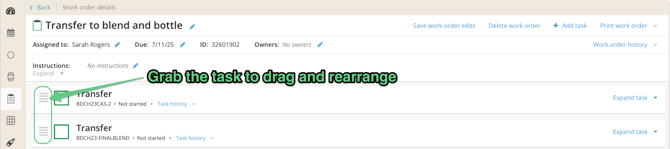
- You may not edit submitted work orders.
- If the edit work order button is greyed out, then you have either completed or submitted the work order. Completed work orders can have tasks un-completed, and then edited.
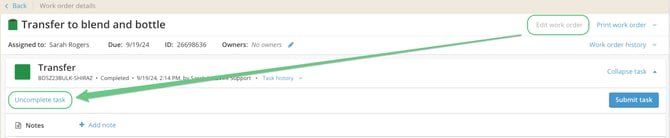
- Learn about how to edit actions after work orders are submitted [here](https://support.innovint.us/hc/en-us/articles/208141233-how-to-edit-or-delete-recorded-actions?hsLang=en).
#### How to edit the work order attributes
With the work order in edit mode, you will see blue pencil icons appear next to the title, "Assigned to", "Due", and "Owners" fields (with owner permissions activated). You will also see the "+ Add task" button appear.
Click the pencil icon next to the header attribute that you would like to change.

Make any required changes and then click the blue button to save your update on the relevant box or slideover screen.
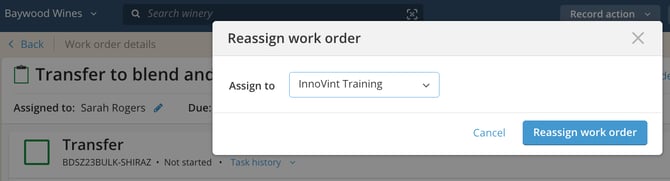
When you have completed your changes, be sure to **Save work order edits**! This ensures that the changes are reflected in the work order for all users.

#### How to edit, add or remove lots in the work order
While the work order is uncompleted and in edit mode, you can change, add or remove lots within a task as needed.
**Change or edit a lot**
On the "single lot" side of the task, you will see the lot dropdown menu and lot picker available. Select the corrected lot, and save your work order edit in the header:
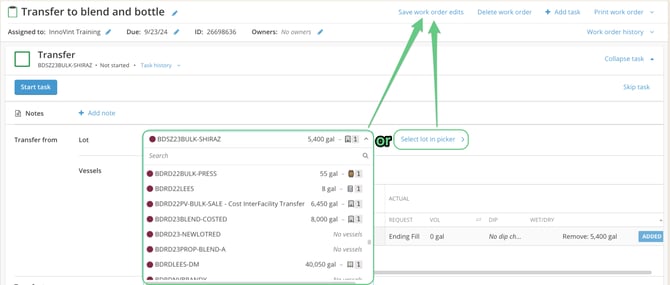
Need to change lots on the other side (the "multi-lot" side) of the task? If you need to change one or many lots involved in a blend, or being filled by a transfer or rack action, then you must perform a two step correction to swap the lot(s). You will first add your corrected lot(s), and then remove the unwanted lot(s). Keep reading to learn more!
**Add additional lots**
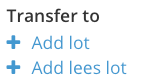
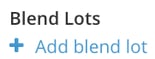
With the work order in edit mode, you will see the "+ Add lot" button appear in the relevant task location, depending on whether you can add multiple lots on the drained or filled side of the movement. You can also add in a lees lot. Enter the updated lot and vessel information in the slideover:
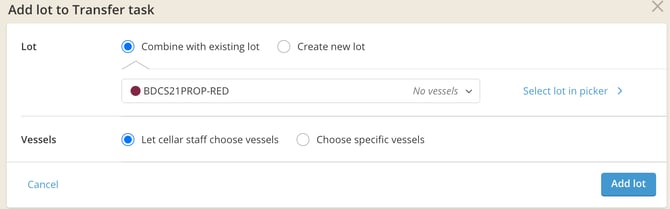
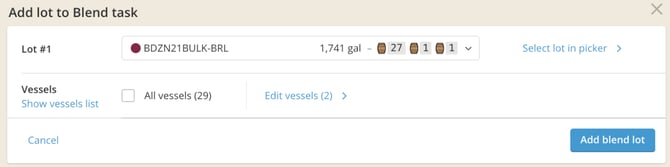

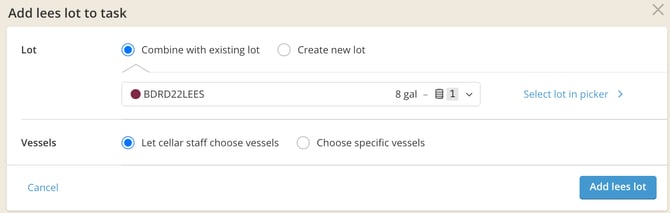
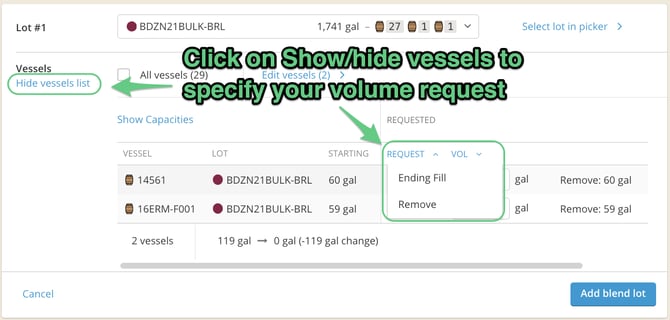
Please check whether you are requesting "remove" "add" or "ending fill" on your vessels when adding lots as you will not be able to change this selection after adding the new lot.
**Remove unwanted or incorrect lots**
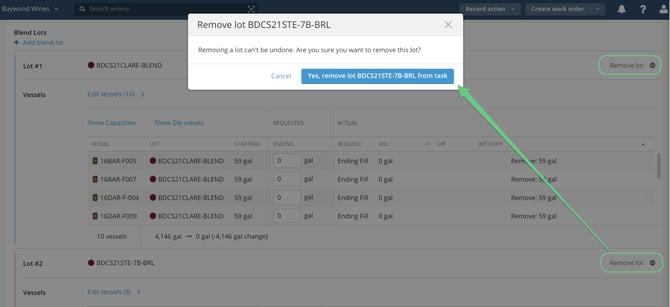
If you have more than one lot being drained or filled, you will see the  button to the right of the lot. You must have more than one lot available in order to remove one. If you only have a single lot being drained or filled, you will instead see the lot picker option re-open, and you can only update the selected lot (see above on how to change or edit a lot).
To remove the lot, simply press the Remove lot button to delete that particular lot from the work order.
Don't forget! When edits are complete, press the 'Save work order edits' button at the top of the work order in order to continue with the task.
#### How to edit requested volumes
With an open, uncompleted work order task open in edit mode, the "Requested" fields will open for editing, and the "Actual" fields are closed:
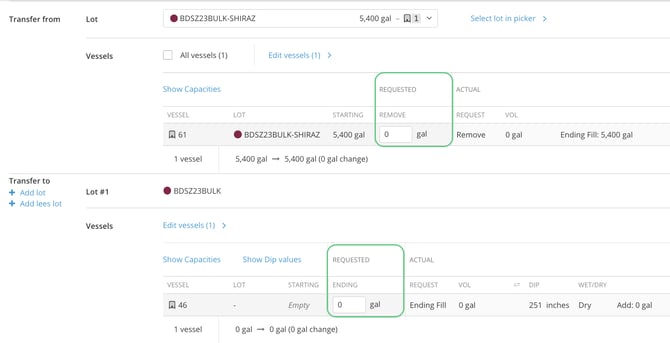
After you save the edits, the "Requested" fields will close, and users can again record the final volumes in the "Actual" fields:
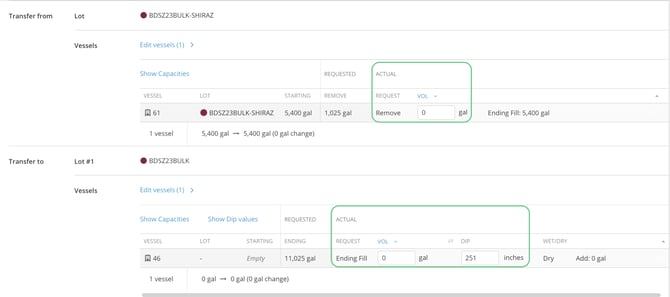
Please note that you cannot change whether to request an Remove/Add vs Ending Fill volume after the task is created.
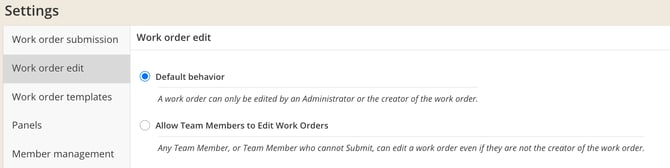
Many edits in open work orders can only be made by Admins and users that created the work order.
To change this default behavior go to *Settings \> Work Order Edit* to allow Team Members and Team Members cannot Submit to re-assign work orders, or edit lots and requested volumes.
- [New to InnoVint](https://support.innovint.us/hc/en-us/new-to-innovint?hsLang=en#main-content)
- [Accessing InnoVint](https://support.innovint.us/hc/en-us/new-to-innovint?hsLang=en#accessing-innovint)
- [Settings - MAKE, GROW & FINANCE](https://support.innovint.us/hc/en-us/new-to-innovint?hsLang=en#settings-make-grow-finance)
- [Getting Started - MAKE, GROW & FINANCE](https://support.innovint.us/hc/en-us/new-to-innovint?hsLang=en#getting-started-make-grow-finance)
- [MAKE](https://support.innovint.us/hc/en-us/make?hsLang=en#main-content)
- [Dashboard & Calendar](https://support.innovint.us/hc/en-us/make?hsLang=en#dashboard-calendar)
- [Lots](https://support.innovint.us/hc/en-us/make?hsLang=en#lots)
- [Vessels](https://support.innovint.us/hc/en-us/make?hsLang=en#vessels)
- [Work Orders](https://support.innovint.us/hc/en-us/make?hsLang=en#work-orders)
- [Recording Actions](https://support.innovint.us/hc/en-us/make?hsLang=en#recording-actions)
- [Movement Actions](https://support.innovint.us/hc/en-us/make?hsLang=en#movement-actions)
- [Topping](https://support.innovint.us/hc/en-us/make?hsLang=en#topping)
- [Analysis](https://support.innovint.us/hc/en-us/make?hsLang=en#analysis)
- [Analysis Reports](https://support.innovint.us/hc/en-us/make?hsLang=en#analysis-reports)
- [Additions](https://support.innovint.us/hc/en-us/make?hsLang=en#additions)
- [Case Goods in MAKE](https://support.innovint.us/hc/en-us/make?hsLang=en#case-goods-in-make)
- [Dry Goods](https://support.innovint.us/hc/en-us/make?hsLang=en#dry-goods)
- [Vineyards](https://support.innovint.us/hc/en-us/make?hsLang=en#vineyards)
- [Reporting](https://support.innovint.us/hc/en-us/make?hsLang=en#reporting)
- [Compliance](https://support.innovint.us/hc/en-us/make?hsLang=en#compliance)
- [Tags & Notes](https://support.innovint.us/hc/en-us/make?hsLang=en#tags-notes)
- [Printing Labels from InnoVint](https://support.innovint.us/hc/en-us/make?hsLang=en#printing-labels-from-innovint)
- [AI](https://support.innovint.us/hc/en-us/make?hsLang=en#ai)
- [GROW](https://support.innovint.us/hc/en-us/grow?hsLang=en)
- [FINANCE](https://support.innovint.us/hc/en-us/finance?hsLang=en#main-content)
- [Getting Started](https://support.innovint.us/hc/en-us/finance?hsLang=en#getting-started)
- [Reporting](https://support.innovint.us/hc/en-us/finance?hsLang=en#reporting)
- [Guidance & FAQ](https://support.innovint.us/hc/en-us/finance?hsLang=en#guidance-faq)
- [Harvest](https://support.innovint.us/hc/en-us/harvest?hsLang=en#main-content)
- [Preparing for Harvest](https://support.innovint.us/hc/en-us/harvest?hsLang=en#preparing-for-harvest)
- [Vineyard Harvest Reports](https://support.innovint.us/hc/en-us/harvest?hsLang=en#vineyard-harvest-reports)
- [Harvest Workflow & Fermentation Tracking](https://support.innovint.us/hc/en-us/harvest?hsLang=en#harvest-workflow-fermentation-tracking)
- [Settings & Preferences](https://support.innovint.us/hc/en-us/harvest?hsLang=en#settings-preferences)
- [MAKE: Advanced Features](https://support.innovint.us/hc/en-us/make-advanced-features?hsLang=en#main-content)
- [Owner-based Permissions System](https://support.innovint.us/hc/en-us/make-advanced-features?hsLang=en#owner-based-permissions-system)
- [Custom Attributes](https://support.innovint.us/hc/en-us/make-advanced-features?hsLang=en#custom-attributes)
- [Blend Trials](https://support.innovint.us/hc/en-us/make-advanced-features?hsLang=en#blend-trials)
- [Tank Maps](https://support.innovint.us/hc/en-us/make-advanced-features?hsLang=en#tank-maps)
- [Sparkling Wine Module](https://support.innovint.us/hc/en-us/make-advanced-features?hsLang=en#sparkling-wine-module)
- [Intended Use](https://support.innovint.us/hc/en-us/make-advanced-features?hsLang=en#intended-use)
- [Integrations](https://support.innovint.us/hc/en-us/make-advanced-features?hsLang=en#integrations)
- [SUPPLY](https://support.innovint.us/hc/en-us/supply?hsLang=en#main-content)
- [Getting Started with SUPPLY](https://support.innovint.us/hc/en-us/supply?hsLang=en#getting-started-with-supply)
- [Actions in SUPPLY](https://support.innovint.us/hc/en-us/supply?hsLang=en#actions-in-supply)
- [Using SUPPLY](https://support.innovint.us/hc/en-us/supply?hsLang=en#using-supply)
- [Order Management](https://support.innovint.us/hc/en-us/supply?hsLang=en#order-management)
- [InnoApp](https://support.innovint.us/hc/en-us/innoapp?hsLang=en#main-content)
- [InnoApp](https://support.innovint.us/hc/en-us/innoapp?hsLang=en#innoapp)
- [InnoApp - Work Orders](https://support.innovint.us/hc/en-us/innoapp?hsLang=en#innoapp-work-orders)
- [Guidance & FAQs](https://support.innovint.us/hc/en-us/guidance-faqs?hsLang=en#main-content)
- [Frequently Asked Questions](https://support.innovint.us/hc/en-us/guidance-faqs?hsLang=en#frequently-asked-questions)
- [Specialized Workflows](https://support.innovint.us/hc/en-us/guidance-faqs?hsLang=en#specialized-workflows)
- [Best Practices](https://support.innovint.us/hc/en-us/guidance-faqs?hsLang=en#best-practices)
- [Templates](https://support.innovint.us/hc/en-us/guidance-faqs?hsLang=en#templates)
- [InnoVint Academy](https://support.innovint.us/hc/en-us/innovint-academy?hsLang=en#main-content)
- [Video Trainings/Tutorials](https://support.innovint.us/hc/en-us/innovint-academy?hsLang=en#video-trainings-tutorials)
- [Video Informational Sessions](https://support.innovint.us/hc/en-us/innovint-academy?hsLang=en#video-informational-sessions)
- [Quick Video Tutorials](https://support.innovint.us/hc/en-us/innovint-academy?hsLang=en#quick-video-tutorials)
- [Product Updates](https://support.innovint.us/hc/en-us/product-updates?hsLang=en#main-content)
- [Product Updates: 2025-2026](https://support.innovint.us/hc/en-us/product-updates?hsLang=en#product-updates-2025-2026)
- [Product Updates: 2024](https://support.innovint.us/hc/en-us/product-updates?hsLang=en#product-updates-2024)
- [Product Updates: 2023](https://support.innovint.us/hc/en-us/product-updates?hsLang=en#product-updates-2023)
- [Product Updates: 2017 - 2022](https://support.innovint.us/hc/en-us/product-updates?hsLang=en#product-updates-2017-2022)
- [Support Hours & FAQs](https://support.innovint.us/hc/en-us/support-hours-faqs?hsLang=en)
[](https://support.innovint.us/hc/en-us?hsLang=en)
Copyright © 2025, InnoVint