---
title: Reporting on Dry Goods
description: "This article covers: View the history of receipts, depletions or adjustments on each batch using the Dry Goods Explorer. Go to the Dry Good Explorer from the left side navigation bar, then select the"
---
[Skip to content](https://support.innovint.us/hc/en-us/articles/115000871603-reporting-on-additions-per-additive-or-batch-number#main-content)
[Submit a help ticket](https://support.innovint.us/hc/en-us/kb-tickets/new?hsLang=en)
![InnoVintSupportCenter - header.png\]](https://support.innovint.us/hs-fs/hubfs/InnoVintSupportCenter%20-%20header.png?width=300&height=22&name=InnoVintSupportCenter%20-%20header.png)
Open main navigation
Close main navigation
- [Submit a help ticket](https://support.innovint.us/hc/en-us/kb-tickets/new)
How can we help you today?
- There are no suggestions because the search field is empty.
1. [Support Center](https://support.innovint.us/hc/en-us?hsLang=en)
2. [MAKE](https://support.innovint.us/hc/en-us/make?hsLang=en)
3. [Dry Goods](https://support.innovint.us/hc/en-us/make?hsLang=en#dry-goods)
# Reporting on Dry Goods
This article covers:
- [How to view Dry Good history](https://support.innovint.us/hc/en-us/articles/115000871603-reporting-on-additions-per-additive-or-batch-number#additive)
- [Per batch](https://support.innovint.us/hc/en-us/articles/115000871603-reporting-on-additions-per-additive-or-batch-number#per_batch)
- [Additive History Report ](https://support.innovint.us/hc/en-us/articles/115000871603-reporting-on-additions-per-additive-or-batch-number#report)
- [Packaging History Report](https://support.innovint.us/hc/en-us/articles/115000871603-reporting-on-additions-per-additive-or-batch-number#packaging)
- [Dry Goods at Point in Time Report](https://support.innovint.us/hc/en-us/articles/115000871603-reporting-on-additions-per-additive-or-batch-number#DG_PiT)
- [Frequently Asked Questions (FAQ)](https://support.innovint.us/hc/en-us/articles/115000871603-reporting-on-additions-per-additive-or-batch-number#faq)
### How to view Dry Good history
View the history of receipts, depletions or adjustments on each batch using the Dry Goods Explorer.
#### View Additive or Packaging History per Batch
Go to the Dry Good Explorer from the left side navigation bar, then select the Additive or Packaging item that you wish to view. This opens the Product details page.
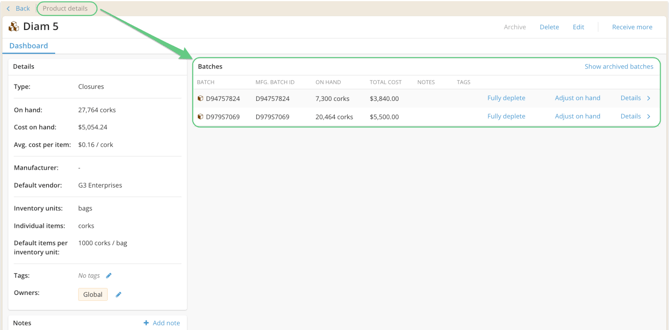
From the Product details page, in the Batches tile, click on *Details* (far right) to open the Batch History. This opens the Batch details page.
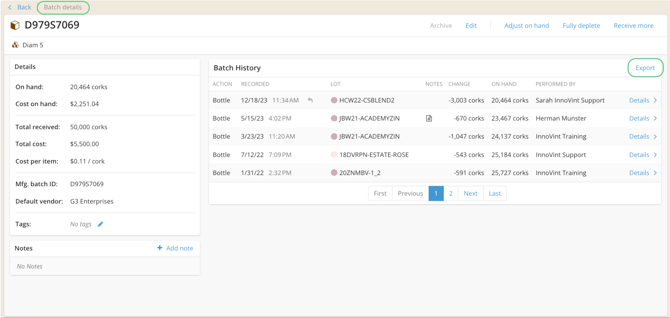
Batch histories can be exported to a csv file by clicking on Export in the top far right of the History card.
### Additive History Report
This report is part of the advanced reporting features available with a MAKE PLUS subscription. Please reach out to [Support](mailto:support@innovint.us) to learn more!
Download the Additive History Report to view all actions and adjustments involving additive batches within a date range, including addition actions and receiving new inventory.
Go to Reporting \> Activity Reports \> Additive History Report. Select your date range, then download.
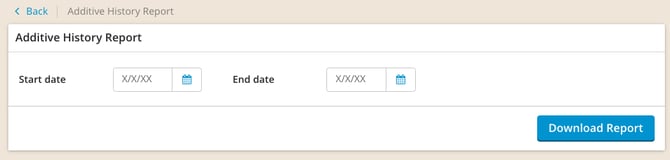
The export provides a batch-by-batch, lot-by-lot breakdown of used, scrap, and adjusted amounts.
Cost changes are included if COGS Tracking is activated. Check out this article for additional information on [Dry Goods Tracking & COGS.](https://support.innovint.us/hc/en-us/cogs-and-dry-goods-tracking?hsLang=en)
### Packaging History Report
This report is part of the advanced reporting features available with a MAKE PLUS subscription. Please reach out to [Support](mailto:support@innovint.us) to learn more!
Download the Packaging History Report to view all actions and adjustments involving packaging batches within a date range, including bottling actions, add packaging actions, adjustments, depletions, and receiving new inventory.
Go to Reporting \> Activity Reports \> Packaging History Report. Select your date range, then download.

The export provides a batch-by-batch breakdowns of used, scrap, and adjusted amounts. Sort by product name, juice/wine lot code, case good lot code, product owner, etc.
Cost changes are included if COGS Tracking is activated with FINANCE. Check out this article for additional information on [Dry Goods Tracking & COGS.](https://support.innovint.us/hc/en-us/cogs-and-dry-goods-tracking?hsLang=en)
### Dry Goods at Point in Time Report
Use the Dry Goods at Point in Time Report to get your on-hand quantity — and cost, if your account has FINANCE — for every additive or packaging batch as of a specific date and time.
This report is part of the advanced reporting features available with a MAKE PLUS subscription, OR is included with any FINANCE subscription. Please reach out to [Support](mailto:support@innovint.us) to learn more!
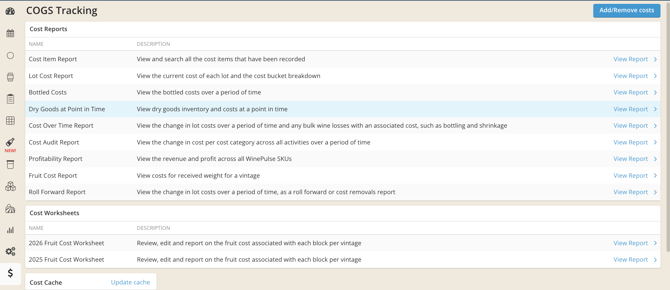
Go to Reporting \> Reports Explorer \> Dry Goods at Point in Time.
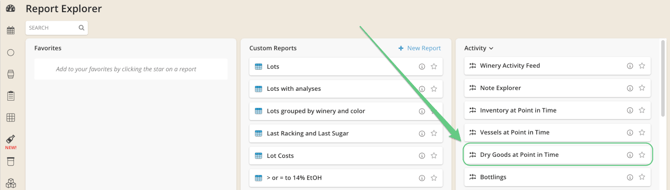
Select Additives or Packaging, set your date and time, optionally include batches with zero on-hand inventory, then download the Excel export.
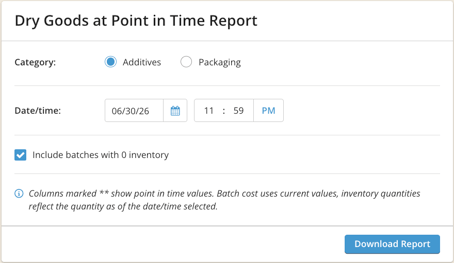
The export includes active and archived batches with a batch on-hand quantity as of your selected date/time.
The report does not include batches with 0 inventory that did not exist when the report is pulled; batches are only included if they were been created before the report's date and time.
If your account has FINANCE and you have costing access, it also includes batch on-hand cost and cost per item. This report can also be found in the COGS Explorer! Find out more about Dry Goods and COGS [here](https://support.innovint.us/hc/en-us/cogs-and-dry-goods-tracking?hsLang=en).
📌 Only the on-hand quantity is truly “as of” your selected date.
On-hand cost does not calculate based on the unit cost that was actually in effect on your selected date. On-hand cost is calculated by applying the batch's current cost per item (unit cost) to the historical quantity. Find out more in the [Dry Goods & COGS Reporting](https://support.innovint.us/hc/en-us/cogs-and-dry-goods-tracking?hsLang=en) article.
### FAQ
**Q. How do I find my inventory at a point in time?**
*A. The fastest way is the [Dry Goods at Point in Time Report](https://support.innovint.us/hc/en-us/articles/115000871603-reporting-on-additions-per-additive-or-batch-number#DG_PiT) (see above) — set your date and time, download, and you're done.*
*If you do not see this report, it is available for MAKE Plus subscriptions (with or without FINANCE), or any subscription including FINANCE (including MAKE Core).*
*If you need full transaction-level detail rather than a snapshot, you can still use the Additive or Packaging History Report and a pivot table: run the report from the earliest date a product was received through your desired point-in-time date, then pivot to total on-hand quantity (and cost, if applicable).*
**Q. Why does my on-hand inventory show a negative number?**
*A. Negative on-hand inventory indicates that more additive was used of that batch than was entered into the system. For example, 5kg of DV10 yeast, Batch # 12345 was entered into InnoVint as the Total Amount. Over the course of harvest, 6.2kg of DV10 yeast, Batch #12345 was used. InnoVint will show that Batch # 12345 now has an on-hand inventory of -1.2kg.*
*To update the on-hand inventory, you'll need to either A) edit the batch to change the total amount of the additive, or B) adjust the on-hand inventory from the Additive details page. Make sure to fully deplete a batch when it has been used up to avoid selecting a batch number that no longer exists in inventory for future additions.*
*Note: For accounts with the Costing feature activated, a negative batch inventory will still apply costs on a price-per-unit basis. For example, 5kg of DV10 yeast, Batch # 8675309 might cost $450, or $0.09 per gram. If Batch # 8675309 currently has a negative inventory and is selected and used in an Addition action, InnoVint will still calculate and apply the $0.09 per gram of yeast to the appropriate lot(s).*
- [New to InnoVint](https://support.innovint.us/hc/en-us/new-to-innovint?hsLang=en#main-content)
- [Accessing InnoVint](https://support.innovint.us/hc/en-us/new-to-innovint?hsLang=en#accessing-innovint)
- [Settings - MAKE, GROW & FINANCE](https://support.innovint.us/hc/en-us/new-to-innovint?hsLang=en#settings-make-grow-finance)
- [Getting Started - MAKE, GROW & FINANCE](https://support.innovint.us/hc/en-us/new-to-innovint?hsLang=en#getting-started-make-grow-finance)
- [MAKE](https://support.innovint.us/hc/en-us/make?hsLang=en#main-content)
- [Dashboard & Calendar](https://support.innovint.us/hc/en-us/make?hsLang=en#dashboard-calendar)
- [Lots](https://support.innovint.us/hc/en-us/make?hsLang=en#lots)
- [Vessels](https://support.innovint.us/hc/en-us/make?hsLang=en#vessels)
- [Work Orders](https://support.innovint.us/hc/en-us/make?hsLang=en#work-orders)
- [Recording Actions](https://support.innovint.us/hc/en-us/make?hsLang=en#recording-actions)
- [Movement Actions](https://support.innovint.us/hc/en-us/make?hsLang=en#movement-actions)
- [Topping](https://support.innovint.us/hc/en-us/make?hsLang=en#topping)
- [Analysis](https://support.innovint.us/hc/en-us/make?hsLang=en#analysis)
- [Analysis Reports](https://support.innovint.us/hc/en-us/make?hsLang=en#analysis-reports)
- [Additions](https://support.innovint.us/hc/en-us/make?hsLang=en#additions)
- [Case Goods in MAKE](https://support.innovint.us/hc/en-us/make?hsLang=en#case-goods-in-make)
- [Dry Goods](https://support.innovint.us/hc/en-us/make?hsLang=en#dry-goods)
- [Vineyards](https://support.innovint.us/hc/en-us/make?hsLang=en#vineyards)
- [Reporting](https://support.innovint.us/hc/en-us/make?hsLang=en#reporting)
- [Compliance](https://support.innovint.us/hc/en-us/make?hsLang=en#compliance)
- [Tags & Notes](https://support.innovint.us/hc/en-us/make?hsLang=en#tags-notes)
- [Printing Labels from InnoVint](https://support.innovint.us/hc/en-us/make?hsLang=en#printing-labels-from-innovint)
- [AI](https://support.innovint.us/hc/en-us/make?hsLang=en#ai)
- [GROW](https://support.innovint.us/hc/en-us/grow?hsLang=en)
- [FINANCE](https://support.innovint.us/hc/en-us/finance?hsLang=en#main-content)
- [Getting Started](https://support.innovint.us/hc/en-us/finance?hsLang=en#getting-started)
- [Reporting](https://support.innovint.us/hc/en-us/finance?hsLang=en#reporting)
- [Guidance & FAQ](https://support.innovint.us/hc/en-us/finance?hsLang=en#guidance-faq)
- [Harvest](https://support.innovint.us/hc/en-us/harvest?hsLang=en#main-content)
- [Preparing for Harvest](https://support.innovint.us/hc/en-us/harvest?hsLang=en#preparing-for-harvest)
- [Vineyard Harvest Reports](https://support.innovint.us/hc/en-us/harvest?hsLang=en#vineyard-harvest-reports)
- [Harvest Workflow & Fermentation Tracking](https://support.innovint.us/hc/en-us/harvest?hsLang=en#harvest-workflow-fermentation-tracking)
- [Settings & Preferences](https://support.innovint.us/hc/en-us/harvest?hsLang=en#settings-preferences)
- [MAKE: Advanced Features](https://support.innovint.us/hc/en-us/make-advanced-features?hsLang=en#main-content)
- [Owner-based Permissions System](https://support.innovint.us/hc/en-us/make-advanced-features?hsLang=en#owner-based-permissions-system)
- [Custom Attributes](https://support.innovint.us/hc/en-us/make-advanced-features?hsLang=en#custom-attributes)
- [Blend Trials](https://support.innovint.us/hc/en-us/make-advanced-features?hsLang=en#blend-trials)
- [Tank Maps](https://support.innovint.us/hc/en-us/make-advanced-features?hsLang=en#tank-maps)
- [Sparkling Wine Module](https://support.innovint.us/hc/en-us/make-advanced-features?hsLang=en#sparkling-wine-module)
- [Intended Use](https://support.innovint.us/hc/en-us/make-advanced-features?hsLang=en#intended-use)
- [Integrations](https://support.innovint.us/hc/en-us/make-advanced-features?hsLang=en#integrations)
- [SUPPLY](https://support.innovint.us/hc/en-us/supply?hsLang=en#main-content)
- [Getting Started with SUPPLY](https://support.innovint.us/hc/en-us/supply?hsLang=en#getting-started-with-supply)
- [Actions in SUPPLY](https://support.innovint.us/hc/en-us/supply?hsLang=en#actions-in-supply)
- [Using SUPPLY](https://support.innovint.us/hc/en-us/supply?hsLang=en#using-supply)
- [Order Management](https://support.innovint.us/hc/en-us/supply?hsLang=en#order-management)
- [InnoApp](https://support.innovint.us/hc/en-us/innoapp?hsLang=en#main-content)
- [InnoApp](https://support.innovint.us/hc/en-us/innoapp?hsLang=en#innoapp)
- [InnoApp - Work Orders](https://support.innovint.us/hc/en-us/innoapp?hsLang=en#innoapp-work-orders)
- [Guidance & FAQs](https://support.innovint.us/hc/en-us/guidance-faqs?hsLang=en#main-content)
- [Frequently Asked Questions](https://support.innovint.us/hc/en-us/guidance-faqs?hsLang=en#frequently-asked-questions)
- [Specialized Workflows](https://support.innovint.us/hc/en-us/guidance-faqs?hsLang=en#specialized-workflows)
- [Best Practices](https://support.innovint.us/hc/en-us/guidance-faqs?hsLang=en#best-practices)
- [Templates](https://support.innovint.us/hc/en-us/guidance-faqs?hsLang=en#templates)
- [InnoVint Academy](https://support.innovint.us/hc/en-us/innovint-academy?hsLang=en#main-content)
- [Video Trainings/Tutorials](https://support.innovint.us/hc/en-us/innovint-academy?hsLang=en#video-trainings-tutorials)
- [Video Informational Sessions](https://support.innovint.us/hc/en-us/innovint-academy?hsLang=en#video-informational-sessions)
- [Quick Video Tutorials](https://support.innovint.us/hc/en-us/innovint-academy?hsLang=en#quick-video-tutorials)
- [Product Updates](https://support.innovint.us/hc/en-us/product-updates?hsLang=en#main-content)
- [Product Updates: 2025-2026](https://support.innovint.us/hc/en-us/product-updates?hsLang=en#product-updates-2025-2026)
- [Product Updates: 2024](https://support.innovint.us/hc/en-us/product-updates?hsLang=en#product-updates-2024)
- [Product Updates: 2023](https://support.innovint.us/hc/en-us/product-updates?hsLang=en#product-updates-2023)
- [Product Updates: 2017 - 2022](https://support.innovint.us/hc/en-us/product-updates?hsLang=en#product-updates-2017-2022)
- [Support Hours & FAQs](https://support.innovint.us/hc/en-us/support-hours-faqs?hsLang=en)
[](https://support.innovint.us/hc/en-us?hsLang=en)
Copyright © 2025, InnoVint