---
title: Using AI Analysis Import
description: Learn how to use the Analysis Import (AI) feature to leverage AI and easily import images. AI Image Import lets you quickly digitize analysis data for juice and wine lots just by taking a photo of your results, reducing manual data entry during busy winery operations
---
[Skip to content](https://support.innovint.us/hc/en-us/ai-image-import#main-content)
[Submit a help ticket](https://support.innovint.us/hc/en-us/kb-tickets/new?hsLang=en)
![InnoVintSupportCenter - header.png\]](https://support.innovint.us/hs-fs/hubfs/InnoVintSupportCenter%20-%20header.png?width=300&height=22&name=InnoVintSupportCenter%20-%20header.png)
Open main navigation
Close main navigation
- [Submit a help ticket](https://support.innovint.us/hc/en-us/kb-tickets/new)
How can we help you today?
- There are no suggestions because the search field is empty.
1. [Support Center](https://support.innovint.us/hc/en-us?hsLang=en)
2. [MAKE](https://support.innovint.us/hc/en-us/make?hsLang=en)
3. [Analysis](https://support.innovint.us/hc/en-us/make?hsLang=en#analysis)
# Using AI Analysis Import
AI Analysis Import lets you quickly digitize analysis data for juice and wine lots just by taking a photo, or uploading a file of your results, reducing manual data entry during busy winery operations.
- [What is AI Analysis Import?](https://support.innovint.us/hc/en-us/ai-image-import#what)
- [Where to find the AI Analysis Import Action](https://support.innovint.us/hc/en-us/ai-image-import#Where)
- [How to use AI Analysis Import](https://support.innovint.us/hc/en-us/ai-image-import#How)
- [How to enable the AI Analysis Import Action](https://support.innovint.us/hc/en-us/ai-image-import#Settings)
- [Video Tutorial](https://support.innovint.us/hc/en-us/ai-image-import#video-tutorial)
### What Is AI Analysis Import?
AI Analysis Import is an import action that uses artificial intelligence to read analysis data from a photo or file and populate the corresponding fields in InnoVint for juice and wine lots.
It is designed to:
- Save time during harvest and lab work
- Reduce manual typing and transcription errors
- Speed up data entry when working in the cellar or lab
### Where to find the AI Analysis Import Action
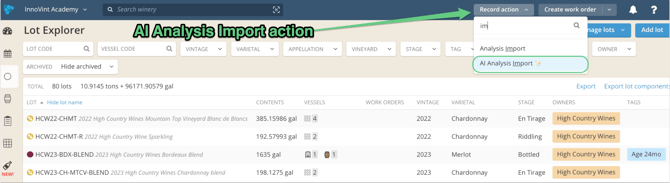
**AI Analysis Import** is an entirely new action you can find in your Record Action dropdown menus.
### How to use AI Analysis Import
Follow the steps below to import analysis data from an image or file into InnoVint.
#### Step 1: Navigate to the **AI** **Analysis Import** action in the Record Action menu
- This is similar to the regular Analysis Import action, but instead of uploading a CSV file, you will upload an image, pdf, CSV or Excel file.
#### Step 2: Prepare your file
- The file must be saved on your computer.
- If you take a photo using your phone, transfer it to your computer first (for example, via email or AirDrop).
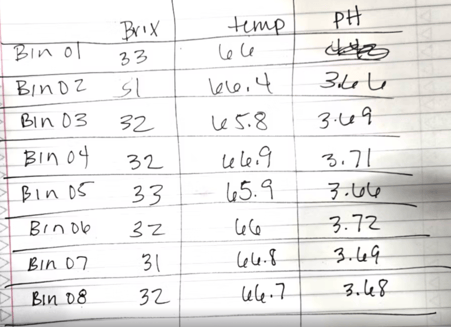
- Supported images include screenshots, photos of handwritten notes or lab printouts, or photos of your computer screen!
📌 **Tip**: Try a picture of your SPICA or Y15 output, brix/temp notebook, or your lab notebook!
#### Step 3: Upload the image
1. Click **Choose File** and select your image.
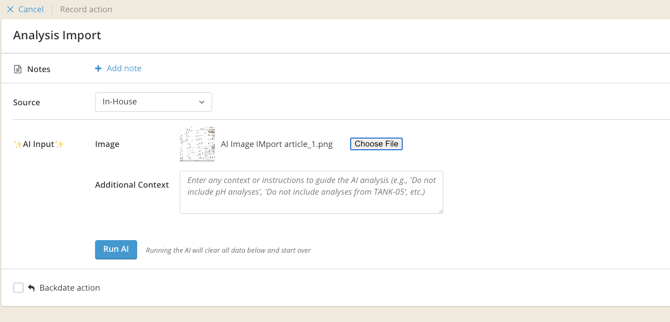
2. Once uploaded, the AI will automatically analyze the image and begin mapping the data to InnoVint.

#### Step 4: Review lot and vessel mapping
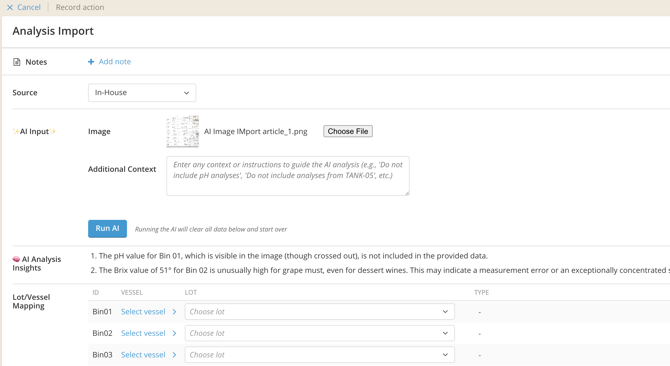
In the **Lot and Vessel Mapping** section, review what the AI detected.
- If the vessel and lot already exist in InnoVint, they may be matched automatically.
- Example: If a tank code exists in InnoVint, the system will match it directly.
- If a vessel contains only one lot, the lot code may be auto-filled even if it is not written on the image.
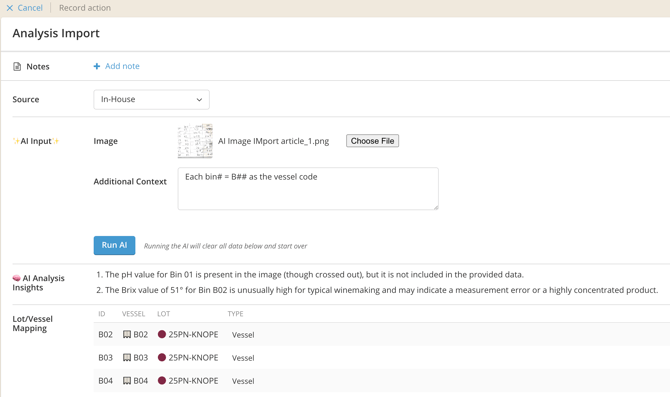
- If you don’t add context initially, the AI will make its best interpretation based on the image alone. If the lot/vessels do not map as anticipated, try using the **Additional Context** field in Step 5.
#### Step 5 (Optional): Using the “Additional Context” Field
The **Additional Context** field lets you give the AI extra instructions about how to interpret an image before, or after, importing analysis data. The Additional Context field gives you flexible, fine-grained control over how images are interpreted—making imports more accurate and reducing cleanup time. This is especially useful when units, tanks, or readings (such as a control result) need special handling.
##### When to use Additional Context
Use this field if you need to:
- Specify units (for example, Celsius vs. Fahrenheit)
- Ignore certain tanks or readings
- Clarify ambiguous handwritten or formatted data
- Apply consistent rules to recurring image formats or wording
##### How to add context to an image import
1. Start an **AI Analysis Import** and upload your image as usual.
2. Review the data mapping, and then, if you want to tweak the AI's interpretation, you can type clear instructions for the AI in the **Additional Context** field.
- Examples:
- “Temperature values are in Celsius.”
- “Ignore all readings from tank 40.”
- "Ignore the control reading"
3. Click **Run AI** to reprocess the image using your instructions. The AI will apply your context, such as:
- Converting temperature units correctly
- Removing analyses you asked it to ignore
- Provide insight to the prompt about vessel coding conventions and abbreviations - such as "vessel code starts with "BIN-XXXX" where XXXX is the number of the bin".
- "Ignore column B"
##### 📌 Tips for best results
- Be specific and concise when writing instructions.
- Use plain language (for example, “Ignore tank 40” instead of long explanations).
- If you frequently import similar images, save your context somewhere so you can copy/paste and reuse it for future imports.
Step 6: Review imported analysis values
- Review each analysis value.
- Units do not need to be written on the image, but you should confirm the units that the AI selects.
- For example, a temperature value like “65” might be interpreted as Fahrenheit.
- Always confirm that all values match the original image before proceeding.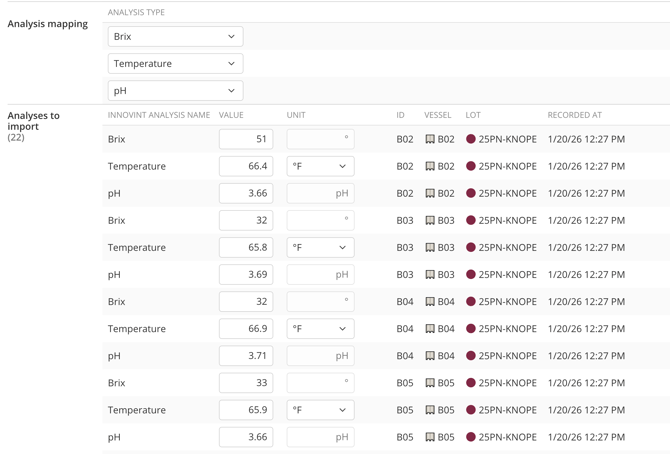
#### Step 7: Resolve missing or unmatched vessels or lots (if needed)
If the image references a vessel or lot that does **not** exist in your InnoVint account:
- Manually select the correct **lot** and **vessel** from the dropdown options.
- Once selected, the mapping will automatically apply to all relevant rows.
- Remove the problem lot/vessel
- Use the "remove lot" button to the right of the mapped lot/vessel
- Use the Additional Context field to prompt the AI to update the lot or vessel entirely.
#### Step 8: Record the analysis
1. After reviewing all mappings and values, click **Record**.
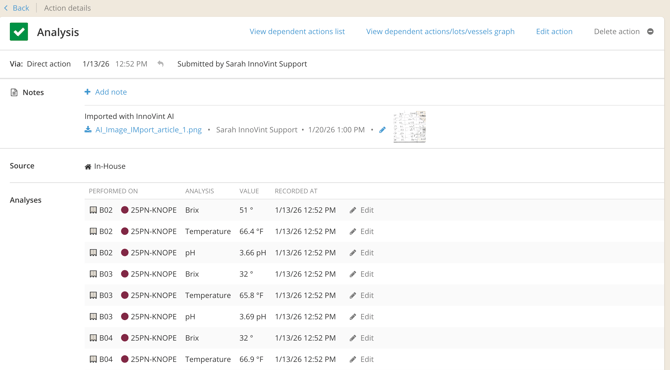
Once recorded, your analysis data is saved and linked to the appropriate lots and vessels. The original image is attached to the completed action for reference and audit comparison
### How to enable the AI Analysis Import action
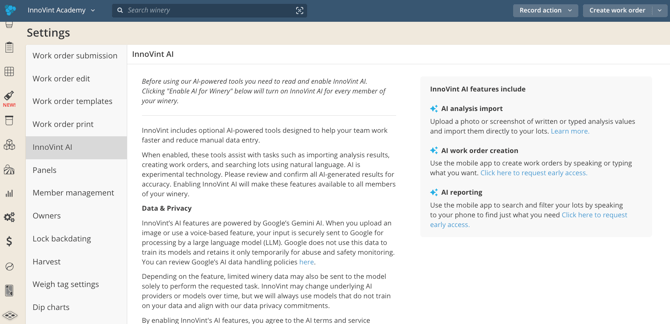
An account admin must use the InnoVint AI settings page to opt into AI features. If AI features have been activated on the Setting page, then all users with write access (Team Member, Team Member Cannot Submit and Admin) will see the AI Analysis Import action, and any other activated AI features.
#### A note on Data & Privacy
AI Image Import is powered by **Google’s Gemini AI**.
When you upload an image:
- The image is sent to Google for processing by a large language model (LLM), which is designed to understand text and images.
- **Your winery identity and internal InnoVint data are never shared** with the LLM.
- Google does **not** use your data to train its models.
- Data is stored **temporarily** by Google only to monitor for misuse.
### Video Tutorial
- [New to InnoVint](https://support.innovint.us/hc/en-us/new-to-innovint?hsLang=en#main-content)
- [Accessing InnoVint](https://support.innovint.us/hc/en-us/new-to-innovint?hsLang=en#accessing-innovint)
- [Settings - MAKE, GROW & FINANCE](https://support.innovint.us/hc/en-us/new-to-innovint?hsLang=en#settings-make-grow-finance)
- [Getting Started - MAKE, GROW & FINANCE](https://support.innovint.us/hc/en-us/new-to-innovint?hsLang=en#getting-started-make-grow-finance)
- [MAKE](https://support.innovint.us/hc/en-us/make?hsLang=en#main-content)
- [Dashboard & Calendar](https://support.innovint.us/hc/en-us/make?hsLang=en#dashboard-calendar)
- [Lots](https://support.innovint.us/hc/en-us/make?hsLang=en#lots)
- [Vessels](https://support.innovint.us/hc/en-us/make?hsLang=en#vessels)
- [Work Orders](https://support.innovint.us/hc/en-us/make?hsLang=en#work-orders)
- [Recording Actions](https://support.innovint.us/hc/en-us/make?hsLang=en#recording-actions)
- [Movement Actions](https://support.innovint.us/hc/en-us/make?hsLang=en#movement-actions)
- [Topping](https://support.innovint.us/hc/en-us/make?hsLang=en#topping)
- [Analysis](https://support.innovint.us/hc/en-us/make?hsLang=en#analysis)
- [Analysis Reports](https://support.innovint.us/hc/en-us/make?hsLang=en#analysis-reports)
- [Additions](https://support.innovint.us/hc/en-us/make?hsLang=en#additions)
- [Case Goods in MAKE](https://support.innovint.us/hc/en-us/make?hsLang=en#case-goods-in-make)
- [Dry Goods](https://support.innovint.us/hc/en-us/make?hsLang=en#dry-goods)
- [Vineyards](https://support.innovint.us/hc/en-us/make?hsLang=en#vineyards)
- [Reporting](https://support.innovint.us/hc/en-us/make?hsLang=en#reporting)
- [Compliance](https://support.innovint.us/hc/en-us/make?hsLang=en#compliance)
- [Tags & Notes](https://support.innovint.us/hc/en-us/make?hsLang=en#tags-notes)
- [Printing Labels from InnoVint](https://support.innovint.us/hc/en-us/make?hsLang=en#printing-labels-from-innovint)
- [AI](https://support.innovint.us/hc/en-us/make?hsLang=en#ai)
- [GROW](https://support.innovint.us/hc/en-us/grow?hsLang=en)
- [FINANCE](https://support.innovint.us/hc/en-us/finance?hsLang=en#main-content)
- [Getting Started](https://support.innovint.us/hc/en-us/finance?hsLang=en#getting-started)
- [Reporting](https://support.innovint.us/hc/en-us/finance?hsLang=en#reporting)
- [Guidance & FAQ](https://support.innovint.us/hc/en-us/finance?hsLang=en#guidance-faq)
- [Harvest](https://support.innovint.us/hc/en-us/harvest?hsLang=en#main-content)
- [Preparing for Harvest](https://support.innovint.us/hc/en-us/harvest?hsLang=en#preparing-for-harvest)
- [Vineyard Harvest Reports](https://support.innovint.us/hc/en-us/harvest?hsLang=en#vineyard-harvest-reports)
- [Harvest Workflow & Fermentation Tracking](https://support.innovint.us/hc/en-us/harvest?hsLang=en#harvest-workflow-fermentation-tracking)
- [Settings & Preferences](https://support.innovint.us/hc/en-us/harvest?hsLang=en#settings-preferences)
- [MAKE: Advanced Features](https://support.innovint.us/hc/en-us/make-advanced-features?hsLang=en#main-content)
- [Owner-based Permissions System](https://support.innovint.us/hc/en-us/make-advanced-features?hsLang=en#owner-based-permissions-system)
- [Custom Attributes](https://support.innovint.us/hc/en-us/make-advanced-features?hsLang=en#custom-attributes)
- [Blend Trials](https://support.innovint.us/hc/en-us/make-advanced-features?hsLang=en#blend-trials)
- [Tank Maps](https://support.innovint.us/hc/en-us/make-advanced-features?hsLang=en#tank-maps)
- [Sparkling Wine Module](https://support.innovint.us/hc/en-us/make-advanced-features?hsLang=en#sparkling-wine-module)
- [Intended Use](https://support.innovint.us/hc/en-us/make-advanced-features?hsLang=en#intended-use)
- [Integrations](https://support.innovint.us/hc/en-us/make-advanced-features?hsLang=en#integrations)
- [SUPPLY](https://support.innovint.us/hc/en-us/supply?hsLang=en#main-content)
- [Getting Started with SUPPLY](https://support.innovint.us/hc/en-us/supply?hsLang=en#getting-started-with-supply)
- [Actions in SUPPLY](https://support.innovint.us/hc/en-us/supply?hsLang=en#actions-in-supply)
- [Using SUPPLY](https://support.innovint.us/hc/en-us/supply?hsLang=en#using-supply)
- [Order Management](https://support.innovint.us/hc/en-us/supply?hsLang=en#order-management)
- [InnoApp](https://support.innovint.us/hc/en-us/innoapp?hsLang=en#main-content)
- [InnoApp](https://support.innovint.us/hc/en-us/innoapp?hsLang=en#innoapp)
- [InnoApp - Work Orders](https://support.innovint.us/hc/en-us/innoapp?hsLang=en#innoapp-work-orders)
- [Guidance & FAQs](https://support.innovint.us/hc/en-us/guidance-faqs?hsLang=en#main-content)
- [Frequently Asked Questions](https://support.innovint.us/hc/en-us/guidance-faqs?hsLang=en#frequently-asked-questions)
- [Specialized Workflows](https://support.innovint.us/hc/en-us/guidance-faqs?hsLang=en#specialized-workflows)
- [Best Practices](https://support.innovint.us/hc/en-us/guidance-faqs?hsLang=en#best-practices)
- [Templates](https://support.innovint.us/hc/en-us/guidance-faqs?hsLang=en#templates)
- [InnoVint Academy](https://support.innovint.us/hc/en-us/innovint-academy?hsLang=en#main-content)
- [Video Trainings/Tutorials](https://support.innovint.us/hc/en-us/innovint-academy?hsLang=en#video-trainings-tutorials)
- [Video Informational Sessions](https://support.innovint.us/hc/en-us/innovint-academy?hsLang=en#video-informational-sessions)
- [Quick Video Tutorials](https://support.innovint.us/hc/en-us/innovint-academy?hsLang=en#quick-video-tutorials)
- [Product Updates](https://support.innovint.us/hc/en-us/product-updates?hsLang=en#main-content)
- [Product Updates: 2025-2026](https://support.innovint.us/hc/en-us/product-updates?hsLang=en#product-updates-2025-2026)
- [Product Updates: 2024](https://support.innovint.us/hc/en-us/product-updates?hsLang=en#product-updates-2024)
- [Product Updates: 2023](https://support.innovint.us/hc/en-us/product-updates?hsLang=en#product-updates-2023)
- [Product Updates: 2017 - 2022](https://support.innovint.us/hc/en-us/product-updates?hsLang=en#product-updates-2017-2022)
- [Support Hours & FAQs](https://support.innovint.us/hc/en-us/support-hours-faqs?hsLang=en)
[](https://support.innovint.us/hc/en-us?hsLang=en)
Copyright © 2025, InnoVint